
Whiteout PDF Online Free
Whiteout PDF text and images in any color, then type over the covered area if you need to.
- No upload
- No watermark
- No sign-up
- Type over it
Whiteout PDF content online for free, just like correction tape on paper. Drag a white box over a word, a number or a whole paragraph, then type something new on top if you need to. Your file is never uploaded.
How to Whiteout PDF Text in 4 Steps
It takes one drag to whiteout PDF lines, and a few seconds more to retype them.
Open your PDF
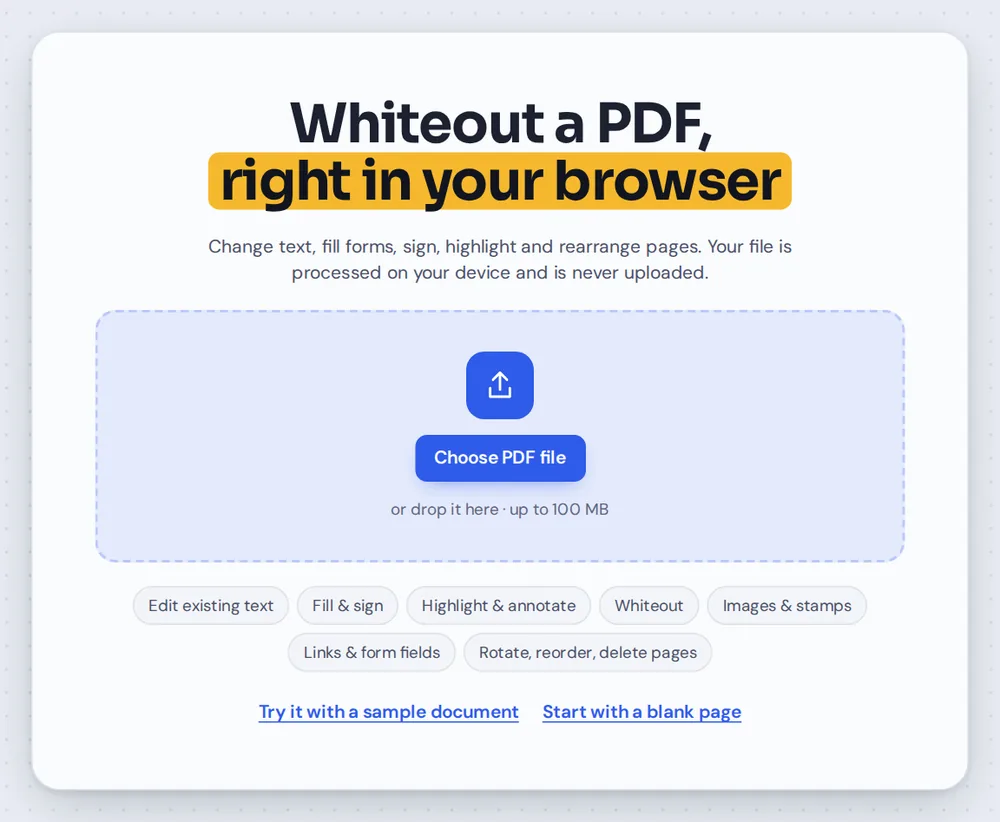
Click Choose PDF file or drag your document onto the editor above. The whiteout tool is already selected.

Drag over what to hide
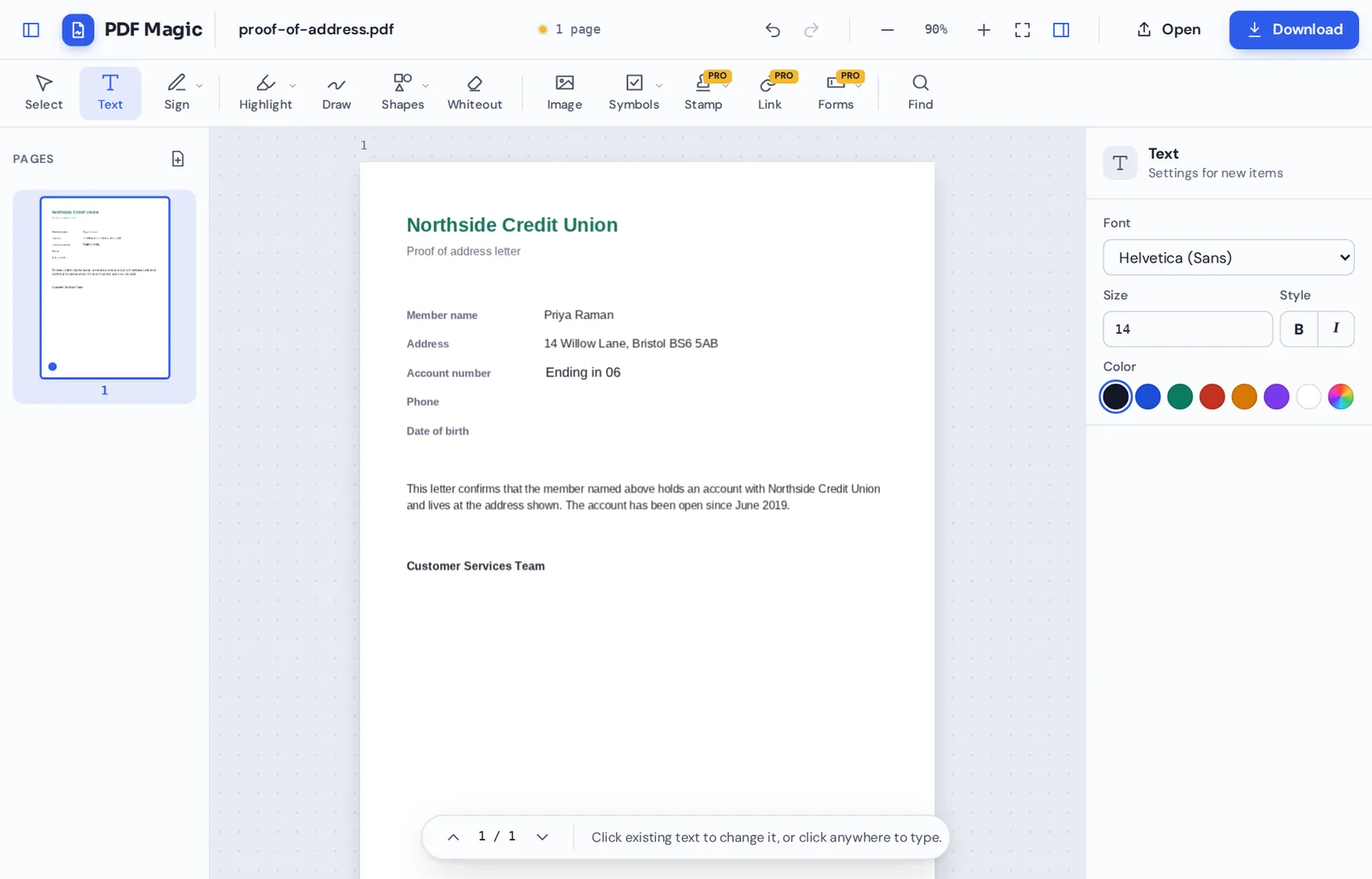
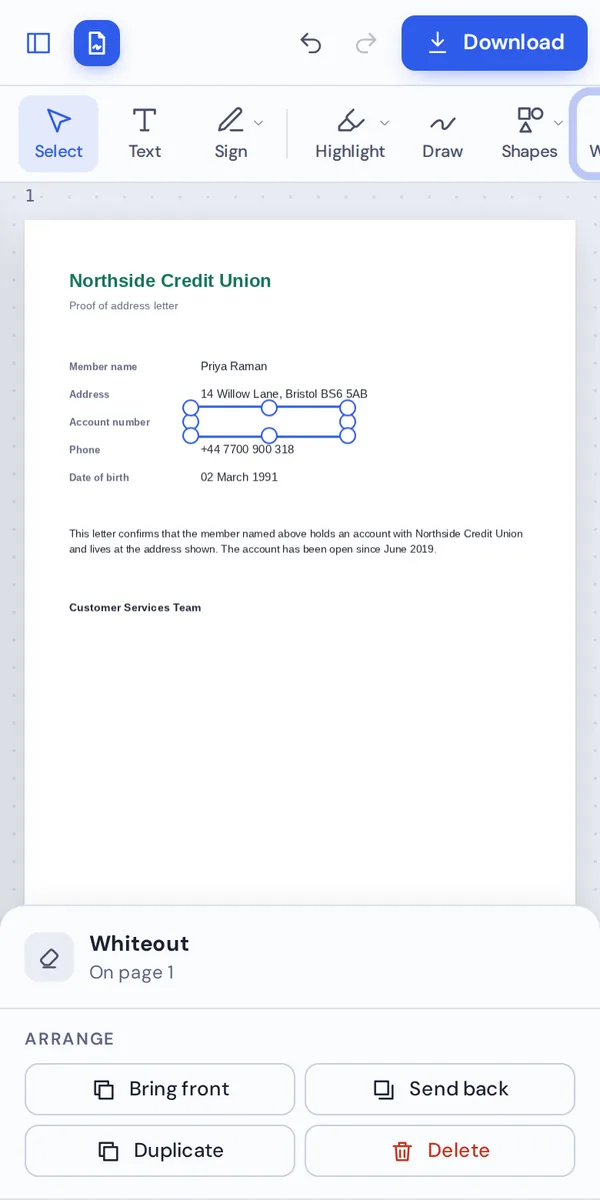
Drag a box over the text, number or picture you want to cover. Drag the handles to adjust it.

Cover the rest
Press W to draw another box. Add as many as you need, on any page.
Download your file
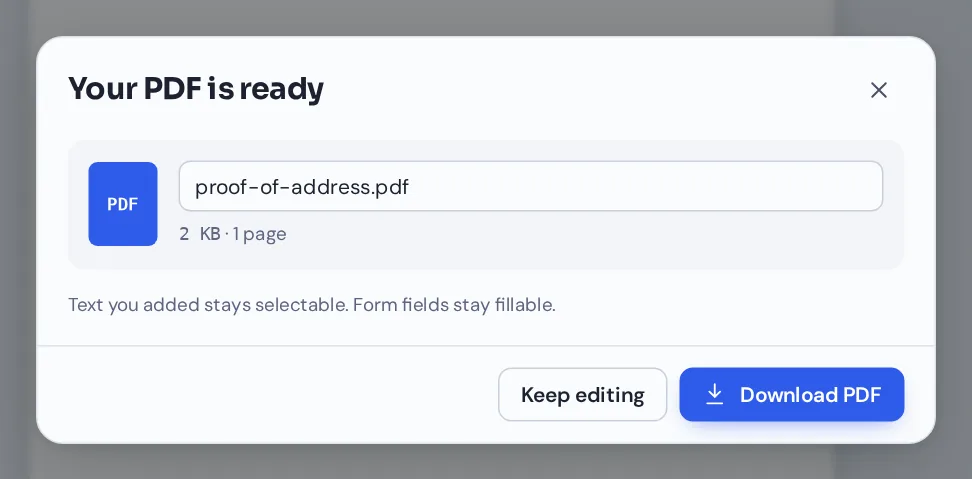
Click Download and name your file. The white boxes print and display in every PDF reader.
Whiteout PDF Details, Then Type Something New
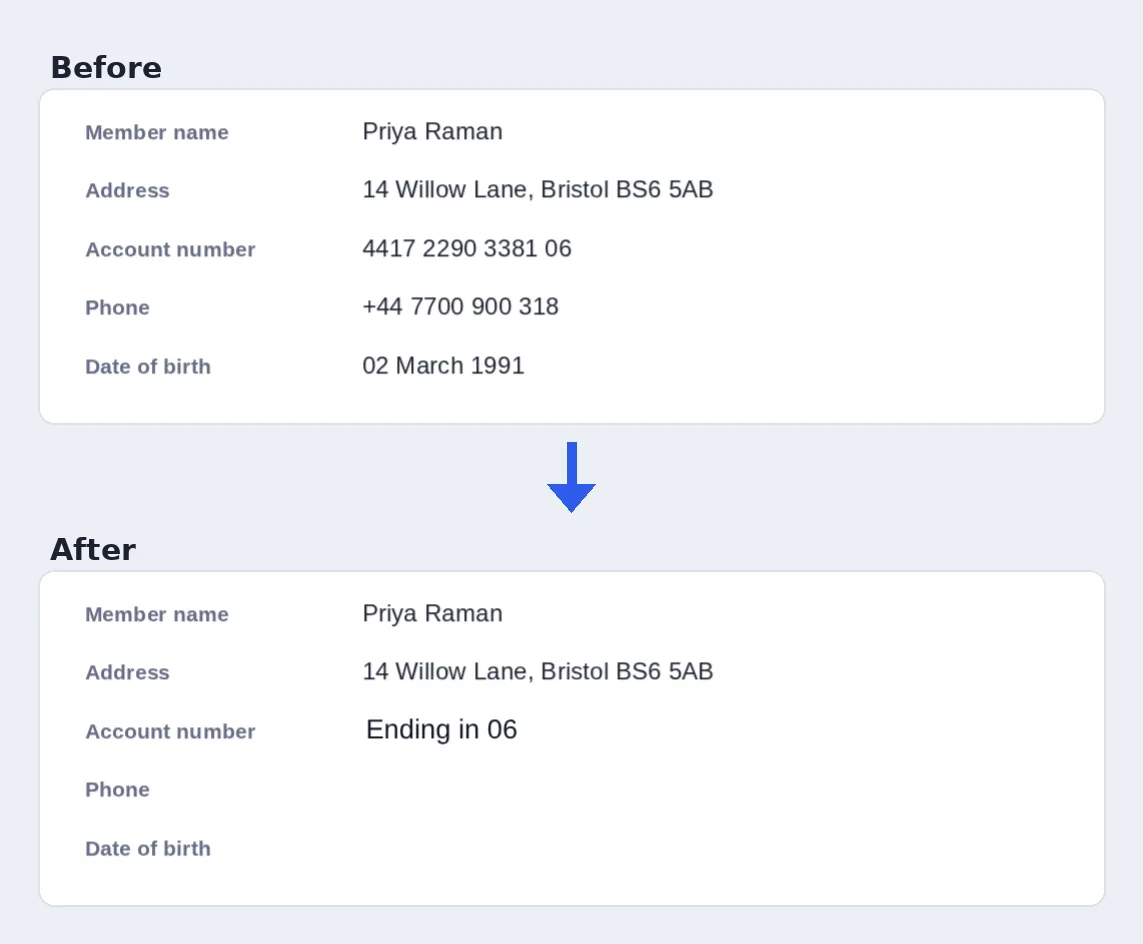
The account number, phone and date of birth covered, with a short note typed over the first box.
What Happens When You Whiteout PDF Content
When you whiteout PDF content with PDF Magic, a white box is placed on top of the page. On screen and on paper, whatever is underneath is hidden.
The covered content is still inside the file, though. Someone could copy the text or remove the box with other software. That makes whiteout right for tidying a document, fixing mistakes and preparing forms, but not for truly private information.
To remove information for good, delete the page it is on, or use redaction (coming to PDF Magic Pro), which removes the content from the file itself.
Whiteout
Covers content visually. Great for corrections and clean copies.
Redaction
Removes content from the file for good. Coming to PDF Magic Pro.
Delete the page
Removes a whole page and everything on it.
Everything You Can Do When You Whiteout PDF Pages
After you whiteout PDF content, select a white box to move it, resize it or remove it.
Cover
Hide anything on the page.
- Text and numbers
Drag over a word, a line or a whole paragraph.
- Pictures and logos
Cover an old logo, a stamp or a signature box.
- Scanned pages
Whiteout works on scans too, because it simply covers part of the picture.
Replace
Correction tape, then a pen.
- Type on top
Pick the Text tool and click a white box to type new words on it.
- Match the style
Change the font, size and color of the new text in the side panel.
Adjust
Get the box exactly right.
- Move and resize
Drag the box or its handles. Use the arrow keys to nudge it.
- Duplicate
Press Ctrl+D to copy a box for the next line.
- Undo
Press Ctrl+Z to step back.
Download
Save the clean copy.
- Prints the same
White boxes look the same on screen and on paper.
- No watermark
Your document looks exactly like yours.
Related Tools in the Same Editor
They open the same document in the same editor, so nothing is uploaded.
Add text to PDF
Type new words on top of the white box.
Edit PDF text
Change a line of real text in place.
Delete PDF pages
Remove a whole page for good.
Add image to PDF
Put a new logo where the old one was.
Sign PDF
Sign the corrected document.
PDF Editor
Every editing tool in one place.
Private by Design, With No Upload
When you whiteout PDF files here, the document is opened and changed inside your own browser tab. It is never sent to our servers.
Remember that covered content is still in the file you download. For information that must never be seen, delete the page or use redaction.
- 0files uploadedYour PDF stays on your device.
- 0watermarksYour document looks like yours.
- 0accounts neededOpen the page and start.
Works on iPhone, Android and Computer
- Windows
- Mac
- Linux
- Chromebook
- iPhone
- iPad
- Android
It works in any modern browser, with nothing to install. On a phone or tablet, drag your finger across the line you want to cover.
Need to tidy up a form before you send it? Open it on your phone, whiteout PDF details and type the new ones on top.
When People Use This Tool
People whiteout PDF content when something on the page is wrong or out of date.
Reusing forms
Clear old answers and fill the form in again.
Invoices
Cover an old price or date and type the new one.
Old logos
Cover an old logo before adding the new one.
Worksheets
Blank out answers to make a practice copy.
Shared copies
Tidy notes and marks before sharing a document.
Scans
Cover stray marks and smudges on scanned pages.
Pro Tips for Faster Results
- Zoom in firstA closer view makes it easy to cover exactly the right area.
- Leave a small marginMake the box a little bigger than the text so no edges show.
- Retype in the same styleMatch the font and size so the new text blends in.
- Not for secretsCovered text is still in the file. Delete the page for anything private.
- Colored backgroundsA white box shows on colored areas, so use it on white parts of the page.
- Undo anythingCtrl+Z steps back if a box lands in the wrong place.
Whiteout PDF: Frequently Asked Questions
Answers to what people ask most before they start.
How do I whiteout PDF?
Open your PDF, choose Whiteout and drag a box over the text or picture you want to cover. You can then type new text on top, and click Download.
Can I whiteout PDF for free?
Yes. Whiteout and downloading are free, with no account and no watermark.
Can I whiteout PDF online?
Yes. PDF Magic runs in your web browser, so you can whiteout PDF text online on Windows, Mac, Linux or a Chromebook with nothing to install. Open your file in the tool at the top of this page to start.
How do I whiteout PDF on my phone?
Open this page in your phone's browser, tap Choose PDF file and pick your document. Choose Whiteout and drag your finger over what you want to cover. Then tap Download. There is no app to install.
Can I whiteout PDF without Adobe Acrobat?
Yes. You do not need Acrobat or any other software. PDF Magic works in your browser, and the file you download opens in Acrobat, Preview, Chrome and every other PDF reader.
Is it safe to whiteout PDF online?
Yes. PDF Magic does not upload your file. It is opened and changed inside your browser tab and never sent to our servers, so nobody else sees it. Close the tab and nothing is left behind.
How do I whiteout PDF without losing quality?
The rest of the page is not changed. The cover is a clean, solid box in the color you pick, and new text on top is real, sharp text.
What is the easiest way to whiteout PDF?
Open the file above, press W and drag over what you want to hide. Pick a fill that matches the page so it blends in.
Ready to Whiteout PDF Content?
No account, no upload and no watermark: open your document above and cover what you need.
Open the editorPDF Magic is the easy, private way to tidy up a document. Open your file and whiteout PDF text today.