
WebP to PDF Converter – Free and Private
WebP to PDF in seconds: turn images saved from websites into one PDF, right in your browser.
- No upload
- No watermark
- No sign-up
- Nothing to install
Saved an image from a website and found it is a WebP file that will not open or print where you need it? This WebP to PDF converter turns it into a normal PDF. Add as many images as you like, put them in order and download one file. Nothing is uploaded.
How to Convert WebP to PDF
No need to change your images to JPG or PNG first.
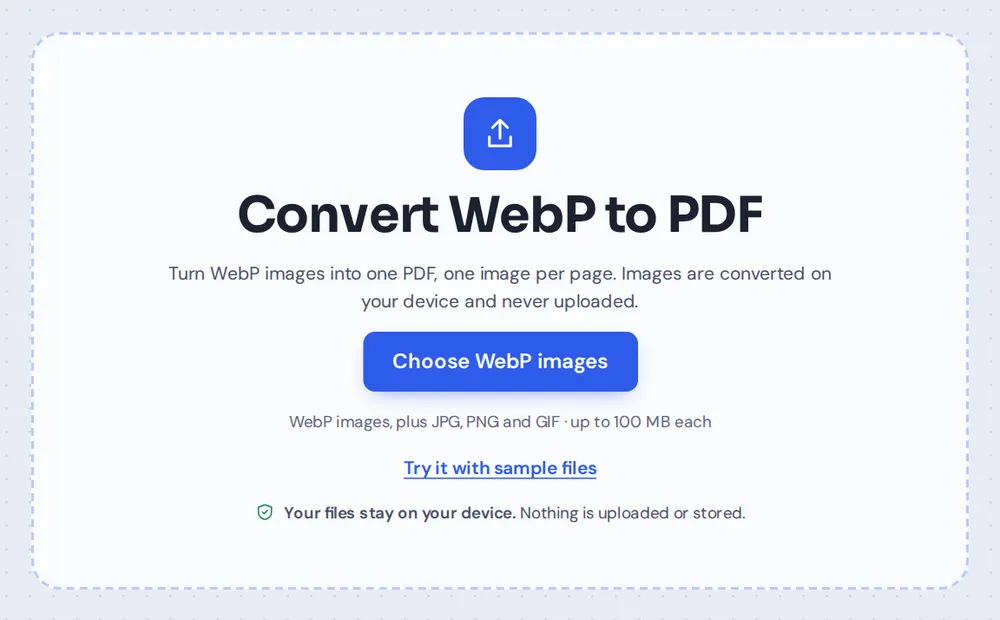
Choose your WebP images
Click Choose WebP images or drop the files on the tool above. You can add JPG, PNG and GIF images to the same PDF too.
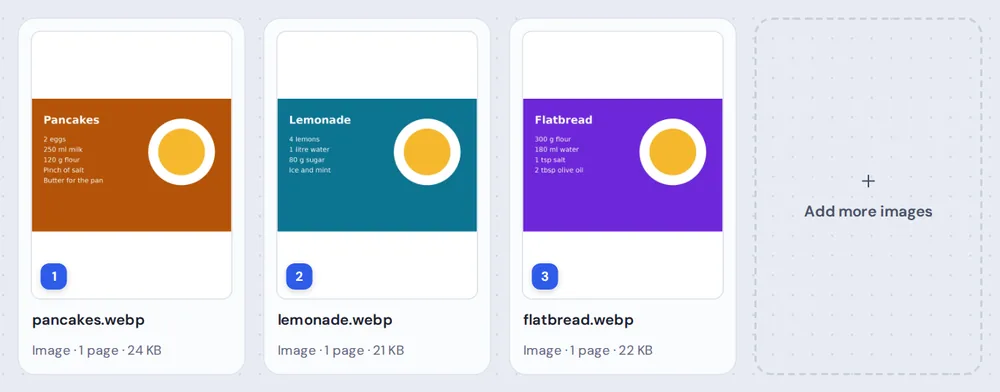
Put them in order
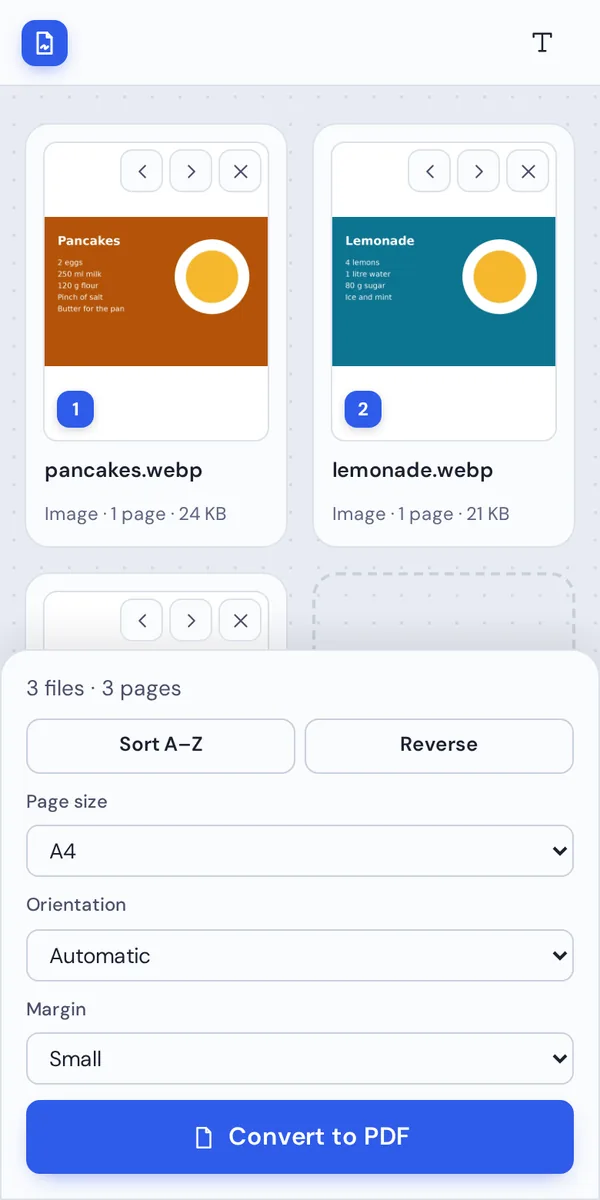
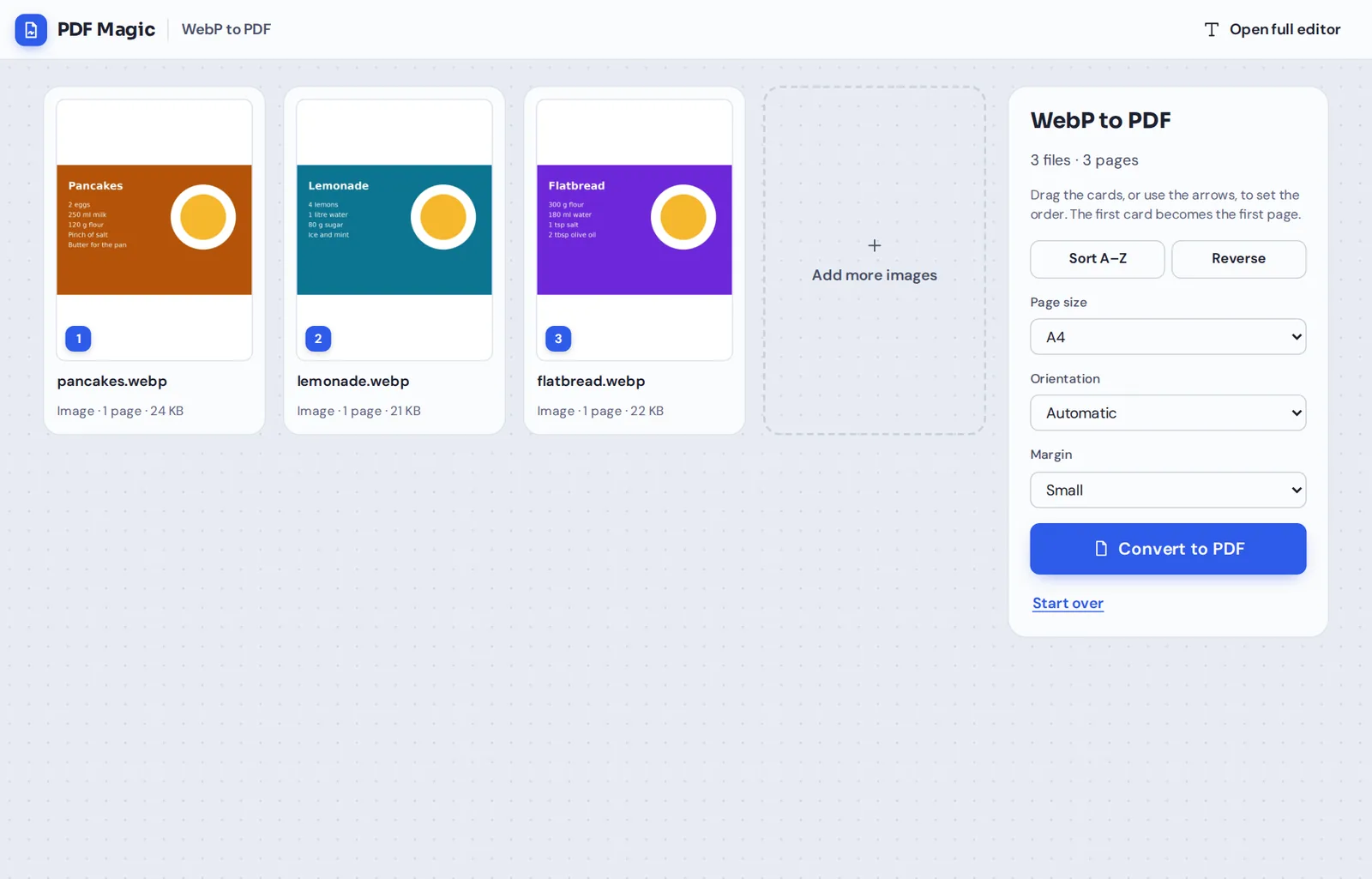
Each image becomes a numbered card. Drag the cards, or use the arrows, to set the order. The first card is the first page.
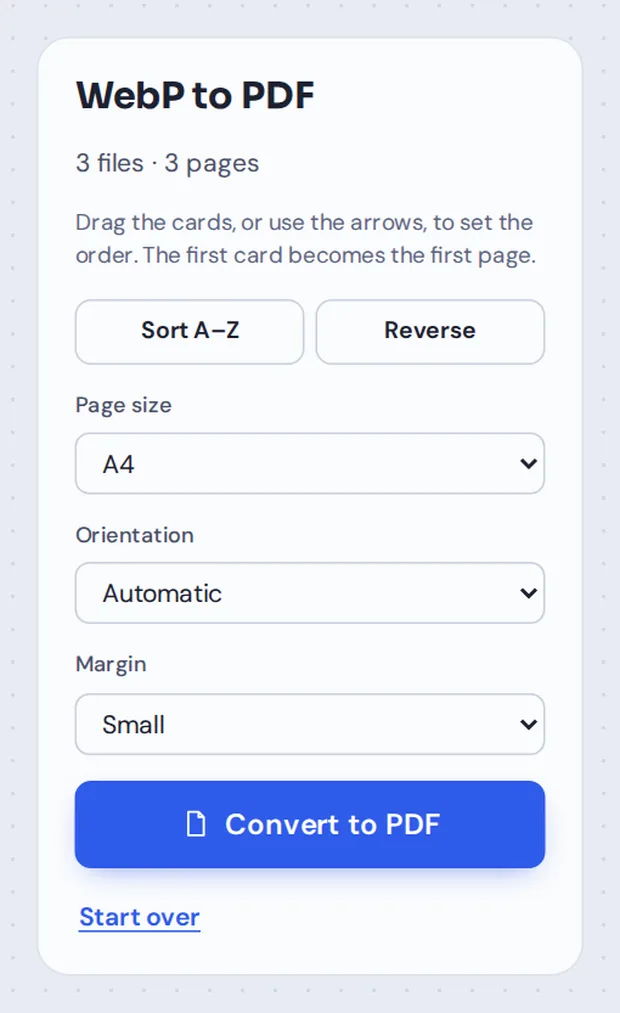
Pick the page layout
Choose A4, Letter or Same as the image, then the orientation and margin.
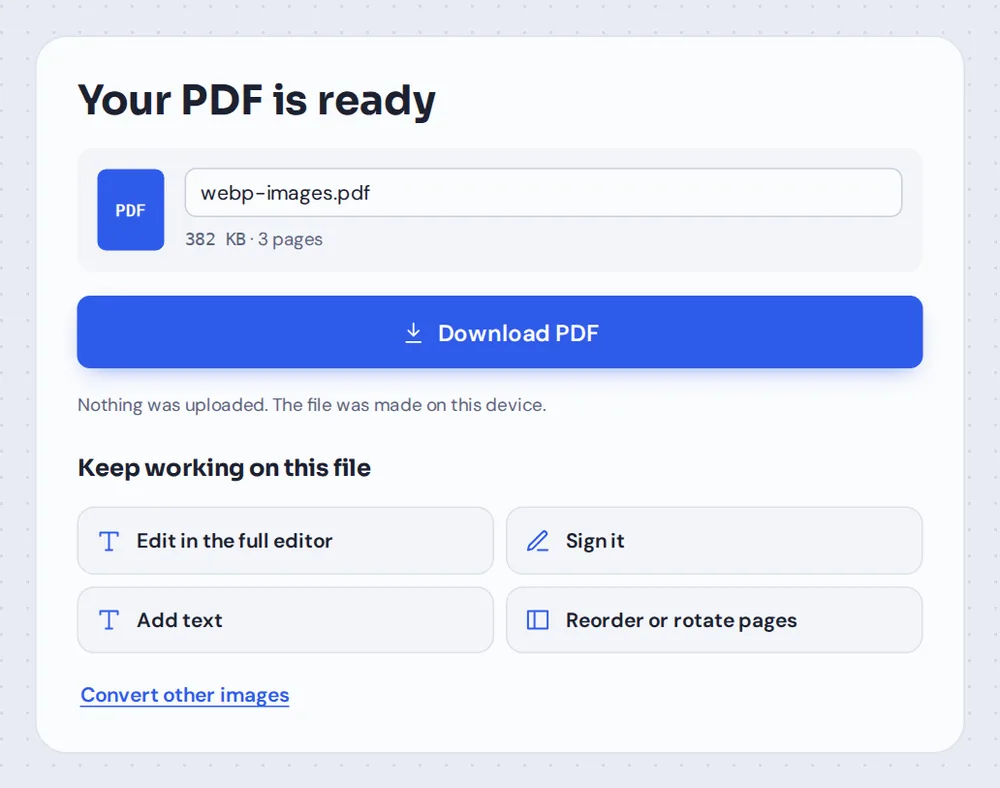
Convert and download
Click Convert to PDF, name the file and click Download PDF. The PDF opens on every phone and computer, with no watermark.
What Is a WebP File, and Why Convert WebP to PDF?
WebP is an image format made by Google for websites. It keeps pictures small so pages load quickly, which is why so many images you save from a browser, such as recipes, product photos and infographics, end up as .webp files.
The trouble starts after you save them. Some older photo viewers, print services, office programs and upload forms do not accept WebP. A PDF works everywhere, so WebP to PDF is the simple fix.
This WebP to PDF converter decodes each image in your browser and places it in the PDF as a lossless image, so it looks exactly as it did on the website. Several images can go into one PDF, one per page.
WebP to PDF
Web images into one PDF, one image per page. This is what this page does.
JPG to PDF
Photos from your camera or scanner.
PNG to PDF
Screenshots and graphics.
What the WebP to PDF Converter Can Do
Everything you need to turn saved web images into a document.
Add images
Straight from your Downloads folder.
- No limit on images
Select all the images you saved at once. There is no cap on how many.
- Mix image types
WebP, JPG, PNG and GIF can all go into the same PDF.
- Add more later
The Add more images card adds files without changing your order.
Keep the quality
Nothing is lost on the way.
- Lossless in the PDF
Each image is turned into a lossless PNG in your browser before it goes in the PDF.
- Transparency
See-through areas show as the white of the page.
- Exact size
Pick Same as the image for pages that match each picture.
Page layout
Ready for printing or reading on screen.
- Page size
A4 or Letter for printing, or the size of the image.
- Orientation
Automatic, or portrait or landscape for every page.
- Margin
No margin, small or large, with the image centred.
Keep working
The PDF opens in the full editor.
- Add text
Write notes on a recipe, or add a title page.
- Highlight
Mark the parts of an infographic that matter.
- Reorder pages
Move or rotate single pages before you download.
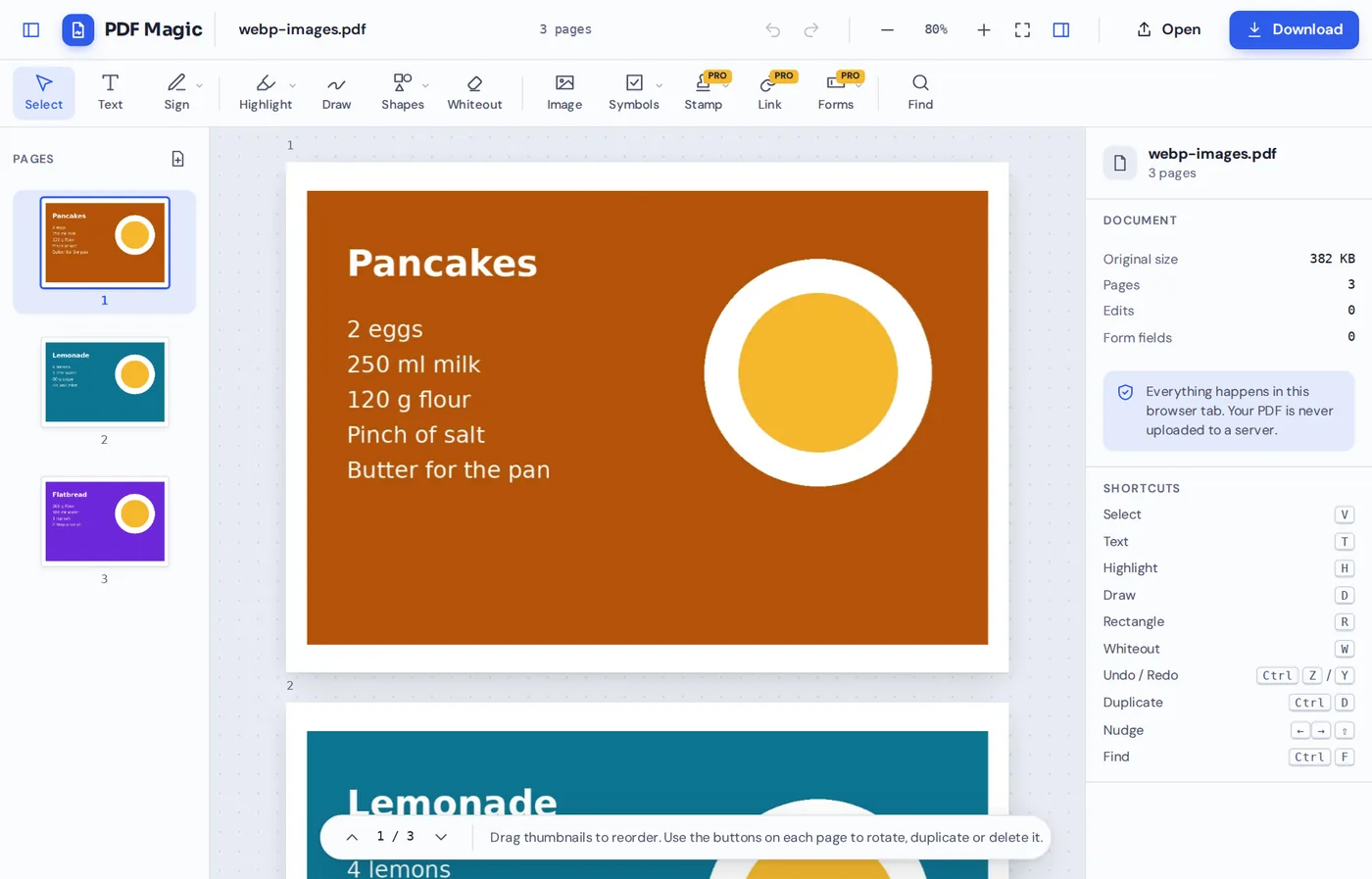
After you convert WebP to PDF, click Reorder or rotate pages or Edit in the full editor. Every page is in the sidebar, ready for notes, highlights or a new order.
WebP vs PDF: Where Each One Works
Why WebP to PDF helps once an image leaves the web.
| WebP | ||
|---|---|---|
| Opens in every PDF reader, phone and browser | Yes | Browsers yes, some older apps no |
| Accepted by upload forms and print shops | Almost always | Often not |
| Several images in one file | Yes, one per page | No, one image per file |
| Prints at a real paper size | Yes | Depends on the app |
| Small file size for websites | Larger | Yes, that is what WebP is for |
Convert Images Without Uploading Them
Most online WebP to PDF converters send your images to a server and send a PDF back. PDF Magic does the whole job inside your browser tab, so your images never leave your device.
There is no account, no queue and no copy on our side. Close the tab and nothing is left behind.
- 0images uploadedThey stay on your device.
- 0copies keptWe never see your files.
- 0installsIt runs in your browser.
WebP to PDF on iPhone, Android or Computer
- Windows
- Mac
- Linux
- Chromebook
- iPhone
- iPad
- Android
Images saved from websites on a phone are often WebP too. Open this page in your phone's browser, pick them from your downloads and tap Convert to PDF.
On a computer, drop the files from your Downloads folder. There is nothing to install.
What People Save as a PDF
Common reasons to turn web images into a document.
Recipes
Recipe cards saved from food sites, kept as one cookbook PDF.
Product images
Product photos and spec sheets for a quote or a comparison.
Infographics
Charts and infographics to print or share in a meeting.
Study material
Diagrams from course websites, saved for revision.
Order records
Images of orders and receipts saved from shopping sites.
Mood boards
Ideas for a home or event, collected into one file.
Tips for Better WebP to PDF Results
- Rename as you saveName images 01, 02, 03 and use Sort A–Z to line them up.
- Same as the image for readingPages fit each picture, with no white space around it.
- A4 or Letter for printingChoose a paper size if the PDF is going to a printer.
- Save the largest versionOpen an image in its own tab before saving, to get the full size.
- Add other formatsJPG and PNG files can go into the same PDF.
- Name the fileRename the PDF before you download so it is easy to find later.
More Image and PDF Tools
Like WebP to PDF, they all run in the same private editor.
JPG to PDF
Photos and scans into one PDF.
PNG to PDF
Screenshots and graphics into one PDF.
GIF to PDF
GIF images and animations into a PDF.
Merge PDF
Join PDFs and images into one document.
Add text to PDF
Write notes and titles on any page.
Rearrange PDF pages
Move, rotate and delete single pages.
WebP to PDF: Frequently Asked Questions
Answers to what people ask before they convert WebP images.
How do I convert WebP to PDF?
Click Choose WebP images or drop your files on the tool at the top of this page. Put them in order, pick a page size and click Convert to PDF. Then click Download PDF.
Can I convert WebP to PDF for free?
Yes. Converting and downloading are free, with no account, no watermark and no limit on the number of images.
Can I convert WebP to PDF online?
Yes. The converter runs in your web browser on Windows, Mac, Linux and Chromebook, with nothing to install. Choose your WebP images at the top of this page to start.
How do I convert WebP to PDF on my phone?
Open this page in your phone's browser, tap Choose WebP images and pick them from your gallery or files. Tap Convert to PDF, then Download PDF. There is no app to install.
Can I convert WebP to PDF without Adobe Acrobat?
Yes. You do not need Acrobat or any other software. The converter runs in your browser, and the PDF you download opens in Acrobat, Preview, Chrome and every other PDF reader.
Is it safe to convert WebP to PDF online?
Yes. PDF Magic does not upload your images. They are turned into a PDF inside your browser tab and never sent to our servers, so nobody else sees them. Close the tab and nothing is left behind.
How do I convert WebP to PDF without losing quality?
Yes. Each WebP image is changed to a lossless PNG inside your browser before it is placed in the PDF, so nothing is lost on the way.
What is the easiest way to convert WebP to PDF?
Drop the WebP files on the tool above and click Convert to PDF. There is no need to change them to JPG or PNG first.
Ready to Convert WebP to PDF?
No account, no upload and no watermark: choose your images at the top of this page.
Open the converterPDF Magic turns web images into documents that open everywhere. Choose your images and convert WebP to PDF today.