
PDF Editor for Chromebook – Free, in Chrome
A free PDF editor for Chromebook that works in Chrome. Nothing to install, nothing to upload.
- No install
- No upload
- No watermark
- Works in Chrome
Open a PDF above to edit it on your Chromebook. This editor changes text, adds signatures, fills and creates forms, merges files and fixes pages, all inside Chrome. Your file stays on your Chromebook, and the download has no watermark.
How to Use the PDF Editor for Chromebook
It works on school, work and personal Chromebooks.
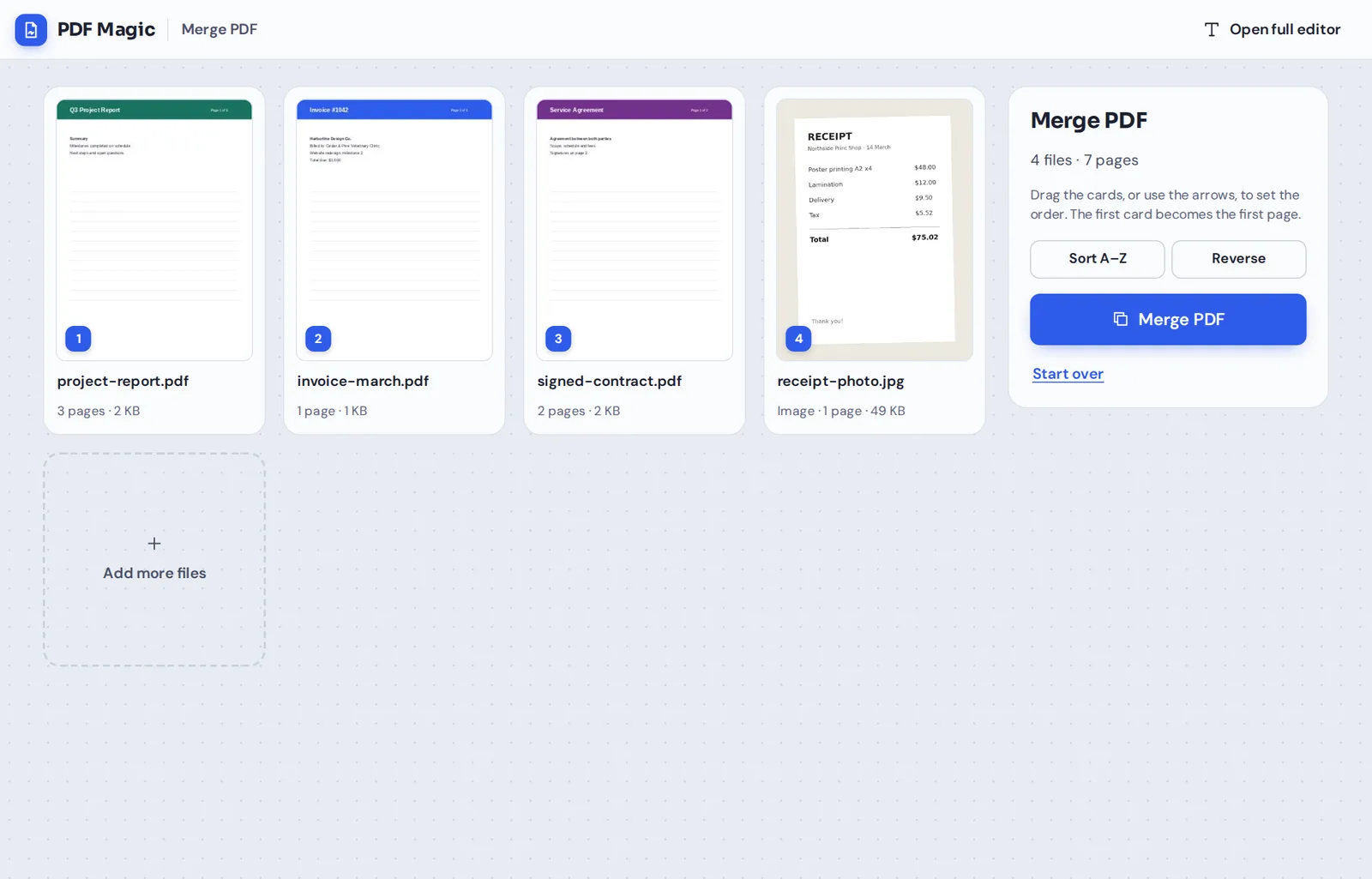
Open your PDF
Click Choose PDF file and pick the document from My files, Downloads or Google Drive.
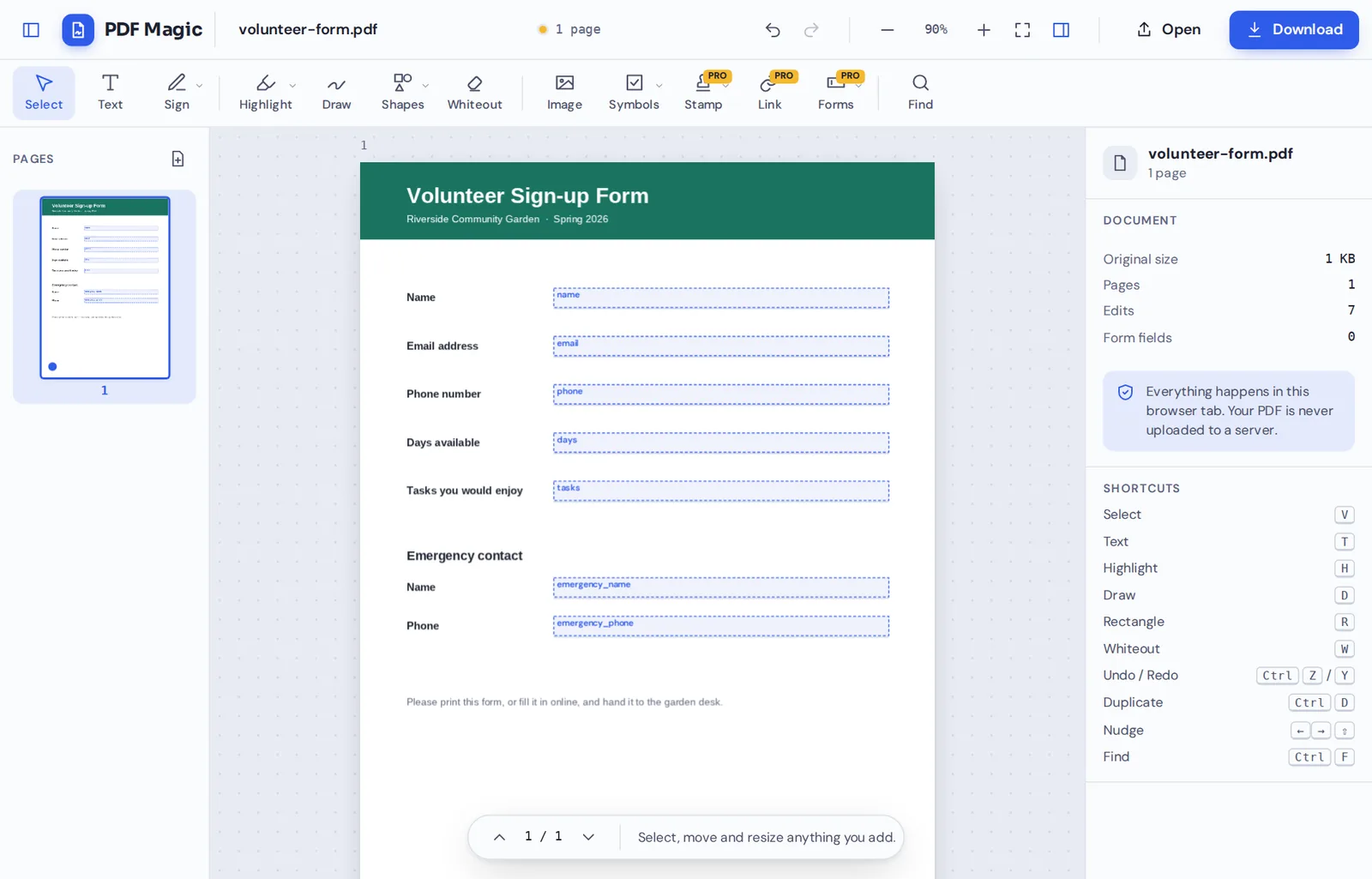
Edit and fill
Retype a line, type on the page or fill in form fields. Create new fields if the form has none.
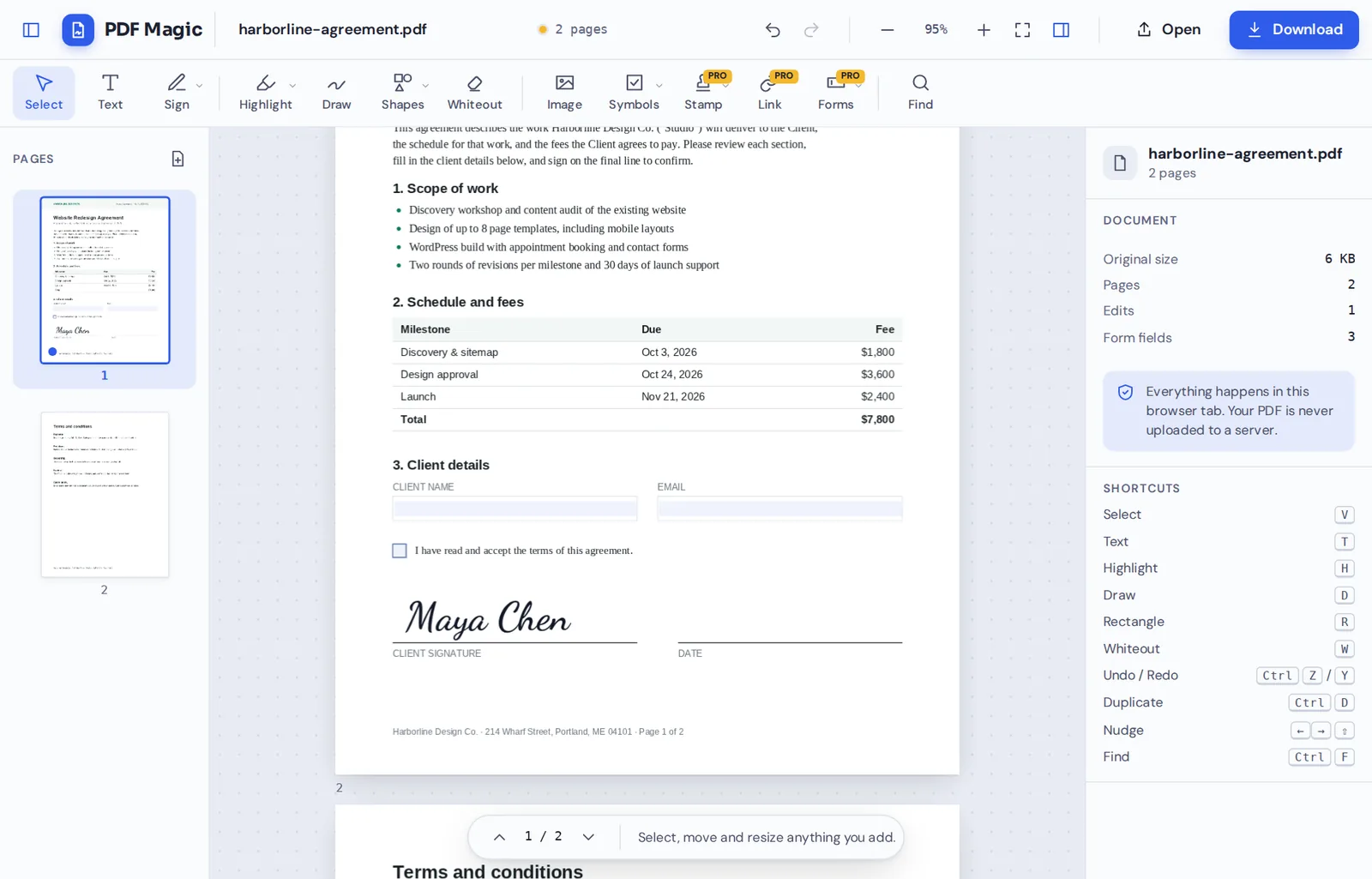
Sign it
Draw your signature with the touchpad or touch screen, then click to place it.
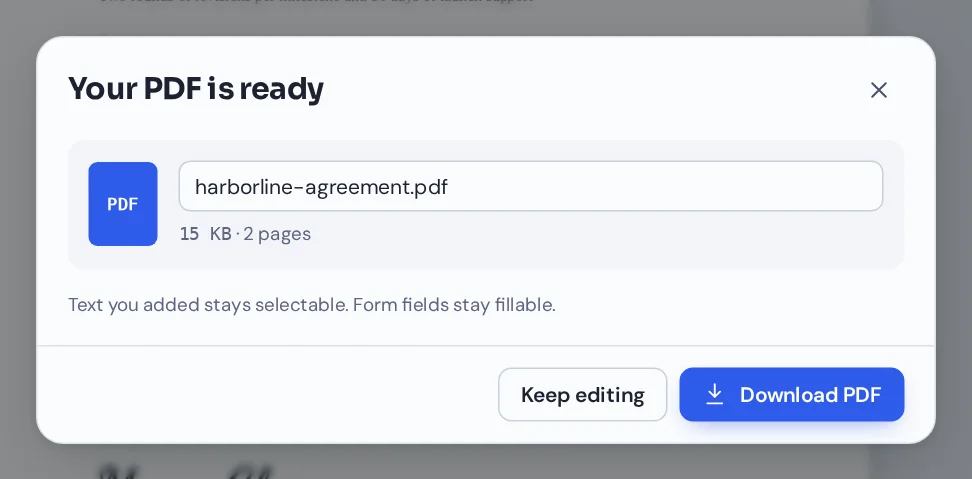
Save it
Click Download. The PDF is saved to Downloads in the Files app, or you can move it to Google Drive.
Why Chromebook Users Need a Browser-Based PDF Editor
Most desktop PDF editors are built for Windows or macOS and will not install on a Chromebook. The Gallery app on ChromeOS can add simple notes and fill some forms, but it cannot change existing text or organize pages.
PDF Magic runs in Chrome, which every Chromebook already has. You get full editing, signing, form creation and page tools without installing anything.
That also makes it a good fit for school and work Chromebooks, where installing apps is often blocked.
Runs in Chrome
No Linux apps or Android apps needed.
Full editing
Change text, not just add notes.
Stays on your Chromebook
Your file is never uploaded.
PDF Editor for Chromebook Options Compared
The usual ways to edit a PDF on a Chromebook.
| PDF Magic | Gallery app (built in) | Desktop PDF software | |
|---|---|---|---|
| Change existing text | Yes | No | Not available on ChromeOS |
| Sign and fill forms | Yes | Basic | Not available on ChromeOS |
| Create fillable forms | Yes | No | Not available on ChromeOS |
| Merge and organize pages | Yes | No | Not available on ChromeOS |
| Works on managed school or work devices | Yes, in Chrome | Yes | Usually blocked |
Tips for Editing PDFs on a Chromebook
Small things that help on ChromeOS.
Keyboard
Handy shortcuts.
- Ctrl+Z and Ctrl+Y
Undo and redo.
- Ctrl+F
Find text and replace it on every page.
Files
Open and save.
- Google Drive
Pick files straight from Drive.
- Downloads
Edited files are saved to Downloads.
Touch screens
Great on flip Chromebooks.
- Stylus
Sign and draw with a USI pen.
- Tablet mode
Every tool works with touch.
School
Useful for students and teachers.
- Worksheets
Fill in and hand back worksheets.
- Forms
Turn a flat form into a fillable one.
Your Files Stay on Your Chromebook
Most online editors upload your file to their servers. This one opens and changes it inside Chrome, so it never leaves your Chromebook.
There is no account and no copy on our side. Close the tab and nothing is left behind.
On school Chromebooks, a private PDF editor for Chromebook means student work is not sent to an outside service just to be filled in or signed. Files stay in the student's own Downloads folder or Google Drive, where the school already manages them.
- 0files uploadedYour PDF stays on your Chromebook.
- 0installsIt runs in Chrome.
- 0watermarksDownloads stay clean.
On Phones, PCs and Macs Too
- Windows
- Mac
- Linux
- Chromebook
- iPhone
- iPad
- Android
The same editor works on Android phones, iPhones, Windows PCs and Macs.
Students can start homework on a school Chromebook and finish it on a phone. Nothing to install on either.
What People Edit on Their Chromebook
Jobs a PDF editor for Chromebook handles every day.
Homework
Fill in and annotate worksheets.
Teachers
Make fillable worksheets for a class.
School forms
Permission slips and applications.
Work documents
Sign and return contracts.
Combining files
Merge scans into one document.
Home paperwork
Leases, bills and claims.
PDF Editor for Chromebook: Frequently Asked Questions
Answers to what Chromebook users ask most before they start.
How do I use a PDF editor for Chromebook?
Open this page in Chrome, click Choose PDF file and pick your document from My files, Downloads or Google Drive. Choose a tool, make your changes and click Download.
Is there a free PDF editor for Chromebook?
Yes. PDF Magic is a free PDF editor for Chromebook, with no account and no watermark on your downloads. During our launch every tool is free.
Can I use a PDF editor for Chromebook online?
Yes. This PDF editor for Chromebook runs in your web browser, so there is nothing to download or install, and it is always up to date.
Can I use the same PDF editor for Chromebook on my phone?
Yes. The same editor runs in the browser on Android phones and iPhones, so homework started on a Chromebook can be finished on a phone.
Can I use a PDF editor for Chromebook without Adobe Acrobat?
Yes. You do not need Acrobat or any other software, and the PDF you download opens in every PDF reader.
Is it safe to use a PDF editor for Chromebook online?
Yes. Your file is opened and changed inside the browser on your Chromebook. It is never uploaded to our servers.
Does a PDF editor for Chromebook keep the quality of my files?
Yes. Only what you change is changed. Text stays sharp and images keep their quality.
What is the easiest PDF editor for Chromebook?
One you do not have to install. Open a file at the top of this page and the tools are ready straight away.
Ready to Try the PDF Editor for Chromebook?
No install, no upload and no watermark: open a file at the top of this page.
Open the editorPDF Magic works in Chrome on every Chromebook. Open your file in the PDF editor for Chromebook today.