
Add Text to PDF Online Free
Add text to PDF pages wherever you click, in any font, size and color, right in your browser.
- No upload
- No watermark
- No sign-up
- Real, selectable text
Add text to PDF files online for free, right in your browser. Click anywhere on the page, type, and choose the font, size and color. The words stay real, selectable text in your download, and your file is never uploaded.
How to Add Text to PDF Files in 4 Steps
It takes about a minute to add text to PDF pages, from opening the file to downloading it.
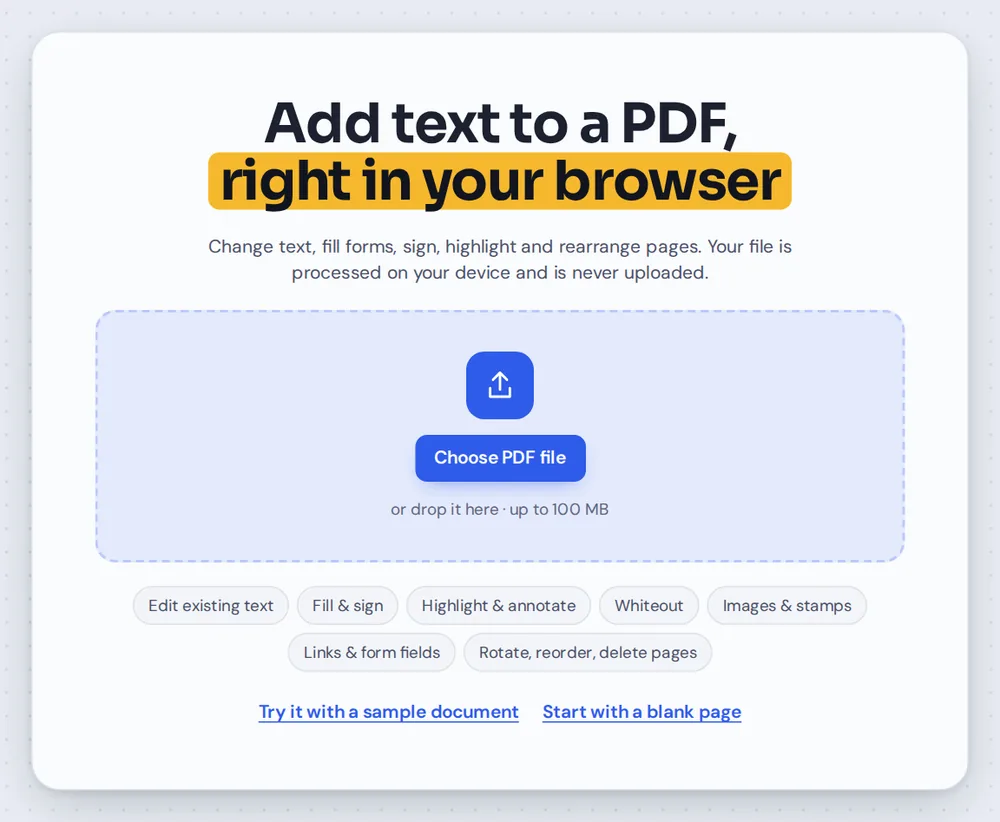
Open your PDF
Click Choose PDF file or drag your document onto the editor above. The Text tool is already selected when it opens.
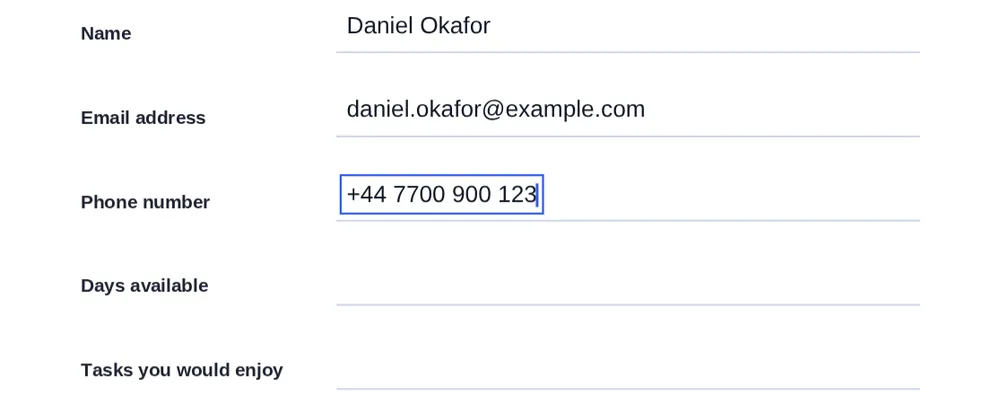
Click and type
Click the spot where the words should go and start typing. Press Enter for a new line and Esc when you are done.

Move and style it
Drag the text to the exact spot. In the side panel, change the font, size, bold, italic, color or opacity.
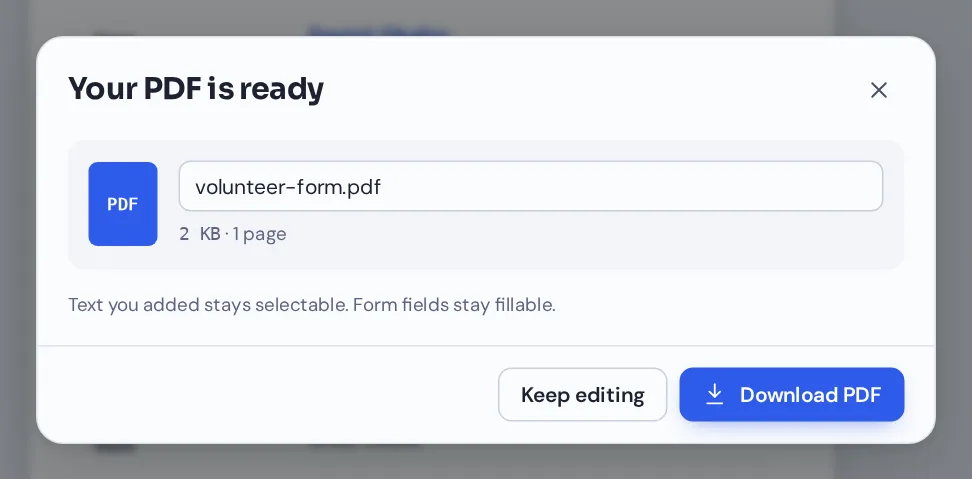
Download your file
Click Download and name your file. The words you typed stay real text that can be selected, searched and copied.
Why You Need a Tool to Add Text to PDF Files
A PDF is made to look the same everywhere, which is why the viewer in your browser only lets you read and print it. To type on the page, you need an editor that places new words on top of the page and saves a new copy.
When you add text to PDF pages with PDF Magic, the words are written into the file as real text, not as a picture. They stay sharp at any zoom, and anyone who opens the file can select, search and copy them.
Adding text is different from changing the words that are already there. To reword a sentence in the original document, use Edit PDF text instead.
Add text
Type new words anywhere on the page: names, dates, notes, labels or answers.
Edit existing text
Click a line in the original document and retype it. A separate Pro tool.
Fill form fields
If the form has fillable boxes, type into them instead.
Every Way to Add Text to PDF Pages and Style It
After you add text to PDF pages, select it and its settings appear in the side panel.
Font and size
Match the look of the document.
- Three standard fonts
Helvetica for a clean sans-serif, Times for a classic serif and Courier for a typewriter look. They open in every PDF reader.
- Any size
Choose any size from 4 to 200 points, from small print to big headings.
- Bold and italic
Turn on bold or italic with one click.
Color and opacity
Make notes stand out or blend in.
- Seven colors
Black, blue, green, red, orange, purple and white, one click each.
- Any custom color
Pick the exact color you need with the color picker.
- Opacity
Make text see-through for a softer look, or for a light watermark-style label.
Position and arrange
Put every word exactly where it belongs.
- Drag to move
Drag any text you added to a new spot. Use the arrow keys to nudge it, or hold Shift to move it further.
- Resize
Drag a corner handle to make the text bigger or smaller.
- Duplicate and copy
Press Ctrl+D to duplicate, or copy and paste text onto another page.
- Layers
Bring text to the front or send it behind other items you added.
Finish and save
Everything else you might need on the same page.
- Undo and redo
Press Ctrl+Z to step back and Ctrl+Shift+Z to step forward.
- Delete
Select text and press Delete to remove it.
- Selectable in the download
Your words are saved as real PDF text, not an image, so they stay searchable.
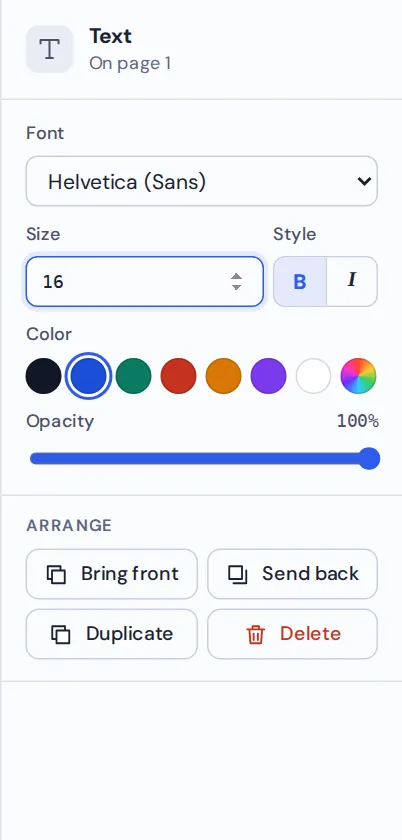
The side panel shows every setting for the text you selected. It is the quickest way to add text to PDF pages that matches the rest of the document.
Other Tools That Work When You Add Text to PDF Files
They open the same document you add text to PDF pages in, so nothing is uploaded.
Fill PDF forms
Type into the fillable boxes of a PDF form.
Sign PDF
Draw, type or upload your signature.
Add the date
Place today's date in one click.
Add checkmarks
Tick boxes on paper-style forms.
Whiteout
Cover old words, then type new ones on top.
Highlight PDF
Mark important lines in bright colors.
Private by Design, With No Upload
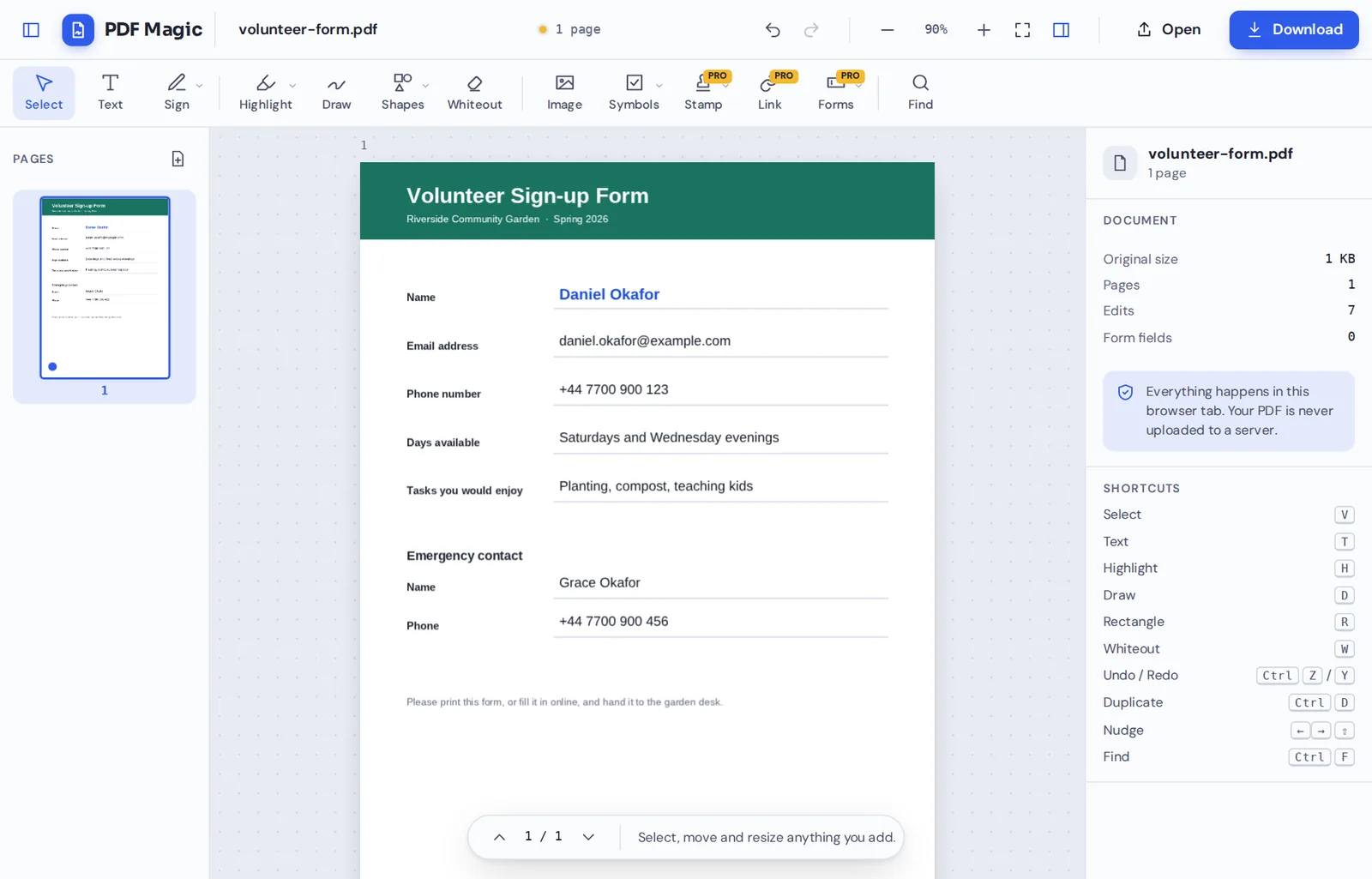
Most online editors send your file to a server first. PDF Magic does not. When you add text to PDF documents here, every word is placed inside your own browser tab, and the new file is created on your device.
That makes it a safe choice for contracts, invoices, forms and anything with personal details. Close the tab and nothing is left behind.
- 0files uploadedYour PDF stays on your device.
- 0watermarksYour document looks like yours.
- 0accounts neededOpen the page and type.
Works on iPhone, Android and Computer
- Windows
- Mac
- Linux
- Chromebook
- iPhone
- iPad
- Android
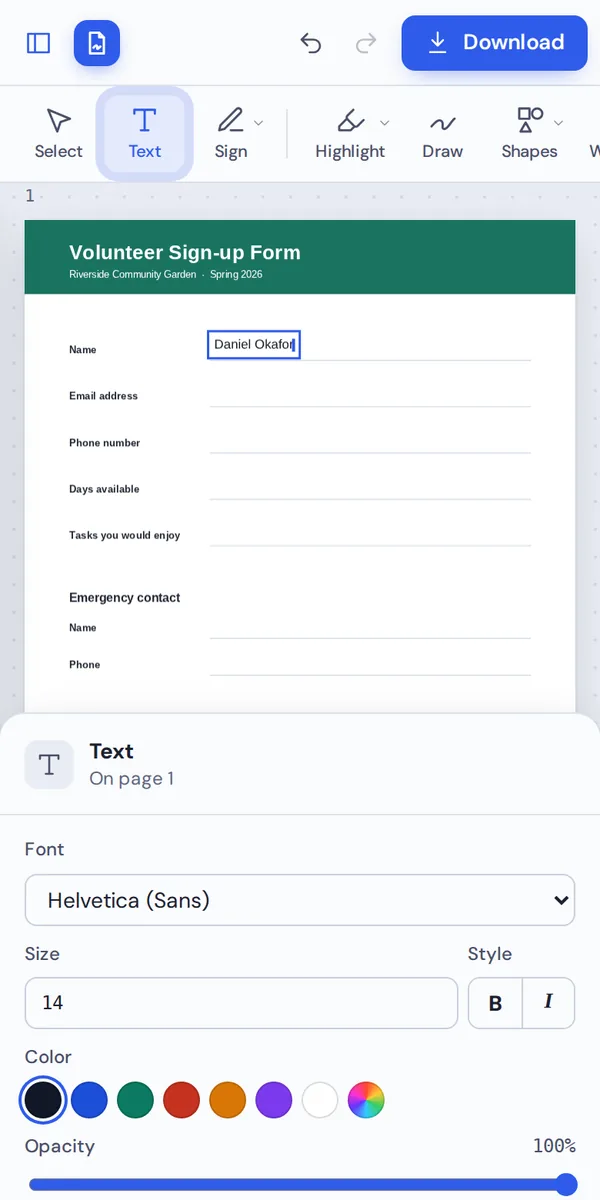
It works in any modern browser, with nothing to install. On a phone, tap the page to type and the text settings slide up from the bottom of the screen.
Need to add a name or a reference number to a file someone sent you? Open it on your phone, add text to PDF pages in seconds and send it back.
When People Use This Tool
Most reasons to add text to PDF files are small, everyday jobs that should not need a printer.
Flat forms
Add text to PDF forms that have no fillable fields.
Invoices and quotes
Add a reference number, a due date or a payment note.
Worksheets and homework
Type answers onto a worksheet instead of printing it.
Contracts
Add names, addresses and dates to the blanks of an agreement.
Notes for others
Leave a short note or instruction right on the page.
Labels and titles
Add a title, a page label or a caption to a scan.
Pro Tips for Faster Results
- Zoom in firstZoom in before you add text to PDF forms, so the words land exactly on the line.
- Match the fontPick Helvetica, Times or Courier, whichever is closest to the document.
- Nudge into placeUse the arrow keys for small moves. Hold Shift to move further.
- Cover old words firstUse whiteout over an old value, then type the new one on top.
- Undo anythingCtrl+Z removes the last change if text lands in the wrong place.
- Reuse textCopy text and paste it on the next page to keep the same style.
Add Text to PDF: Frequently Asked Questions
Answers to what people ask most before they start.
How do I add text to PDF?
Open your PDF, choose Text in the toolbar and click where the text should go. Type, then change the font, size and color in the side panel, and click Download.
Can I add text to PDF for free?
Yes. Adding text and downloading are free, with no account and no watermark.
Can I add text to PDF online?
Yes. PDF Magic runs in your web browser, so you can add text to PDF online on Windows, Mac, Linux or a Chromebook with nothing to install. Open your file in the tool at the top of this page to start.
How do I add text to PDF on my phone?
Open this page in your phone's browser, tap Choose PDF file and pick your document. Tap the page where the text should go and type with your keyboard. Then tap Download. There is no app to install.
Can I add text to PDF without Adobe Acrobat?
Yes. You do not need Acrobat or any other software. PDF Magic works in your browser, and the file you download opens in Acrobat, Preview, Chrome and every other PDF reader.
Is it safe to add text to PDF online?
Yes. PDF Magic does not upload your file. It is opened and changed inside your browser tab and never sent to our servers, so nobody else sees it. Close the tab and nothing is left behind.
How do I add text to PDF without losing quality?
Added text is saved as real, sharp text, and the rest of the page is left exactly as it was, so nothing loses quality.
What is the easiest way to add text to PDF?
Open the file at the top of this page, click the page and type. The Text tool is already selected, so there is nothing to set up.
Ready to Add Text to PDF Files?
No account, no upload and no watermark: open your document above and start typing.
Open the editorPDF Magic is the easy, private way to type on any document. Open your file and add text to PDF pages today.