
PDF Editor for iPhone – No App Needed
A free PDF editor for iPhone that works in Safari. Sign, fill and edit PDFs with no app to install.
- No app to install
- No upload
- No watermark
- Works in Safari
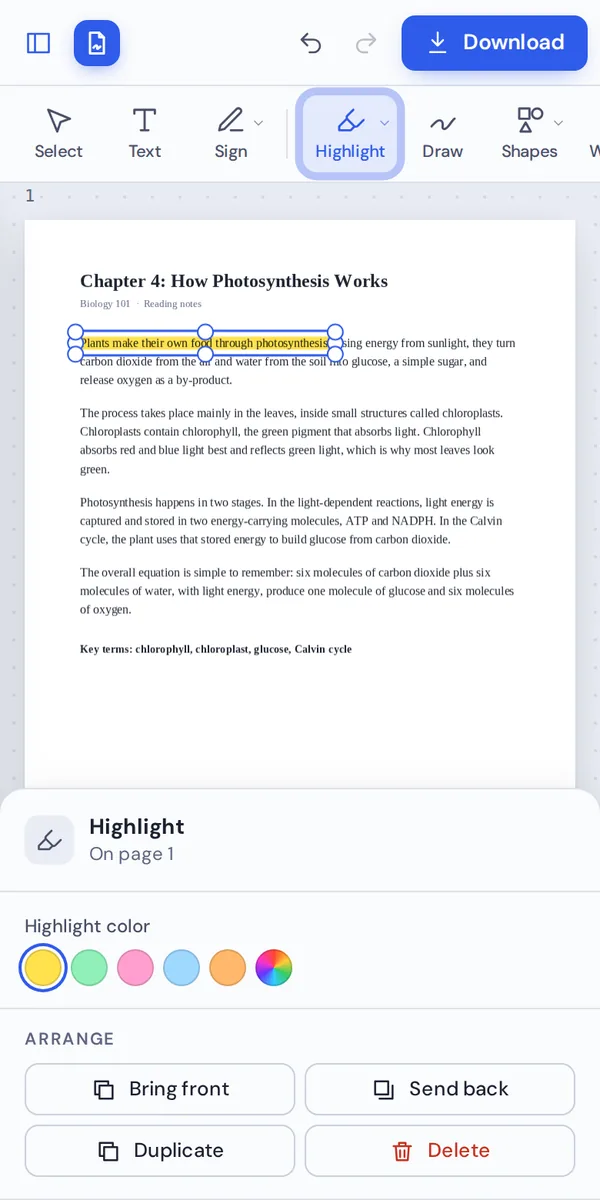
Open a PDF above to edit it on your iPhone or iPad. This PDF editor for iPhone lets you type on forms, sign with your finger, highlight and fix pages right in Safari. The file stays on your phone, and the download has no watermark.
How to Use the PDF Editor for iPhone
From opening the file to saving it in the Files app.
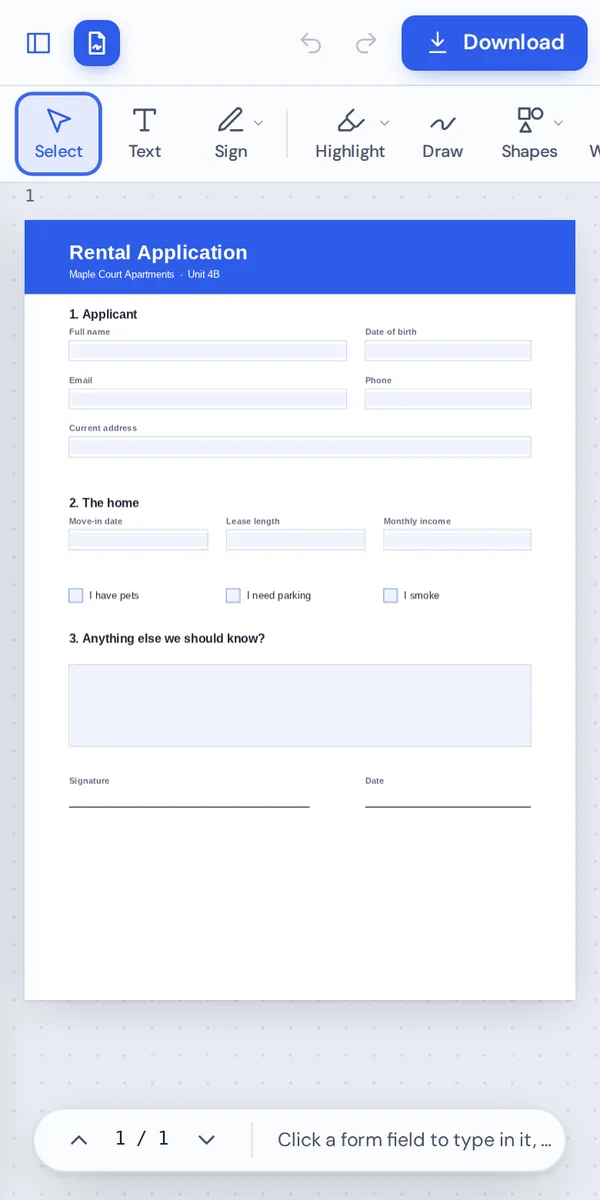
Open your PDF
Tap Choose PDF file and pick the document from the Files app, iCloud Drive or a folder on your iPhone.
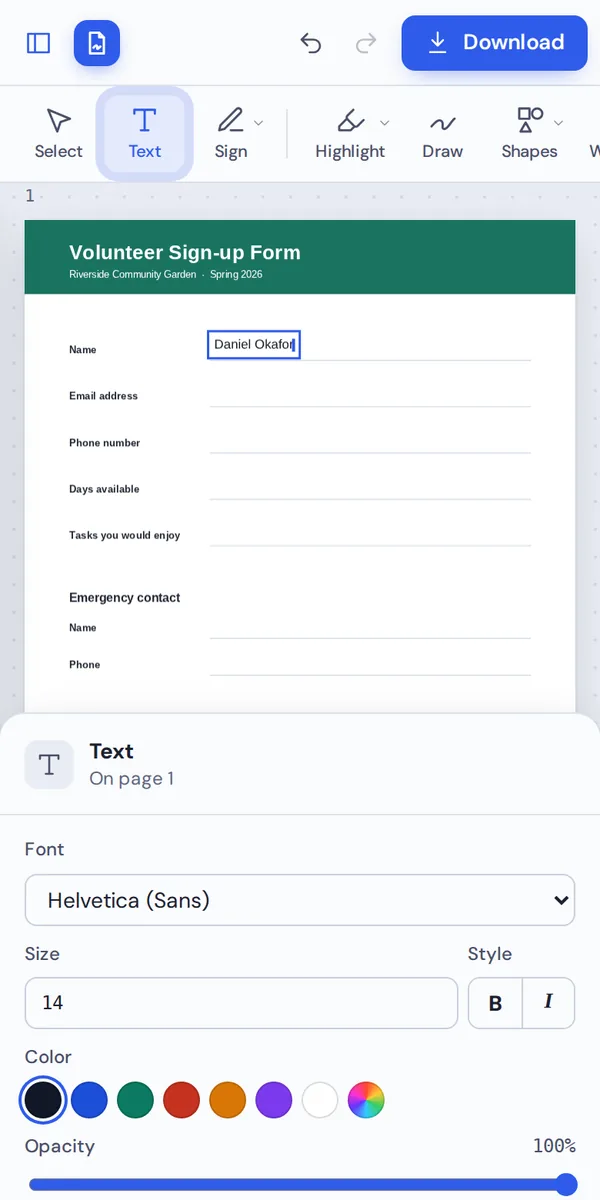
Type on the page
Tap a form field or choose Text and tap where the words should go. The keyboard opens straight away.
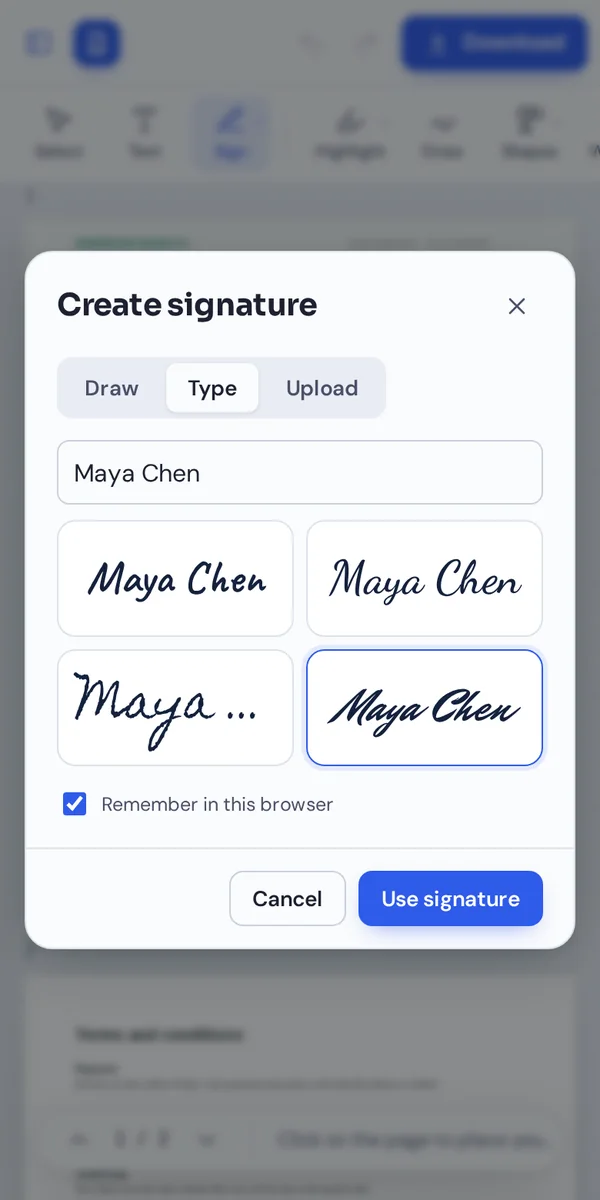
Sign with your finger
Choose Sign, draw your signature, then tap the page to place it. Drag the corner handles to resize it.
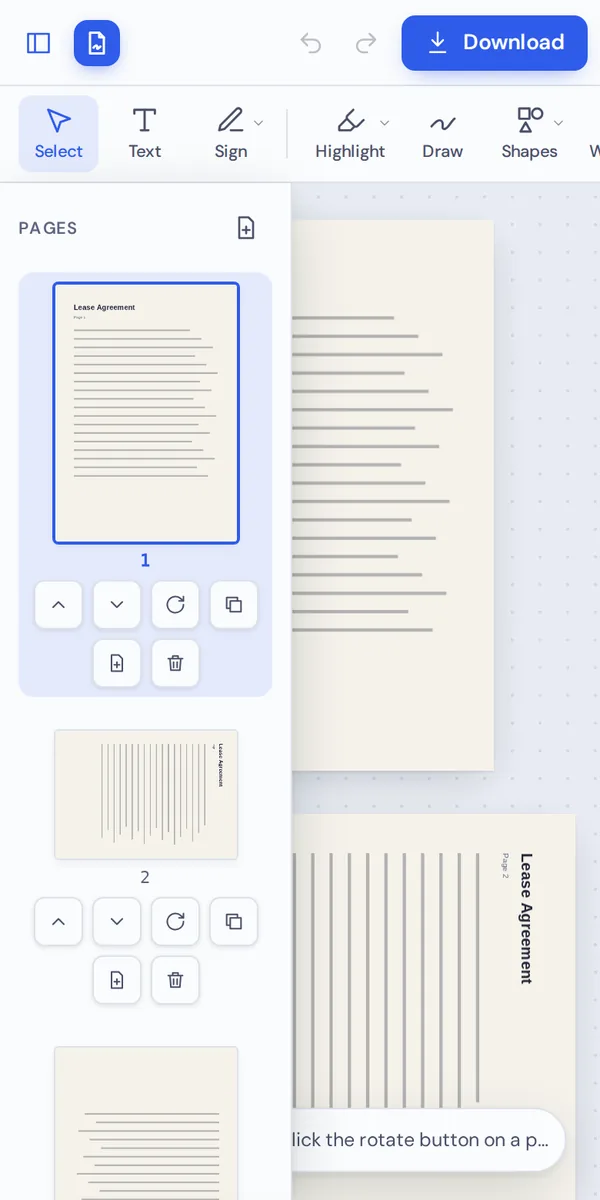
Save to Files
Tap Download. Safari saves the PDF to the Downloads folder in the Files app, ready to share by Mail or Messages.
Why Use a PDF Editor for iPhone Instead of Markup?
The Markup tool built into iOS is handy for quick notes and signatures. It cannot change the text that is already in a PDF, and it has no whiteout, page tools or proper form fields.
PDF Magic adds those tools in Safari, with no app to download from the App Store and no account to create. That also means no storage used on your phone and no subscription.
Everything is built for touch: large buttons, a toolbar you can swipe, and page buttons under each thumbnail.
No app
Nothing to download from the App Store.
Built for touch
Sign, type and move items with your finger.
Stays on your phone
Your file is never uploaded.
PDF Editor for iPhone Options Compared
The usual ways to edit a PDF on an iPhone.
| PDF Magic | Markup (built in) | App Store PDF apps | |
|---|---|---|---|
| Change existing text | Yes | No | Often with a subscription |
| Fill in form fields | Yes | Limited | Yes |
| Rotate, reorder and delete pages | Yes | No | Yes |
| Install and storage | None | Built in | App download |
| Account needed | No | No | Often |
Tips for Editing PDFs on an iPhone
Small tricks that make a small screen easier to work with.
Screen
Make room to work.
- Turn the phone sideways
Landscape gives the page more room.
- Zoom in
Tap + to place small text precisely.
Signing
Get a neat signature.
- Draw in the pad
Your signature is drawn in a large pop-up pad, not on the page.
- Save it
Keep your signature in Safari for next time.
Files
Open and share.
- Files app
Downloads are saved to Files, in Downloads.
- Share sheet
Send the PDF by Mail, Messages or AirDrop.
iPad
Even better on a bigger screen.
- Apple Pencil
Sign and draw with the Pencil.
- More room
More of the editor fits on the larger screen.
Your Files Stay on Your iPhone
Most online editors upload the file from your phone to a server. This one opens and changes it inside Safari, so it never leaves your iPhone.
There is no account and no copy on our side. Close the tab and nothing is left behind.
Signatures you save in the PDF editor for iPhone are kept in Safari on this phone only. You can remove them at any time from the Sign menu, and they are never sent to us or synced anywhere else.
- 0files uploadedYour PDF stays on your phone.
- 0apps installedIt runs in Safari.
- 0watermarksDownloads stay clean.
On Your iPad and Mac Too
- Windows
- Mac
- Linux
- Chromebook
- iPhone
- iPad
- Android
The same editor works on iPad, where the larger screen gives the page more room, and on your Mac in Safari.
Start a document on your Mac and sign it later on your iPhone. Nothing to install on any of them.
What People Edit on Their iPhone
Jobs you can finish from your phone with a PDF editor for iPhone.
Signing on the go
Sign a contract from anywhere.
School forms
Permission slips and sign-up sheets.
Medical forms
Fill them in before an appointment.
Rental papers
Apply for a flat from your phone.
Receipts
Mark receipts for expense claims.
Work documents
Approve a document between meetings.
PDF Editor for iPhone: Frequently Asked Questions
Answers to what iPhone users ask most before they start.
How do I use a PDF editor for iPhone?
Open this page in Safari, click Choose PDF file and pick your document from the Files app or iCloud Drive. Choose a tool, make your changes and click Download.
Is there a free PDF editor for iPhone?
Yes. PDF Magic is a free PDF editor for iPhone, with no account and no watermark on your downloads. During our launch every tool is free.
Can I use a PDF editor for iPhone online?
Yes. This PDF editor for iPhone runs in your web browser, so there is nothing to download or install, and it is always up to date.
Does the PDF editor for iPhone work on iPad too?
Yes. It works in Safari on iPad, where the larger screen gives the page more room, and with Apple Pencil for signing and drawing.
Can I use a PDF editor for iPhone without Adobe Acrobat?
Yes. You do not need Acrobat or any other software, and the PDF you download opens in every PDF reader.
Is it safe to use a PDF editor for iPhone online?
Yes. Your file is opened and changed inside the browser on your iPhone. It is never uploaded to our servers.
Does a PDF editor for iPhone keep the quality of my files?
Yes. Only what you change is changed. Text stays sharp and images keep their quality.
What is the easiest PDF editor for iPhone?
One you do not have to install. Open a file at the top of this page and the tools are ready straight away.
Ready to Try the PDF Editor for iPhone?
No app, no upload and no watermark: open a file at the top of this page.
Open the editorPDF Magic works in Safari on every iPhone and iPad. Open your file in the PDF editor for iPhone today.