
Merge PDF Files Online Free
Merge PDF files and images into one document, right in your browser.
- No upload
- No watermark
- No sign-up
- PDFs and images
Merge PDF files online for free and turn several documents into one. Add PDFs and images, drag them into the right order, and download a single file. Everything happens in your browser, so your files are never uploaded.
How to Merge PDF Files Online in 4 Steps
Combining documents takes a few seconds, even with dozens of pages.
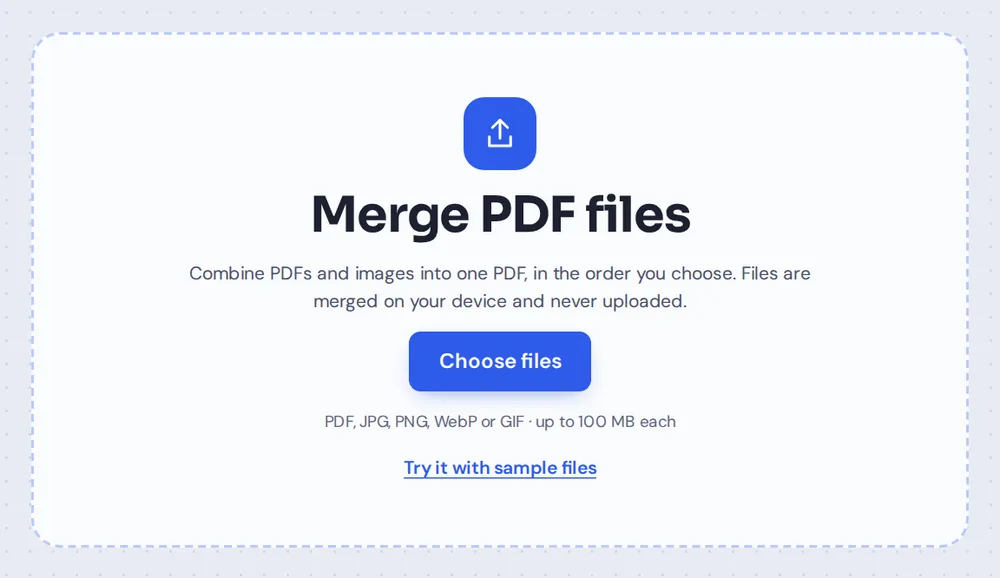
Add your files
Click Choose files or drag your PDFs onto the tool above. You can add photos and scans too: JPG, PNG, WebP and GIF images each become a page.
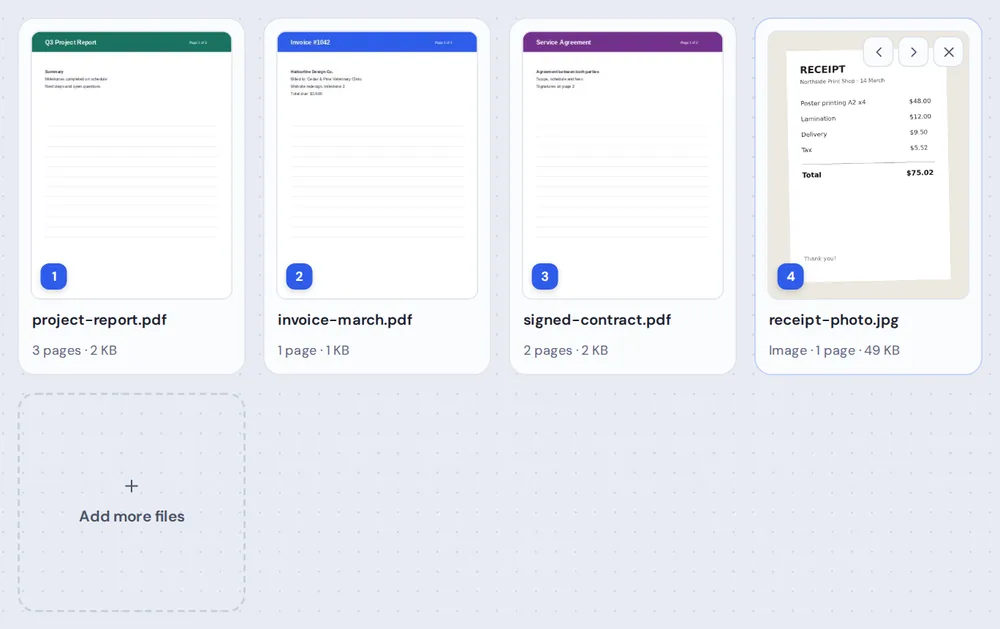
Put them in order
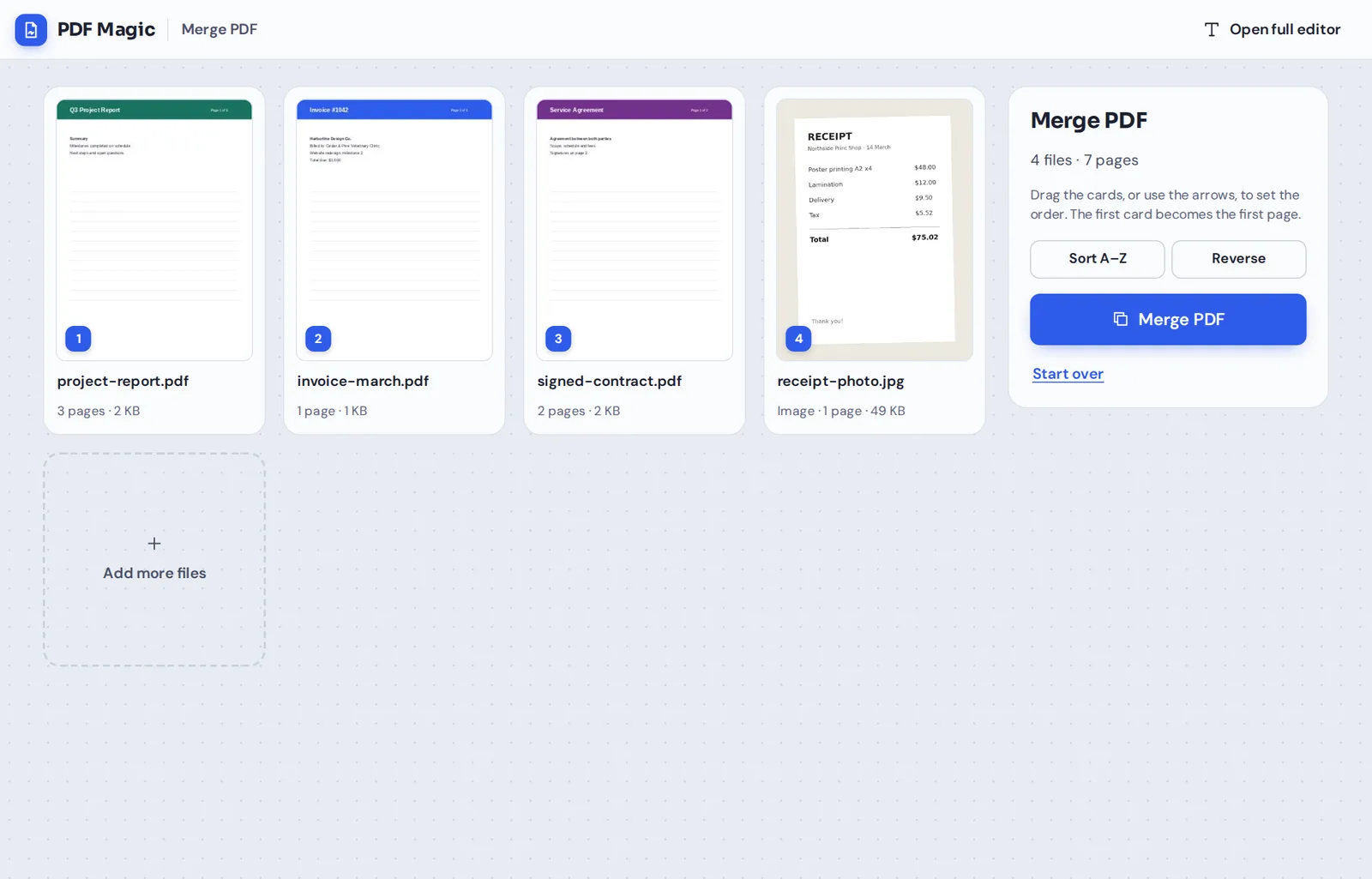
Each file appears as a card with a preview. Drag the cards, or use the arrow buttons, until the order is right. The first card becomes the first page.
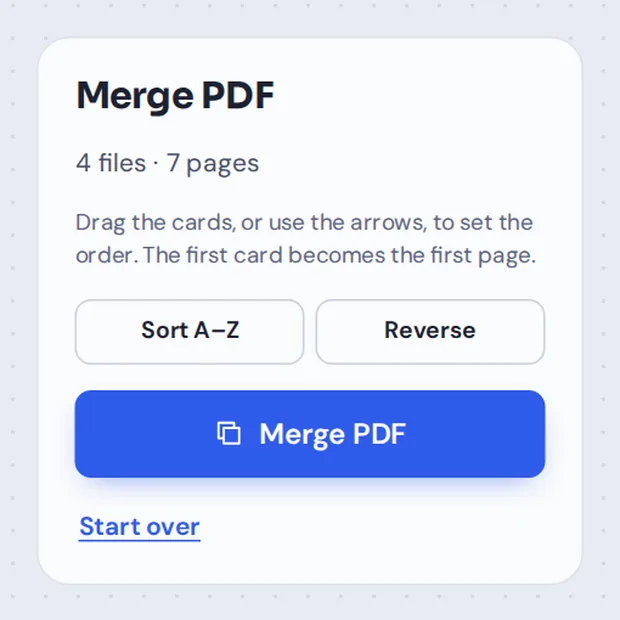
Click Merge PDF
The side panel shows how many files and pages you have. Use Sort A–Z or Reverse if it helps, then click Merge PDF.
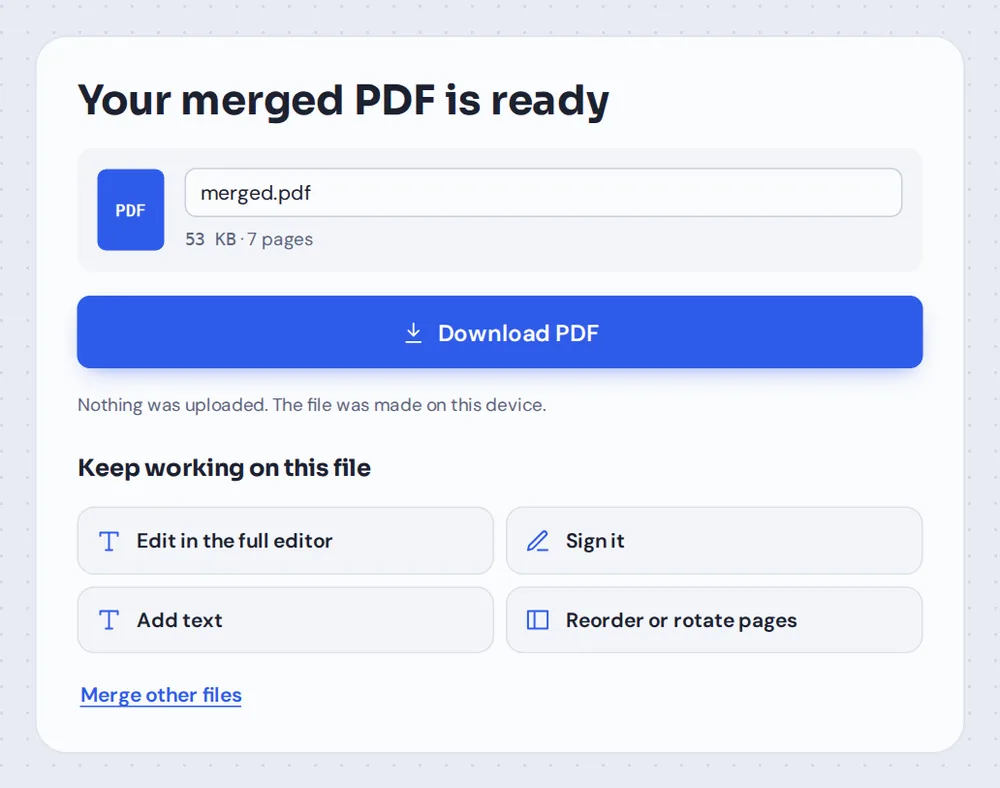
Download your file
Name the new file and click Download PDF. It opens in any PDF reader, and there is no watermark on it. You can also keep working on it right away.
What Does It Mean to Merge PDF Documents?
To merge PDF documents means to join two or more files into one, page after page. The pages are copied exactly as they are: text stays sharp and selectable, and pictures keep their quality. Nothing is printed, scanned or converted.
It is useful whenever you have to send or store several documents together. One file is easier to attach to an email, easier to upload to a job portal or a government form, and easier to find later than a folder full of loose pages.
You can also combine PDF files with images. A photo of a receipt or a scanned ID card is placed on its own A4 page, with a small margin, in the position you choose.
Merge
Join whole files into one document, in the order you choose. This is what this page does.
Organize
Move, rotate, duplicate or delete single pages. Open the merged file in the editor to do this.
Split
The opposite of merging: take pages out of one file and save them as separate PDFs.
Everything You Can Do When You Merge PDF Files
The tool is simple on purpose, but it handles the details that usually slow you down.
Add files
Bring in documents from anywhere on your device.
- PDFs and images together
Add PDF files and JPG, PNG, WebP or GIF images in the same list. Each image becomes one page.
- Add more at any time
Click the Add more files card, or drop more files on the page, without losing your order.
- Clear previews
Every card shows the first page, the file name, the number of pages and the file size, so you can check before you merge.
Set the order
Get the page order right before you merge PDF files.
- Drag and drop
Drag any card to a new place. A blue line shows where it will land.
- Arrow buttons
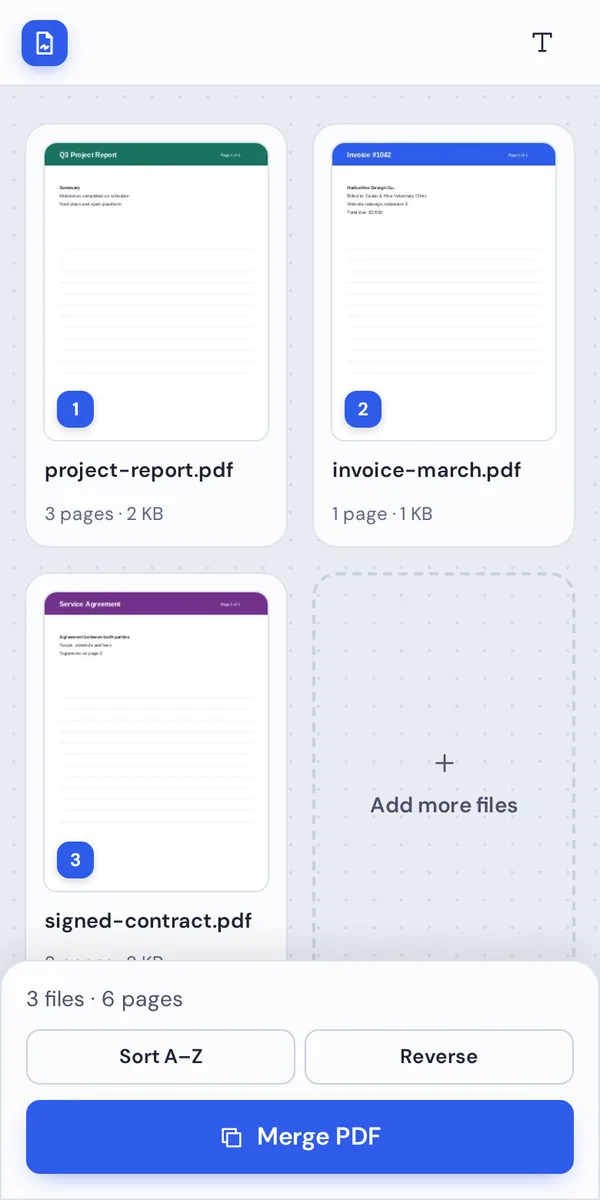
Use the left and right arrows on each card to move it one place. On a phone, the buttons are always visible.
- Sort and reverse
Sort files from A to Z by name, or reverse the whole order with one click.
- Keyboard friendly
Select a card and press the arrow keys to move it, or Delete to remove it.
Merge and download
One click creates your new file.
- Fast, on your device
Pages are copied inside your browser, so even long documents merge in seconds.
- Name your file
Type a new name before you download, such as application-2026.pdf.
- No watermark
The merged file looks exactly like the originals, with no logo or stamp added.
Keep working
Merging is often only the first step.
- Edit in the full editor
Open the merged file in the PDF Magic editor to add text, highlight or white out details.
- Sign it
Go straight to the signature tool and sign the combined document.
- Reorder or rotate pages
Move single pages, turn sideways scans upright or delete a page you do not need.
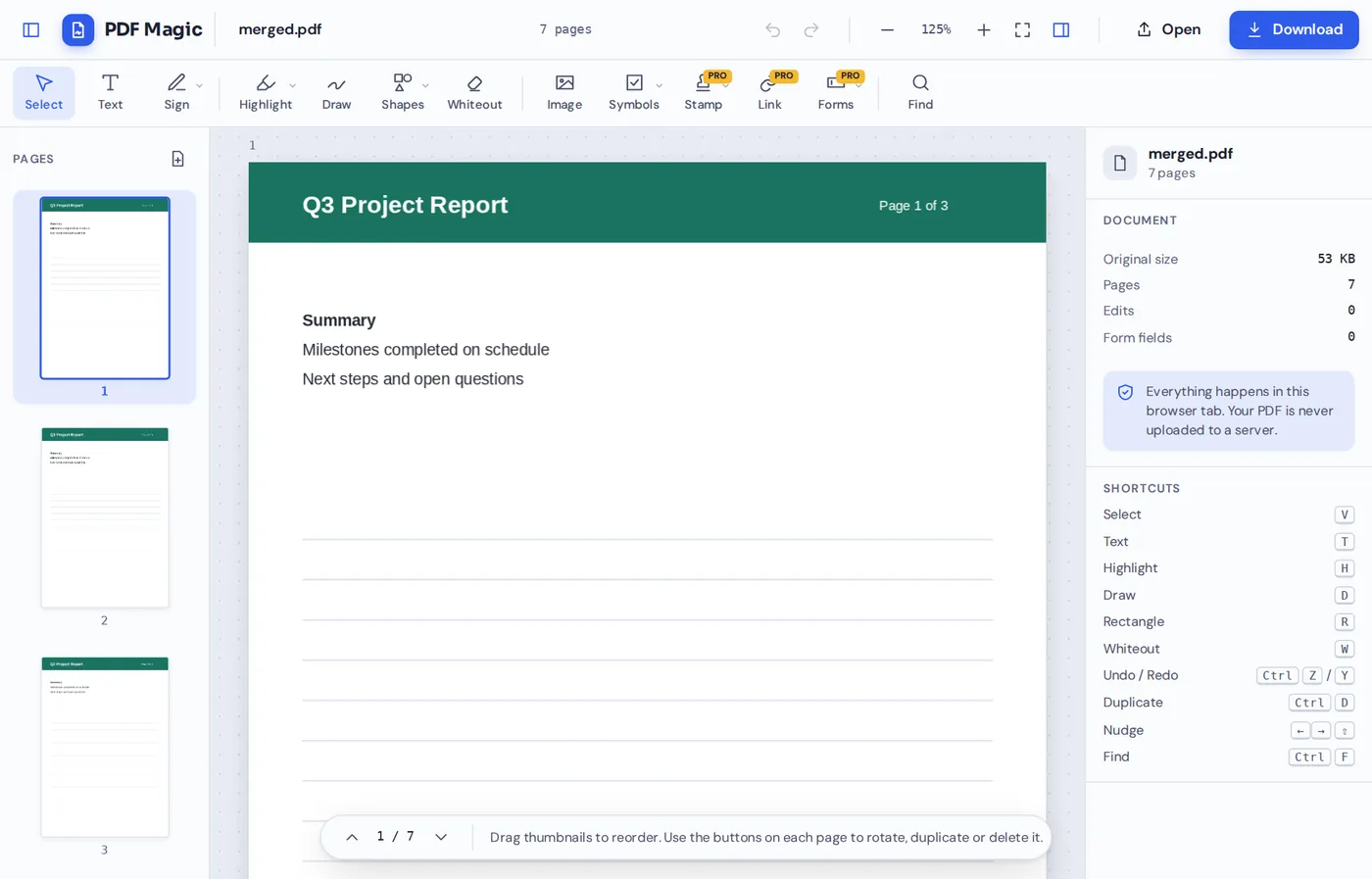
After you merge PDF files, click Reorder or rotate pages and the new document opens in the editor with every page in the sidebar. Drag pages to fine-tune the order, then download.
Related Tools That Work Well After You Merge PDF Files
These tools open the same file in the same editor, so you never have to upload anything.
Sign PDF
Draw, type or upload your signature and place it on the merged document.
PDF Editor
Change text, add notes, highlight and white out parts of any page.
JPG to PDF
Turn photos and scans into a PDF, one image per page.
Rearrange PDF pages
Move, rotate, duplicate and delete single pages.
Split PDF
Take pages out of a document and save them as a new file.
Fill PDF forms
Type into form fields and tick checkboxes before you send it.
Private by Design, With No Upload
Most online tools send your documents to a server to combine them. PDF Magic does not. When you merge PDF files here, they are read and joined inside your own browser tab, and the new file is created on your device.
That makes it a safe way to merge PDF files such as contracts, bank statements, medical records and ID documents. Close the tab and everything is gone.
- 0files uploadedYour documents stay on your device.
- 0copies keptWe never see or store your files.
- 0accounts neededOpen the page and start.
Works on iPhone, Android and Computer
- Windows
- Mac
- Linux
- Chromebook
- iPhone
- iPad
- Android
The tool works in any modern browser, with nothing to install. On a phone, the Merge PDF button stays at the bottom of the screen, so it is always one tap away.
Need to send an application from your phone? Pick the PDFs and photos from your files, merge PDF pages in the right order and download one document ready to attach.
When People Use This Tool
If several files need to travel together, merge PDF documents first and send just one.
Job applications
Your CV, cover letter and certificates in one file.
Invoices and receipts
A month of invoices, or receipt photos for an expense claim.
Rental and loan papers
Payslips, bank statements and ID for an application.
School work
Assignment pages, scans of handwritten notes and a cover page.
Reports and proposals
Chapters written by different people, joined into one report.
Medical and insurance
Claim forms with test results and receipts, kept private.
Pro Tips for Faster Results
- Number your filesName them 01, 02, 03 and click Sort A–Z before you merge PDF files.
- Crop photos firstA photo cropped close to the paper looks cleaner on its page.
- Fix single pages afterMerge first, then use Reorder or rotate pages for page-level changes.
- Unlock protected filesPassword-protected PDFs cannot be merged. Remove the password first.
- Name it clearlyRename the file before you download, so it is easy to find later.
- Keep the originalsThe files you added are not changed, so keep them as a backup.
Merge PDF: Frequently Asked Questions
Answers to what people ask most before they combine files.
How do I merge PDF files?
Click Choose files or drop your PDFs on the tool above, drag them into the right order and click Merge PDF. Then download your new file.
Can I merge PDFs for free?
Yes. Merging is free with no account and no watermark, and during our launch there is no limit on the number of files.
How do I combine multiple PDFs into one?
Add all the PDFs at once, put the file cards in the order you want and click Merge PDF. They are joined page after page into one document. You can add JPG, PNG, WebP and GIF images too.
Can I merge PDFs without Adobe Acrobat?
Yes. You do not need Acrobat or any other software. The merge tool runs in your browser, and the merged file opens in every PDF reader.
Can I merge PDFs on my phone?
Yes. Open this page in your phone's browser, choose your files and tap Merge PDF. The button stays at the bottom of the screen.
Can I rearrange pages before merging PDFs?
Yes. Drag the file cards into order before you merge. After merging, click Reorder or rotate pages to move single pages in the editor.
Does merging PDFs reduce quality?
No. Pages are copied as they are, so text stays sharp and selectable and images keep their quality.
Is it safe to merge PDFs online?
Yes. When you merge PDFs here, the files are joined inside your browser and never uploaded to our servers.
Ready to Merge PDF Files?
No account, no upload and no watermark: choose your files above and combine them in seconds.
Open the toolPDF Magic is the easy, private way to combine documents online. Add your files and merge PDF pages into one today.