
Duplicate PDF Pages Online Free
Duplicate PDF pages with one click, then move the copy wherever you need it.
- No upload
- No watermark
- No sign-up
- Edits are copied too
Duplicate PDF pages online for free. Click the copy button on any page and an exact copy appears right after it, including any text, signatures or highlights you added. Nothing is uploaded, and the file keeps its quality.
How to Duplicate PDF Pages in 4 Steps
It takes one click to duplicate PDF pages, one click for each copy you need.
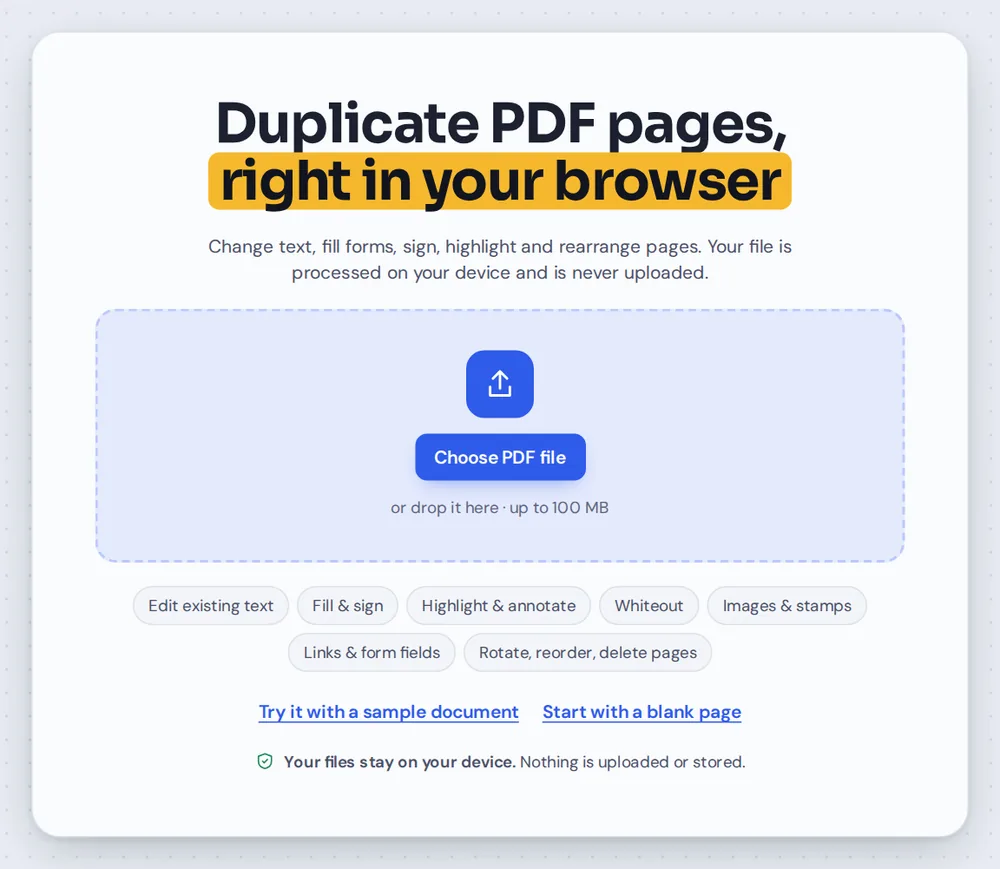
Open your PDF
Click Choose PDF file or drag your document onto the editor above. The page sidebar opens by itself.
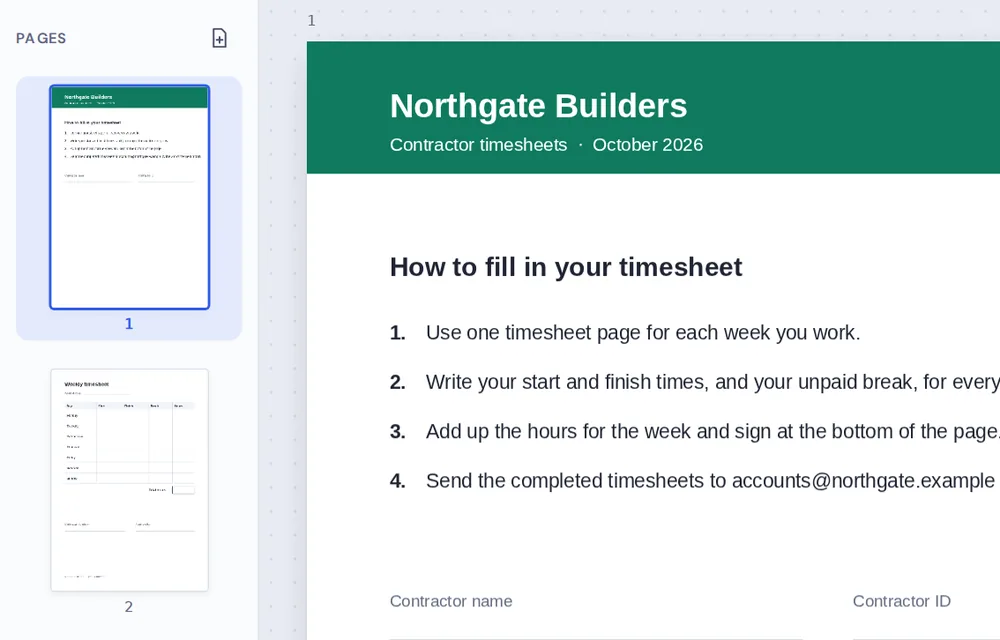
Find the page to copy
The sidebar shows a small picture of every page, so the one you want is easy to find.
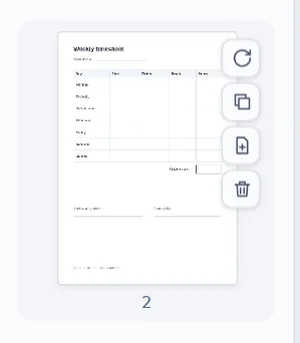
Click the copy button
Point at the page and click the copy button. The copy appears right after it. Click again for more copies.
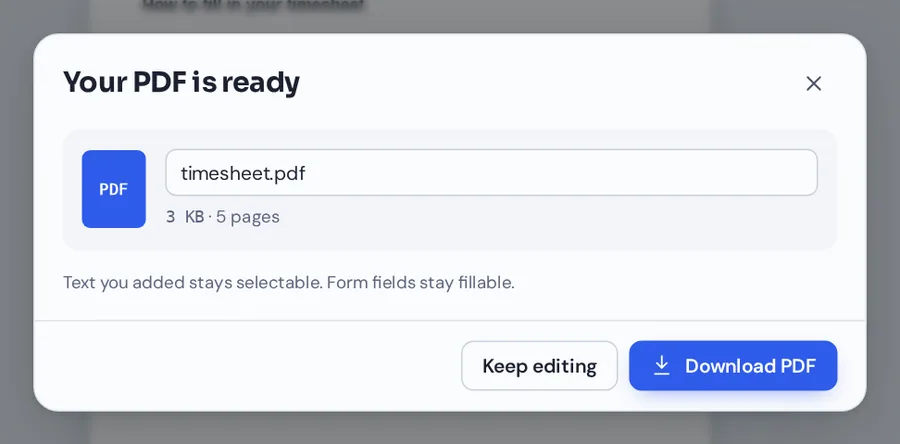
Download your file
Click Download and name your file. The copies are real pages that open in any PDF reader.
Duplicate PDF Pages Forms You Use Every Week
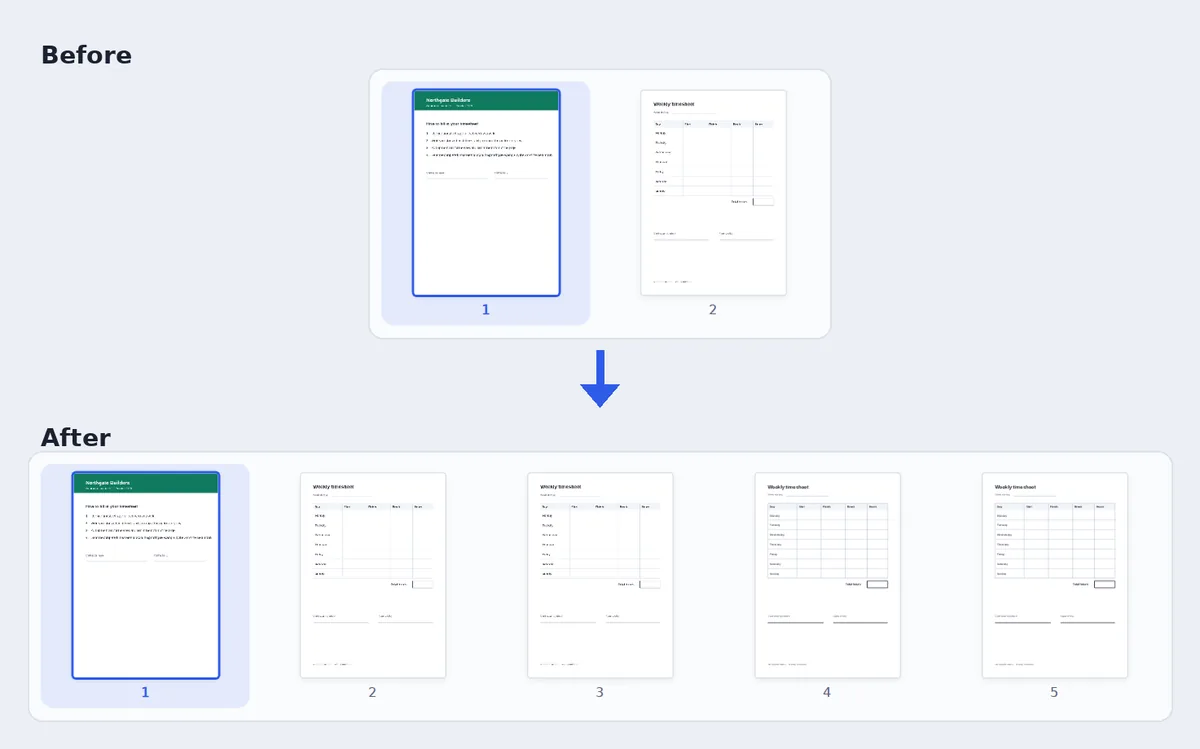
A timesheet with one weekly page, copied three times so there is a page for every week of the month.
What Happens When You Duplicate PDF Pages
A duplicate is an exact copy of a page, placed straight after the original. It has the same size, the same direction and the same content, so it prints and reads exactly like the page it came from.
When you duplicate PDF pages with PDF Magic, anything you added to the page is copied too: typed text, signatures, stamps, highlights and drawings. Copy a page after you fill in the parts that stay the same, and each copy starts with those details already there.
The original PDF on your device is not changed. When you duplicate PDF pages, you download a new file with the extra pages in it.
Exact copy
The copy has the same content, size and direction as the original page.
Edits come along
Text, signatures and marks you added are copied with the page.
Right after the original
Each copy lands next to its page. Drag it anywhere you like.
Everything in the Sidebar When You Duplicate PDF Pages
The button you use to duplicate PDF pages sits next to the other page tools, so you can tidy the whole document in one go.
Copy
Make as many copies as you need.
- One click per copy
Each click adds one more copy right after the page.
- Copies of copies
Copy a copy to keep building a series of the same page.
- Undo
Press Ctrl+Z to remove a copy you did not want.
Arrange
Put every copy in its place.
- Drag to reorder
Drag a thumbnail up or down to move that page.
- Move with the keyboard
Select a page and press Alt+Up or Alt+Down.
- Rotate
Turn a copy 90° if it needs to face another way.
- Delete
Remove a copy you no longer need. PDF Magic asks before it deletes.
Fill in each copy
Make every copy its own page.
- Type on each page
Add a different date, name or week number to each copy.
- Sign once, copy after
Sign a page first and your signature is copied with it.
Download
Save the finished document.
- Name your file
Rename the download before you save it.
- No watermark
Every page looks exactly like the original.
Related Tools in the Same Editor
They open in the same editor, so your file never leaves your device.
Add a blank page
Insert an empty page anywhere.
Rearrange PDF pages
Drag pages into the right order.
Delete PDF pages
Remove pages you do not need.
Merge PDF
Combine several files into one.
Fill PDF forms
Fill in each copy of a form.
PDF Editor
Add text, highlight and more.
Private by Design, With No Upload
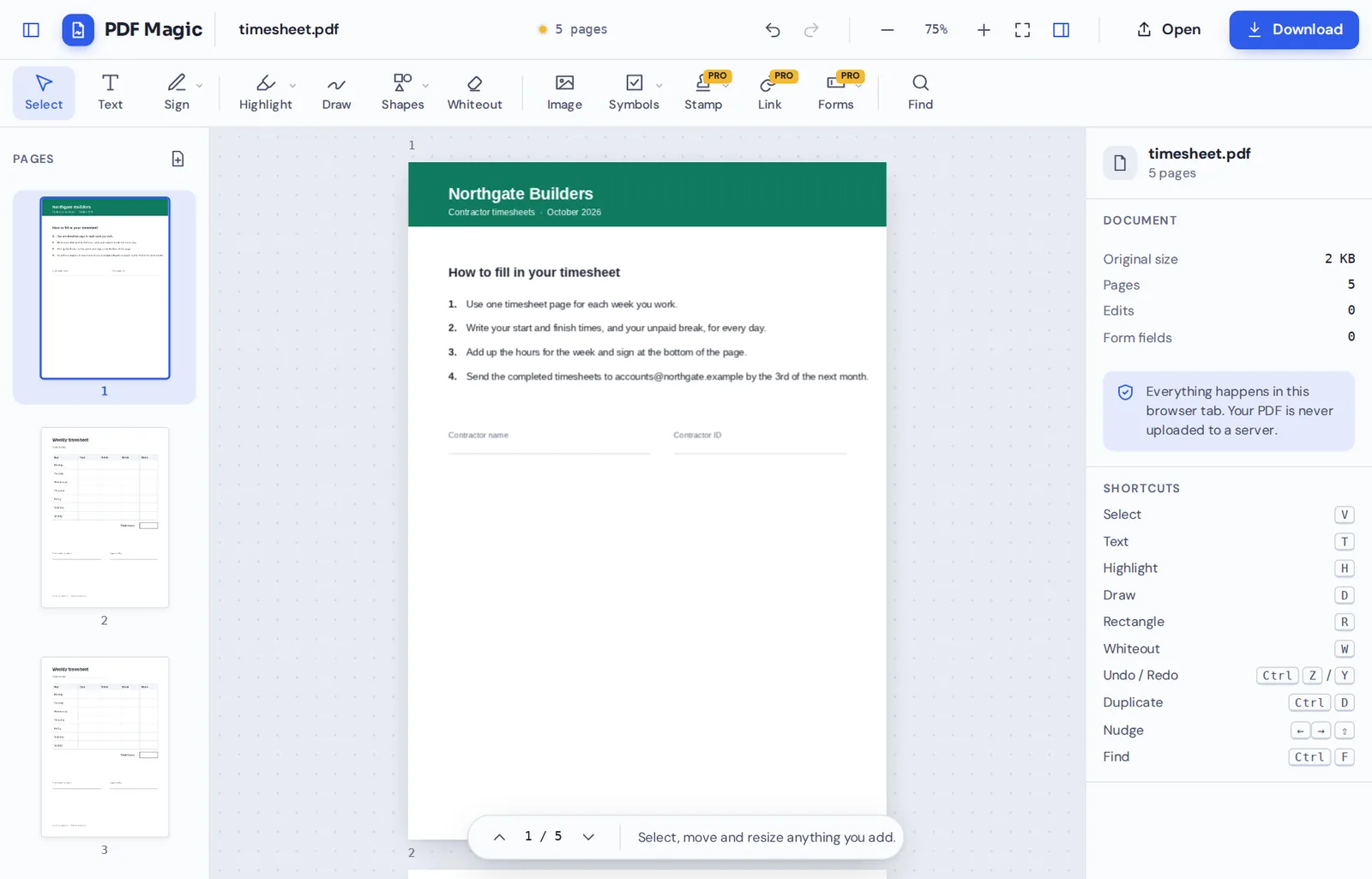
Timesheets, invoices and forms often hold names, addresses and pay details. When you duplicate PDF pages here, the document is opened and changed inside your browser tab and is never sent to our servers.
Close the tab and nothing is left behind. Only the file you download keeps your changes.
- 0files uploadedYour PDF stays on your device.
- 0quality lostPages are copied exactly as they are.
- 0accounts neededOpen the page and start.
Works on iPhone, Android and Computer
- Windows
- Mac
- Linux
- Chromebook
- iPhone
- iPad
- Android
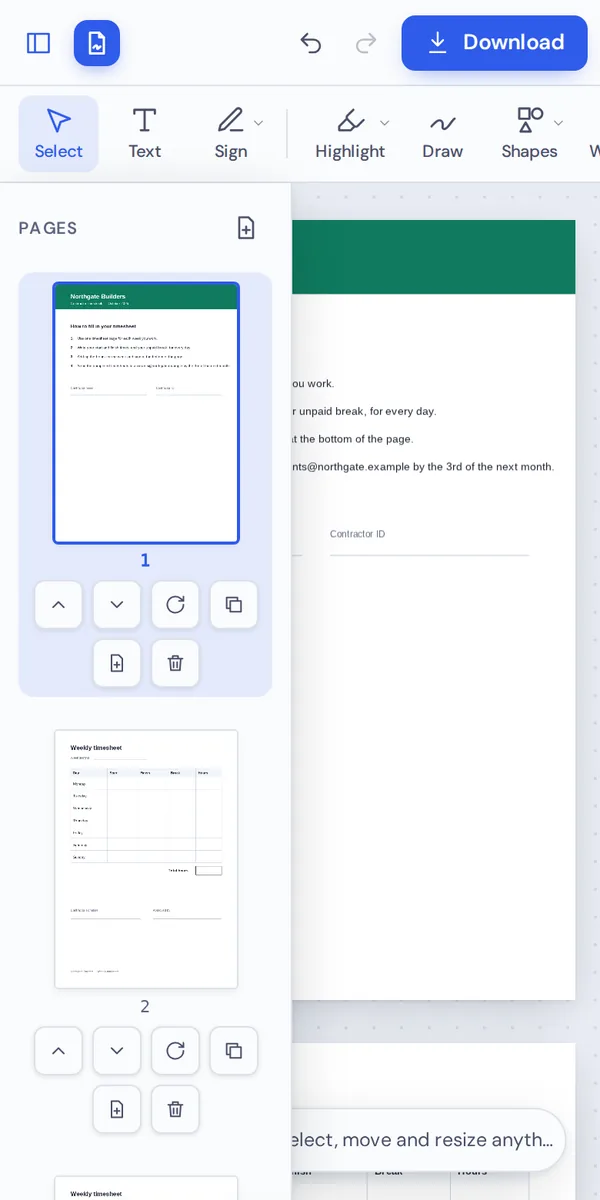
It works in any modern browser, with nothing to install. On a phone or tablet, the copy, move and delete buttons sit under each page thumbnail, ready to tap.
Need one more copy of a form while you are out? Open the file on your phone, duplicate PDF pages with a tap and send it on.
When People Use This Tool
Whenever the same page is needed more than once, duplicate PDF pages instead of scanning it again.
Timesheets and logs
One page for every week or every day.
Forms
Extra copies of a sign-up sheet or checklist.
Invoices and receipts
A copy of a page for your own records.
Worksheets
The same exercise page for every student.
Templates
A letterhead or cover page reused inside a report.
Labels and tickets
A page of labels or tickets copied for printing.
Pro Tips for Faster Results
- Fill in first, copy afterType the details that stay the same, then make your copies.
- Copy the last copyClicking copy on the newest page keeps copies in order.
- Zoom out for an overviewUse the − button to see more pages at once.
- Check the page countThe page count at the top shows how many pages you have.
- Keep the originalYour original file is not changed, so keep it as a backup.
- Undo anythingCtrl+Z removes the last copy you made.
Duplicate PDF Pages: Frequently Asked Questions
Answers to what people ask most before they start.
How do I duplicate PDF pages?
Open your PDF and click the copy button on any page in the sidebar. The copy appears right after it. Click again for more copies, then click Download.
Can I duplicate PDF pages for free?
Yes. Copying pages and downloading are free, with no account and no watermark.
Can I duplicate PDF pages online?
Yes. PDF Magic runs in your web browser, so you can duplicate PDF pages online on Windows, Mac, Linux or a Chromebook with nothing to install. Open your file in the tool at the top of this page to start.
How do I duplicate PDF pages on my phone?
Open this page in your phone's browser, tap Choose PDF file and pick your document. Tap the copy button under a page thumbnail. Then tap Download. There is no app to install.
Can I duplicate PDF pages without Adobe Acrobat?
Yes. You do not need Acrobat or any other software. PDF Magic works in your browser, and the file you download opens in Acrobat, Preview, Chrome and every other PDF reader.
Is it safe to duplicate PDF pages online?
Yes. PDF Magic does not upload your file. It is opened and changed inside your browser tab and never sent to our servers, so nobody else sees it. Close the tab and nothing is left behind.
How do I duplicate PDF pages without losing quality?
Pages are copied exactly as they are, so each copy has the same quality as the original.
What is the easiest way to duplicate PDF pages?
Open the file above and click the copy button on the page you need. Anything you added to it is copied too.
Ready to Duplicate PDF Pages?
No account, no upload and no watermark: open your document above and copy any page in one click.
Open the editorPDF Magic is the easy, private way to repeat a page. Open your file and duplicate PDF pages today.