
Highlight PDF Online Free
Highlight PDF text in five colors, with marks that snap neatly to the words.
- No upload
- No watermark
- No sign-up
- Snaps to whole words
Highlight PDF text online for free, right in your browser. Drag across the words you want to mark and the highlight snaps neatly to them. Choose from five colors, or underline and strike out text, then download your notes. Nothing is uploaded.
How to Highlight PDF Text in 4 Steps
Marking up a page takes seconds, and the text stays easy to read.
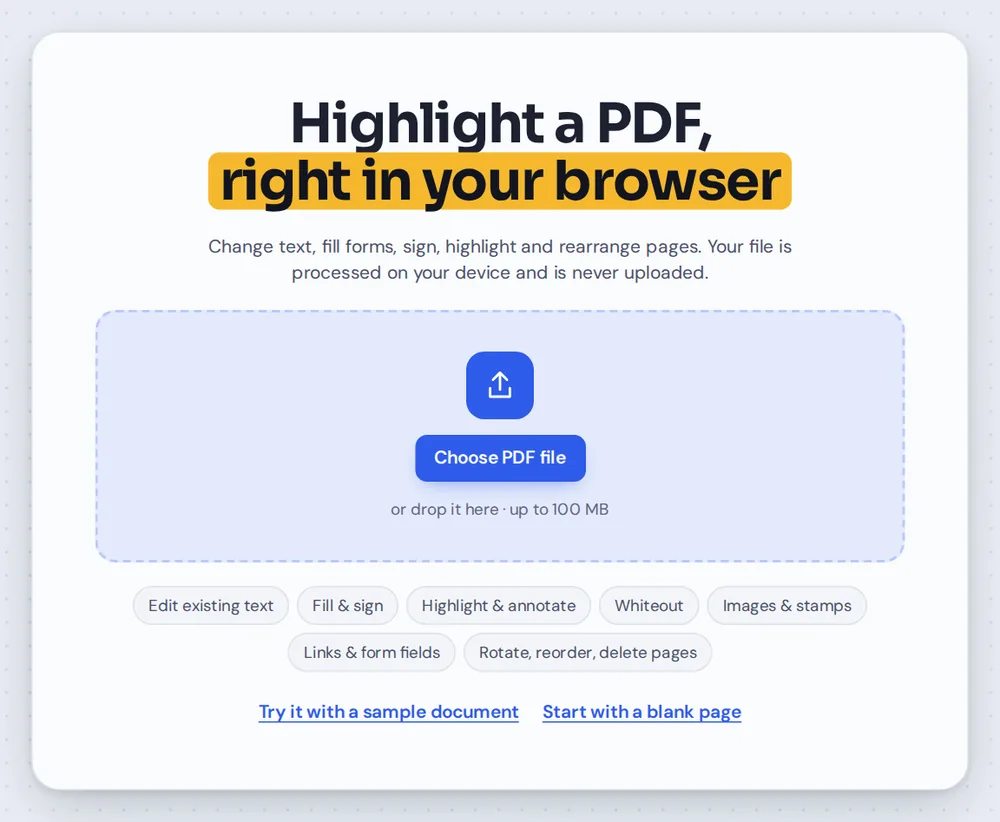
Open your PDF
Click Choose PDF file or drag your document onto the editor above. The highlighter is already selected.

Drag across the words
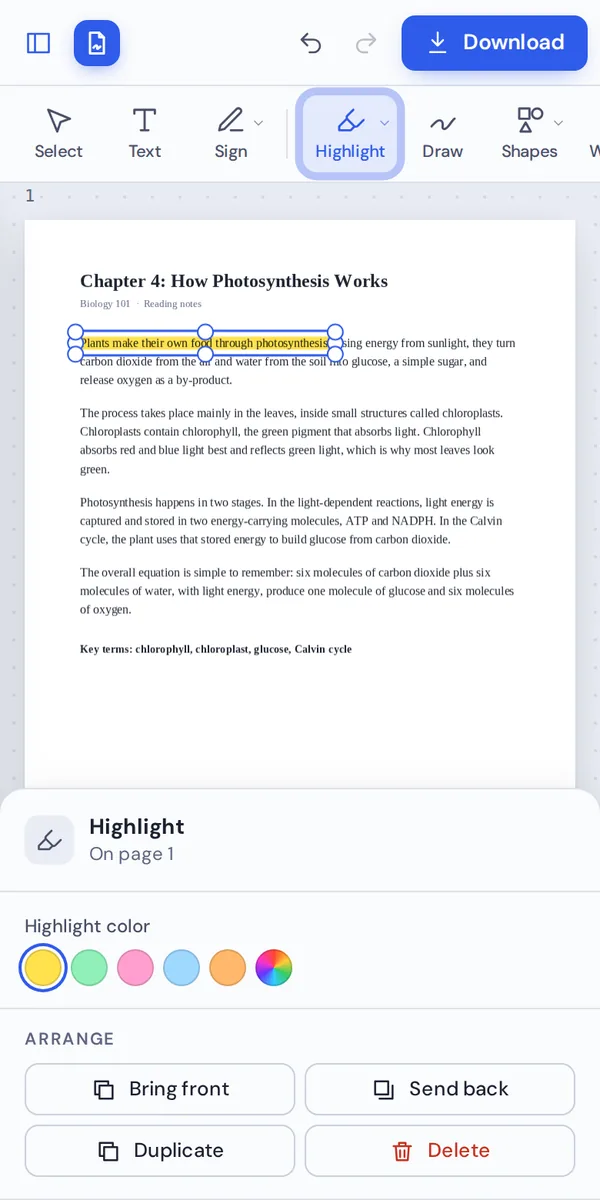
Drag from the first word to the last. The highlight snaps to whole words, even if your drag is a little loose.
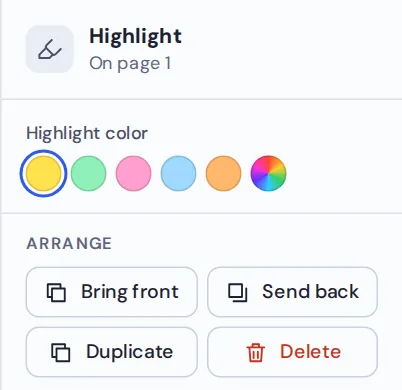
Pick a color
Select a highlight to change its color in the side panel. Use different colors for different kinds of notes.
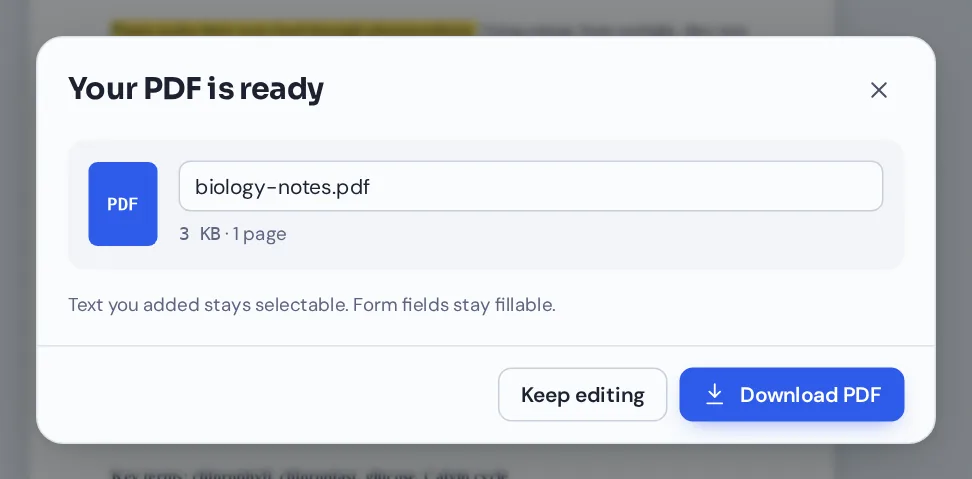
Download your file
Click Download and name your file. The highlights open in any PDF reader.
Highlight PDF Notes the Way You Would on Paper
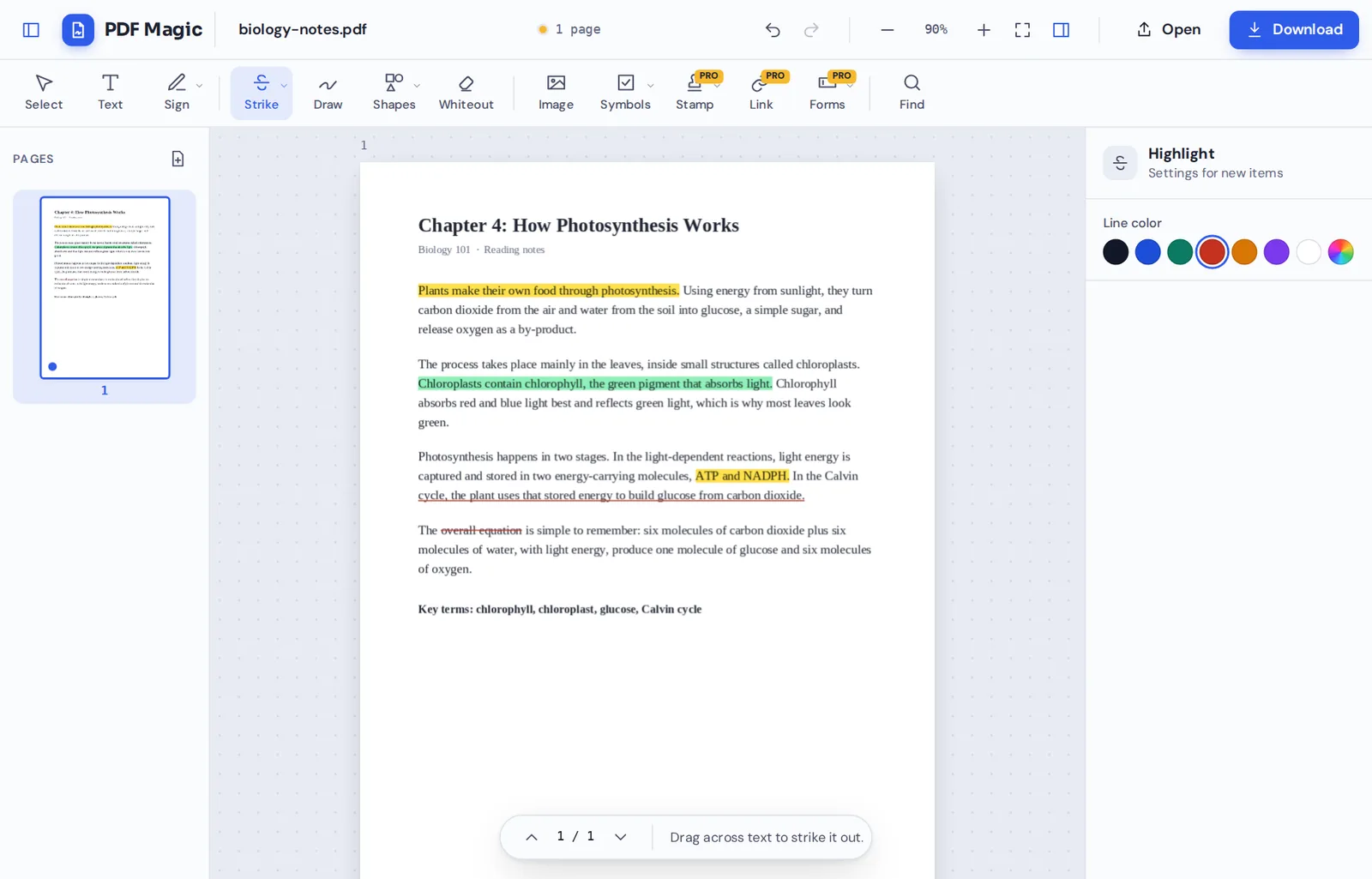
Yellow for main ideas, green for definitions, an underline for a key process and a strikeout for a phrase to skip.
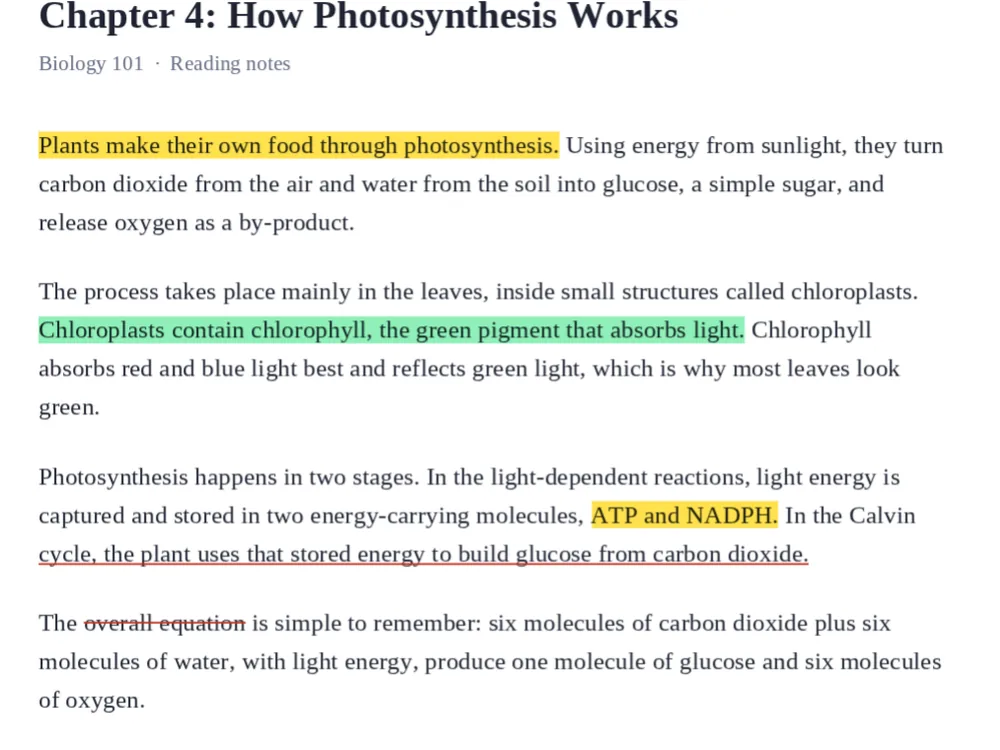
Highlight, Underline or Strike Out: When You Highlight PDF Text
Open the Highlight menu in the toolbar to switch between three ways of marking text. They all snap to the line of text you drag across, so marks stay straight and neat.
When you highlight PDF text with PDF Magic, the color blends with the page like a real highlighter pen. Black text stays black and easy to read, even under darker colors.
Highlights are added on top of the page. The original text is not changed, so it can still be selected and searched.
Highlight
A see-through color over the words. Best for main ideas and quotes.
Underline
A thin line under the words, in any ink color.
Strike out
A line through the words, to mark text to remove or skip.
Everything You Can Do When You Highlight PDF Pages
After you highlight PDF text, select any mark to change it in the side panel.
Highlights
Mark the words that matter.
- Snaps to words
Highlights start and end on whole words, so they never cut a word in half.
- Across several lines
Drag down over a few lines to mark them all at once.
- Five colors
Yellow, green, pink, blue and orange, plus any custom color.
Underline and strike out
For corrections and emphasis.
- Underline
Draw a clean line under a phrase in black, blue, red or any color.
- Strike out
Cross out words that should be removed, like a proofreader.
More markup
For notes that are not about one line.
- Draw freehand
Circle a figure or add an arrow with the pen.
- Shapes and arrows
Box off a section or point to a detail.
- Add text notes
Type a comment in the margin.
Edit and save
Change your mind at any time.
- Recolor or delete
Select a mark to change its color, or press Delete to remove it.
- Undo
Press Ctrl+Z to step back.
- No watermark
Your notes download exactly as you made them.
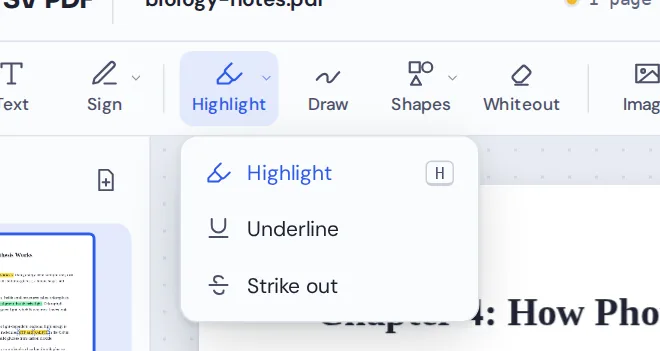
Open the Highlight menu to switch between Highlight, Underline and Strike out. Press H at any time to go back to the highlighter when you highlight PDF pages.
Related Tools in the Same Editor
They open the same document in the same editor, so nothing is uploaded.
Underline text
Draw neat lines under key phrases.
Strike through text
Cross out words to remove or skip.
Draw on PDF
Circle, sketch and mark by hand.
Add text to PDF
Type notes in the margin.
Add shapes
Boxes, circles, lines and arrows.
PDF Editor
Every editing tool in one place.
Private by Design, With No Upload
When you highlight PDF files here, the document is opened and marked up inside your own browser tab. It is never sent to our servers.
That makes it a safe choice for contracts under review, exam notes, research papers and anything you would rather keep to yourself.
- 0files uploadedYour PDF stays on your device.
- 0watermarksYour notes look like yours.
- 0accounts neededOpen the page and start.
Works on iPhone, Android and Computer
- Windows
- Mac
- Linux
- Chromebook
- iPhone
- iPad
- Android
It works in any modern browser, with nothing to install. On a tablet or phone, drag your finger across a sentence to highlight it.
Reading on the train? Open your notes, highlight PDF pages as you go and download them when you are done.
When People Use This Tool
People highlight PDF documents to turn long pages into something they can scan in seconds.
Studying
Mark definitions and key ideas in lecture notes and textbooks.
Contract review
Highlight clauses to discuss and strike out wording to change.
Research papers
Mark findings, methods and quotes to cite.
Feedback on drafts
Show a colleague exactly which lines need work.
Invoices and statements
Mark the amounts and dates that need checking.
Leases and policies
Highlight the rules and deadlines that matter to you.
Pro Tips for Faster Results
- Use a color codeFor example, yellow for main ideas, green for terms, pink for questions.
- Zoom in on small printIt is easier to drag across exactly the right words.
- Highlight lessShort highlights are easier to review than whole paragraphs.
- Undo a slipCtrl+Z removes the last mark.
- Mark figures with the penHighlights follow text; circle charts and pictures with Draw.
- Scans need the penScanned pages have no real text, so use Draw or shapes there.
Highlight PDF: Frequently Asked Questions
Answers to what people ask most before they start.
How do I highlight PDF?
Open your PDF, choose Highlight and drag across the words you want to mark. Pick one of five colors, then click Download.
Can I highlight PDF for free?
Yes. Highlighting and downloading are free, with no account and no watermark.
Can I highlight PDF online?
Yes. PDF Magic runs in your web browser, so you can highlight PDF files online on Windows, Mac, Linux or a Chromebook with nothing to install. Open your file in the tool at the top of this page to start.
How do I highlight PDF on my phone?
Open this page in your phone's browser, tap Choose PDF file and pick your document. Choose Highlight and drag your finger across the words. Then tap Download. There is no app to install.
Can I highlight PDF without Adobe Acrobat?
Yes. You do not need Acrobat or any other software. PDF Magic works in your browser, and the file you download opens in Acrobat, Preview, Chrome and every other PDF reader.
Is it safe to highlight PDF online?
Yes. PDF Magic does not upload your file. It is opened and changed inside your browser tab and never sent to our servers, so nobody else sees it. Close the tab and nothing is left behind.
How do I highlight PDF without losing quality?
Highlights are see-through marks laid over the page, so the text underneath stays sharp, selectable and searchable.
What is the easiest way to highlight PDF?
Open the file above and drag across the text. The Highlight tool is already selected and snaps to the words for you.
Ready to Highlight PDF Text?
No account, no upload and no watermark: open your document above and start marking.
Open the editorPDF Magic is the easy, private way to mark up a document. Open your file and highlight PDF pages today.