
PDF Editor for Windows – Free, No Install
A free PDF editor for Windows that runs in Edge or Chrome, with no installer and no admin rights.
- No install
- No admin rights
- No upload
- No watermark
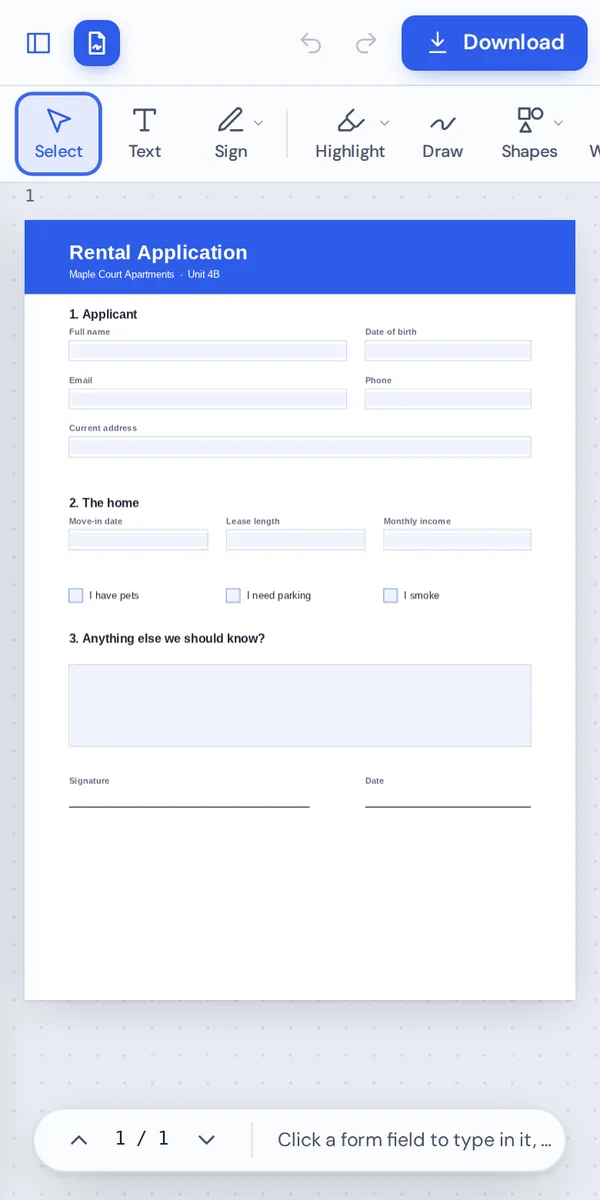
Open a PDF above and start editing on your Windows PC or laptop. This PDF editor for Windows changes text, adds signatures, fills forms and organizes pages right in your browser. Nothing is installed, nothing is uploaded, and the download has no watermark.
How to Use the PDF Editor for Windows
It works on home PCs and locked-down work laptops alike.
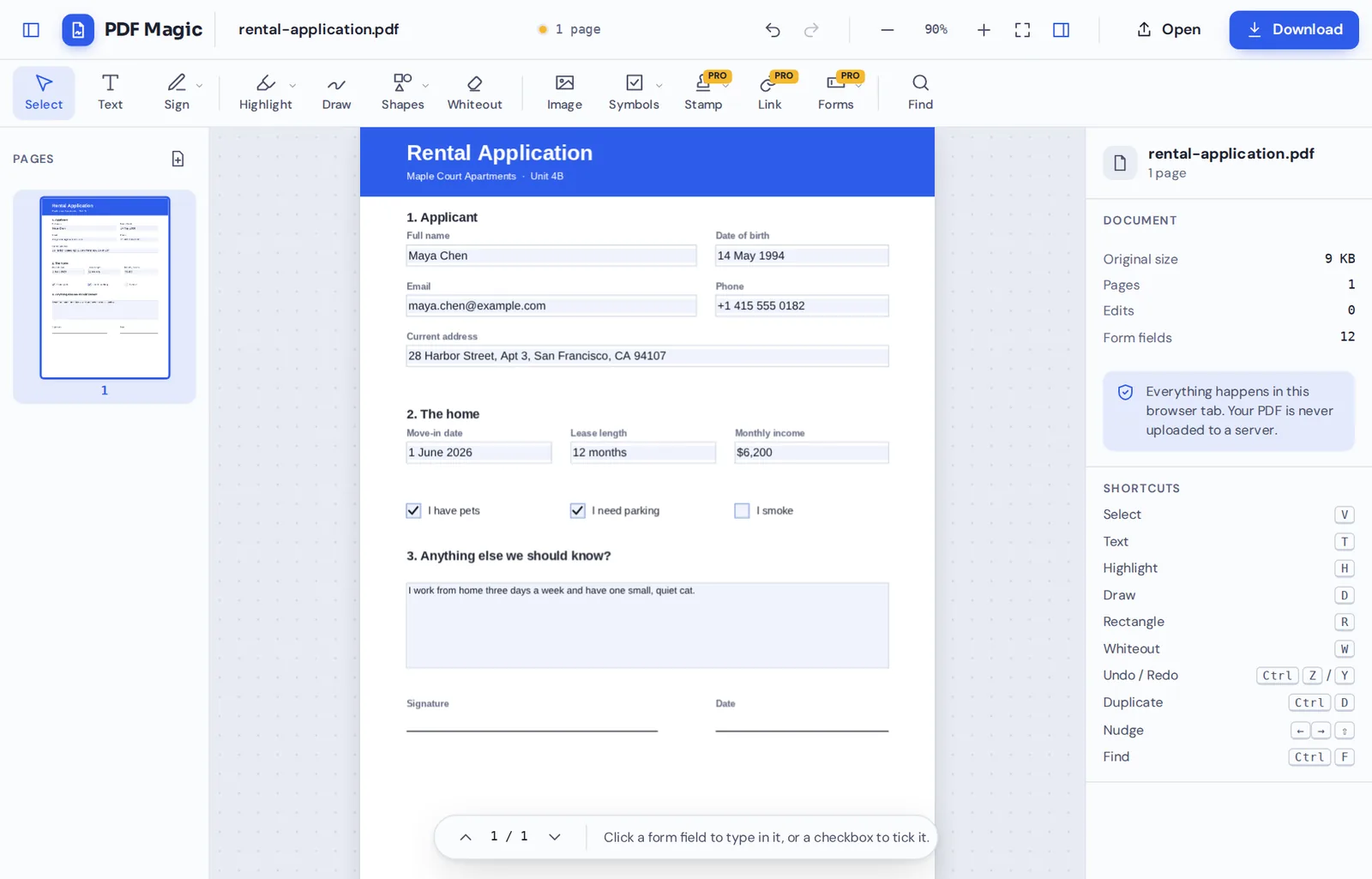
Open the page in Edge or Chrome
Click Choose PDF file and pick a file from File Explorer, your Desktop or OneDrive.
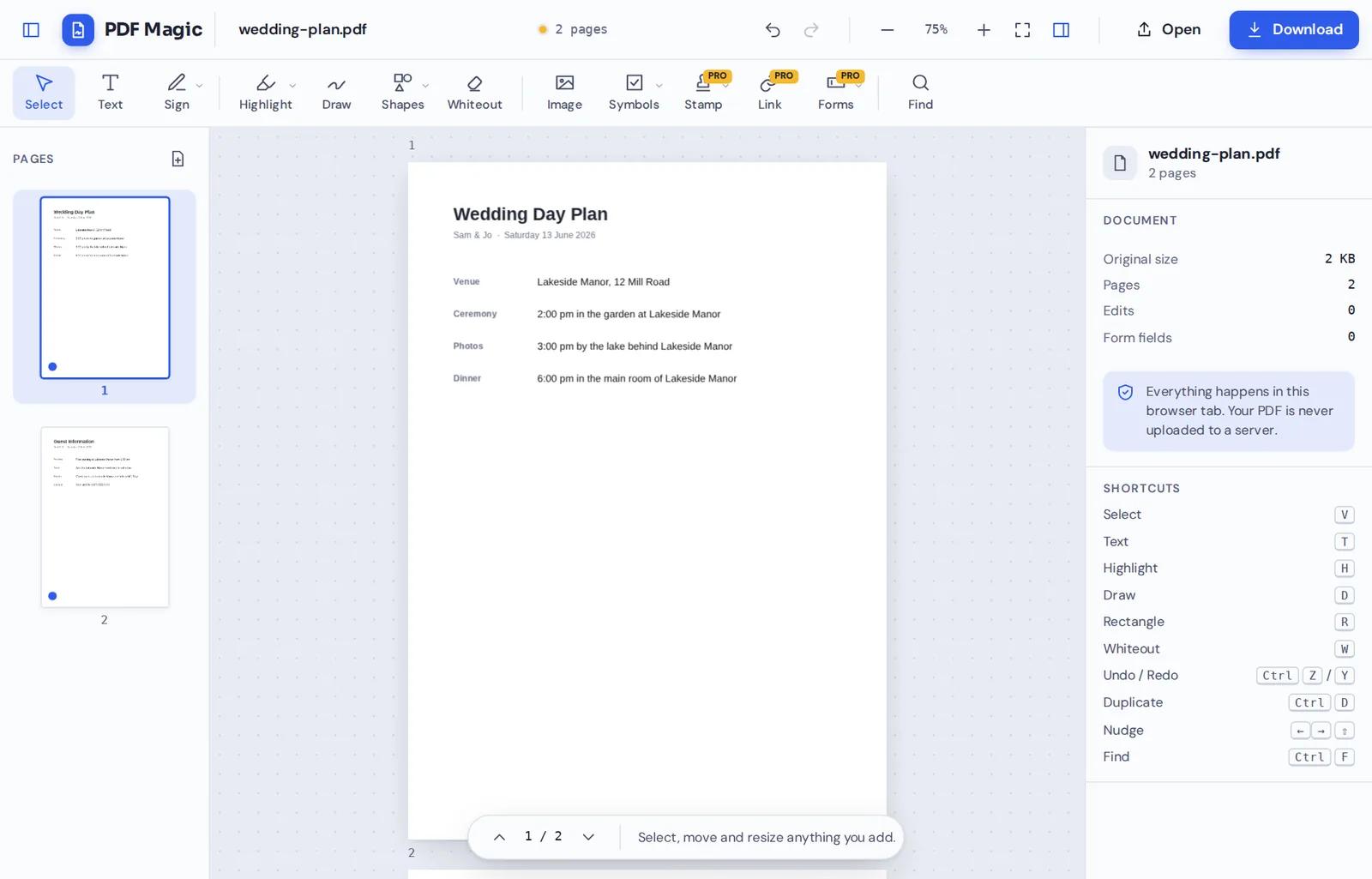
Change what you need
Retype a line, fill in fields or use Ctrl+F to replace a word on every page.
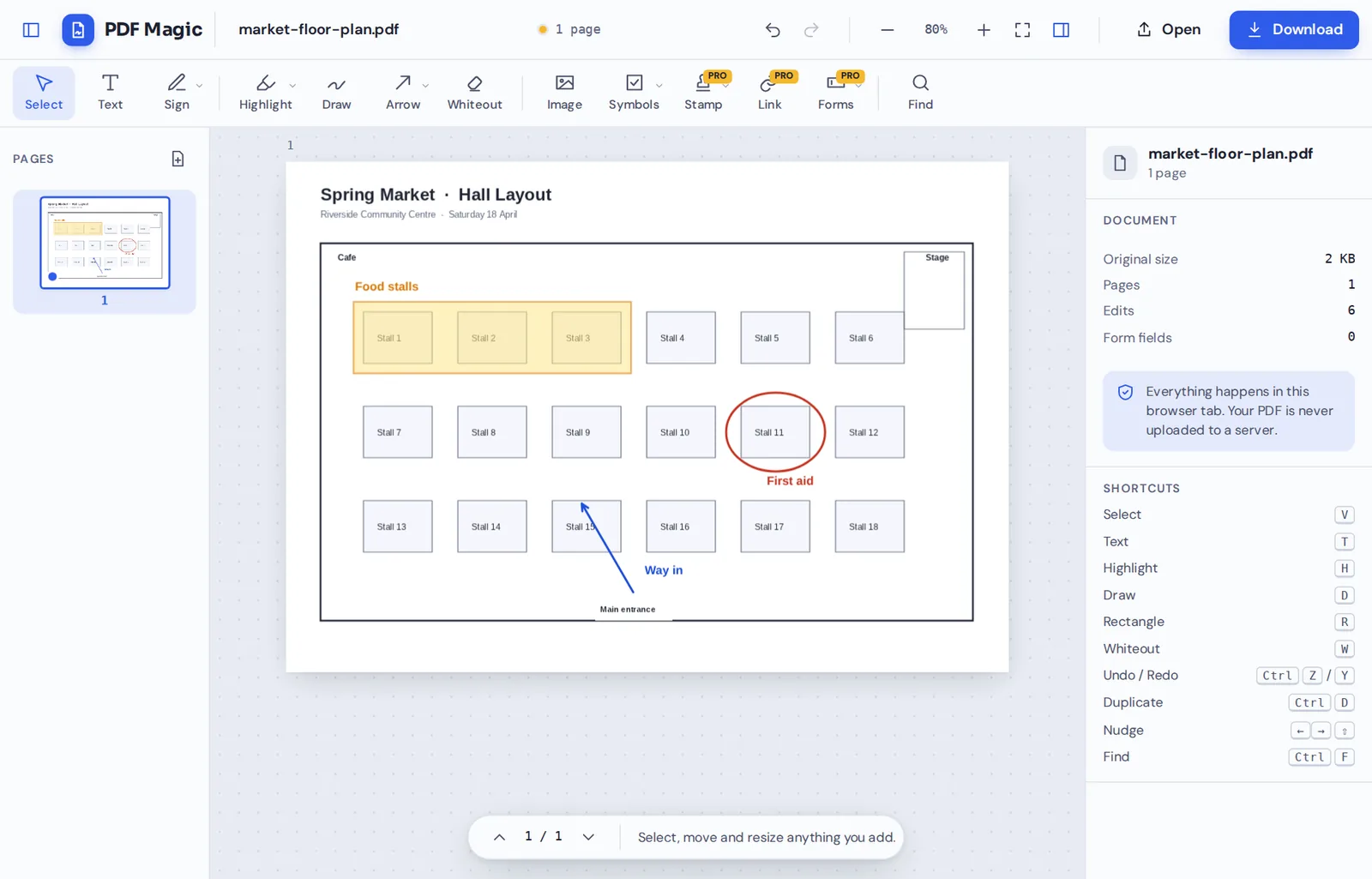
Mark it up
Add boxes, arrows, highlights, stamps or your signature. Ctrl+Z undoes anything.
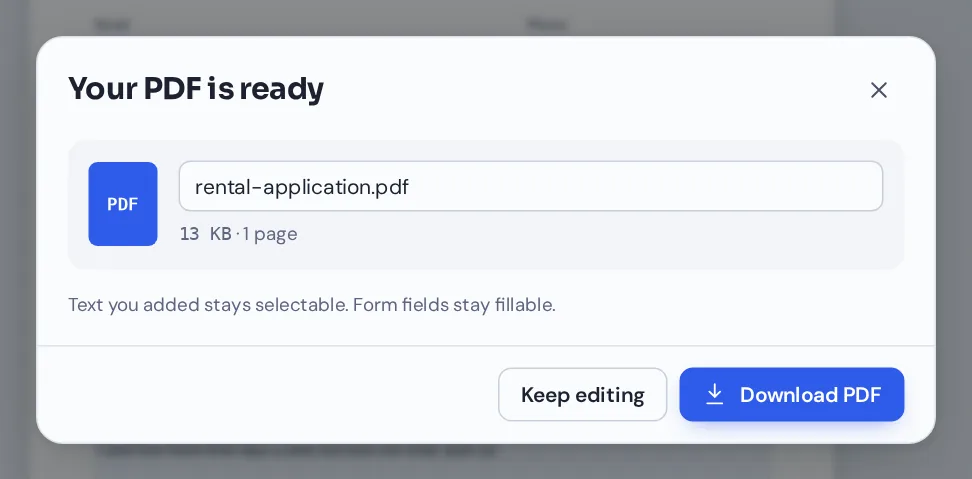
Save to your PC
Click Download. The PDF is saved to your Downloads folder, ready to email or print.
Why Use a PDF Editor for Windows Beyond Edge?
Microsoft Edge, which comes with Windows, opens PDFs and lets you highlight, draw and add a little text. It cannot change the words that are already in a document, and it has no whiteout, stamps, links or page tools.
PDF Magic adds those tools without an installer. That matters on work computers, where installing software usually needs an administrator, and on older PCs where a heavy desktop app would be slow.
It works in Edge itself, as well as Chrome and Firefox, on Windows 10 and Windows 11.
No admin rights
Nothing to install, so no IT ticket needed.
Real editing
Change existing text, not just add notes.
Stays on your PC
Your file is never uploaded.
PDF Editor for Windows Options Compared
The usual ways to edit a PDF on a Windows PC.
| PDF Magic | Microsoft Edge (built in) | Paid desktop apps | |
|---|---|---|---|
| Change existing text | Yes | No | Yes |
| Whiteout, stamps and links | Yes | No | Usually |
| Rotate, reorder and delete pages | Yes | Rotate only | Yes |
| Install or admin rights | None | Comes with Windows | Installer, often admin rights |
| Cost | Free | Free | Often a subscription |
Getting the Most From the PDF Editor on a PC
Small things that make work faster on Windows.
Keyboard
Familiar Windows shortcuts.
- Ctrl+Z and Ctrl+Y
Undo and redo.
- Ctrl+D
Duplicate the selected item.
- Delete
Remove the selected item or page.
Mouse
Move around a document quickly.
- Ctrl and the wheel
Zoom in and out.
- Right side panel
Change the style of whatever you select.
Files
Open and save like any Windows app.
- Drag and drop
Drag a PDF from File Explorer onto the editor.
- OneDrive
Pick files from OneDrive in the open window.
Touch screens
Great on Surface and 2-in-1 laptops.
- Sign with a pen
Draw your signature with a stylus or finger.
- Tap to edit
Every tool works with touch.
Private by Design, With No Upload
Online editors usually upload your file to a server. This one opens and changes it in your browser on your PC, so it never leaves your computer.
That makes it suitable for work documents on company laptops. There is no account and no copy on our side.
Because nothing is installed, there is also nothing to keep up to date, no background service running on your PC and no licence to renew. Open this PDF editor for Windows when you need it and close it when you are done.
- 0files uploadedYour PDF stays on your PC.
- 0installsIt runs in your browser.
- 0watermarksDownloads stay clean.
Works on iPhone, Android and Computer
- Windows
- Mac
- Linux
- Chromebook
- iPhone
- iPad
- Android
The same editor runs on Android phones, iPhones, Macs and Chromebooks. Start on your PC and finish on your phone.
There is nothing to install on any of them, and your files stay on whichever device you use.
When People Use This Tool
Office and home jobs where a PDF editor for Windows helps.
Work forms
Expenses, timesheets and leave requests.
Invoices
Correct details and stamp them Paid.
Government forms
Fill in and sign without printing.
Rental papers
Applications and leases.
Coursework
Mark up readings and fill in forms.
Plans and drawings
Circle and label changes.
PDF Editor for Windows: Frequently Asked Questions
Answers to what Windows users ask most before they start.
How do I use a PDF editor for Windows?
Open this page in Edge, Chrome or Firefox, click Choose PDF file and pick your document from File Explorer, your Desktop or OneDrive. Choose a tool, make your changes and click Download.
Is there a free PDF editor for Windows?
Yes. PDF Magic is a free PDF editor for Windows, with no account and no watermark on your downloads. During our launch every tool is free.
Can I use a PDF editor for Windows online?
Yes. This PDF editor for Windows runs in your web browser, so there is nothing to download or install, and it is always up to date.
Can I use the same PDF editor for Windows on my phone?
Yes. The same editor runs in the browser on Android phones and iPhones.
Can I use a PDF editor for Windows without Adobe Acrobat?
Yes. You do not need Acrobat or any other software, and the PDF you download opens in every PDF reader.
Is it safe to use a PDF editor for Windows online?
Yes. Your file is opened and changed inside the browser on your Windows. It is never uploaded to our servers.
Does a PDF editor for Windows keep the quality of my files?
Yes. Only what you change is changed. Text stays sharp and images keep their quality.
What is the easiest PDF editor for Windows?
One you do not have to install. Open a file at the top of this page and the tools are ready straight away.
Ready to Try the PDF Editor for Windows?
No installer, no upload and no watermark: open a file at the top of this page.
Open the editorPDF Magic works in Edge, Chrome and Firefox on any PC. Open your file in the PDF editor for Windows today.