
Split PDF Online Free – Cut It Anywhere
Split PDF files in seconds: cut one PDF into separate files, right in your browser.
- No upload
- No watermark
- No sign-up
- Split anywhere
Split PDF documents wherever you want. Click the scissors between pages to mark where each new file starts, or split every page or every few pages in one click. Each part is saved as its own PDF, and your file is never uploaded.
How to Split PDF Files
You see exactly which pages go into which file before you split.
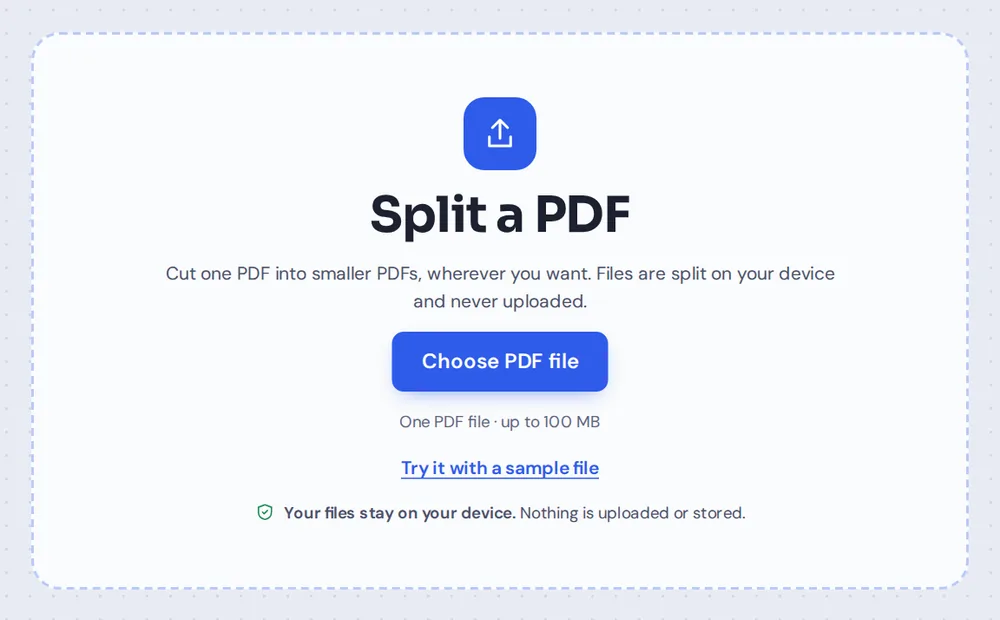
Choose your PDF
Click Choose PDF file or drop the PDF on the tool above. Every page appears as a thumbnail.
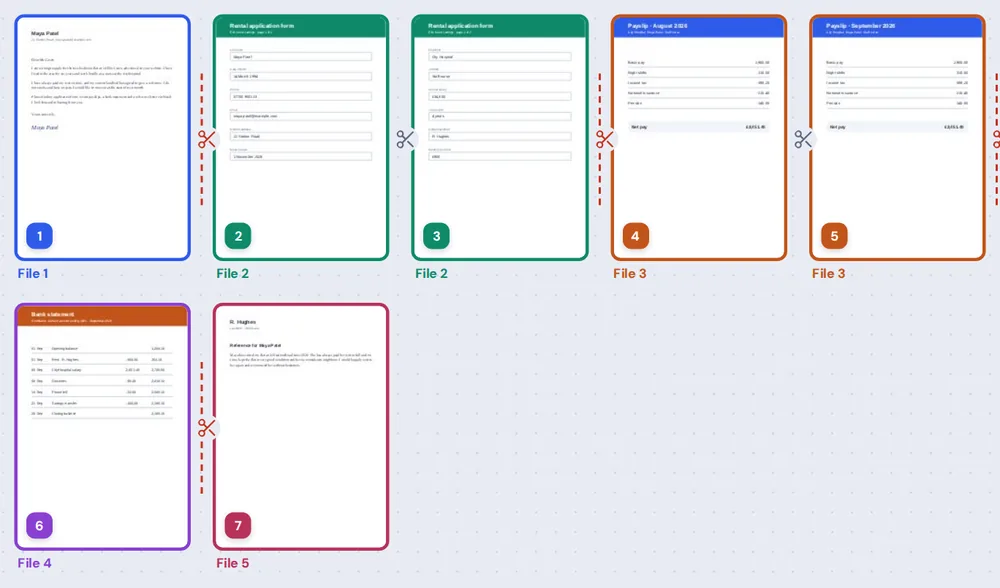
Click the scissors
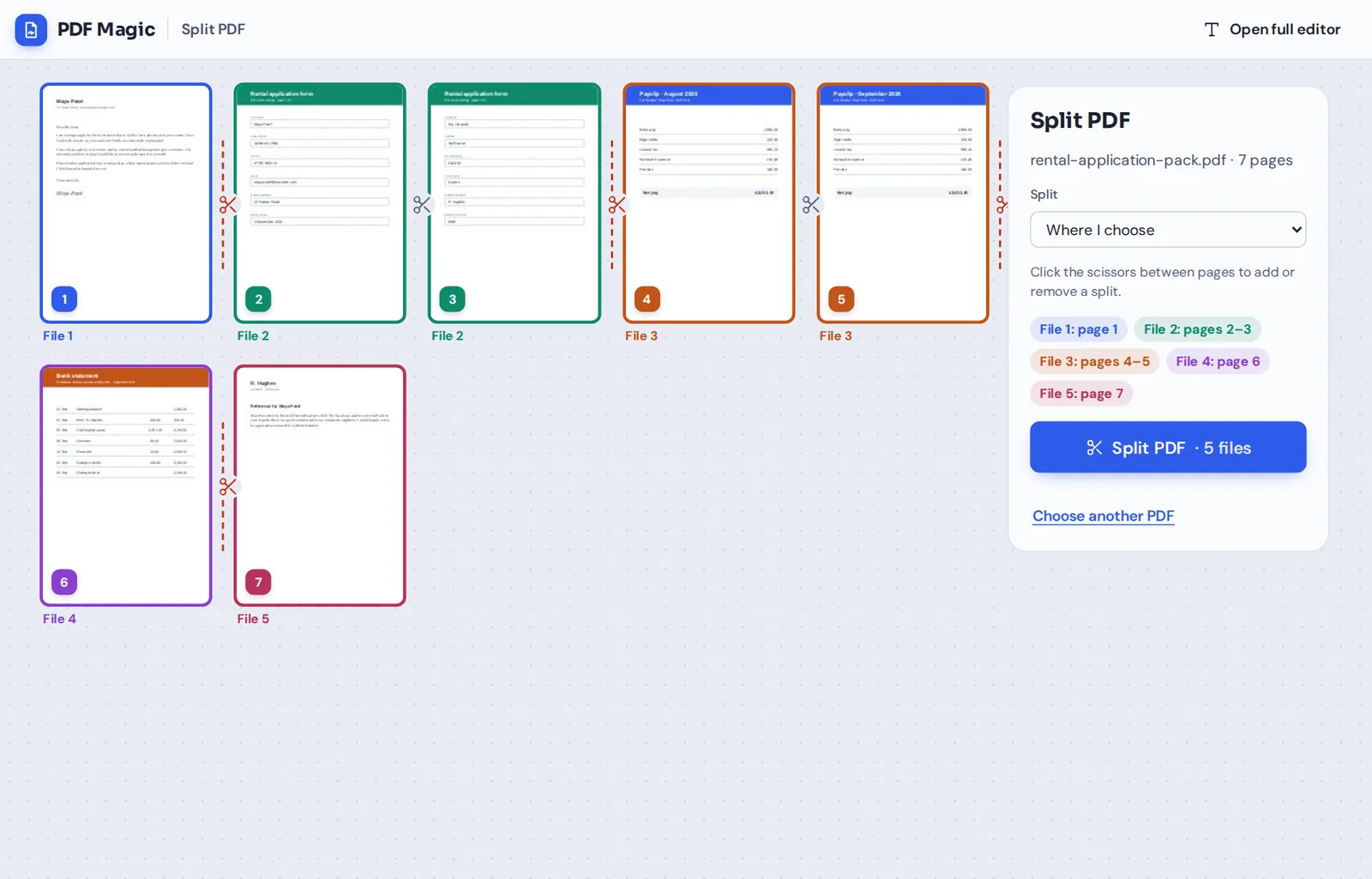
Click the scissors between two pages to cut there. Each new file gets its own color and label, so you can check the result at a glance. Click again to remove a cut.
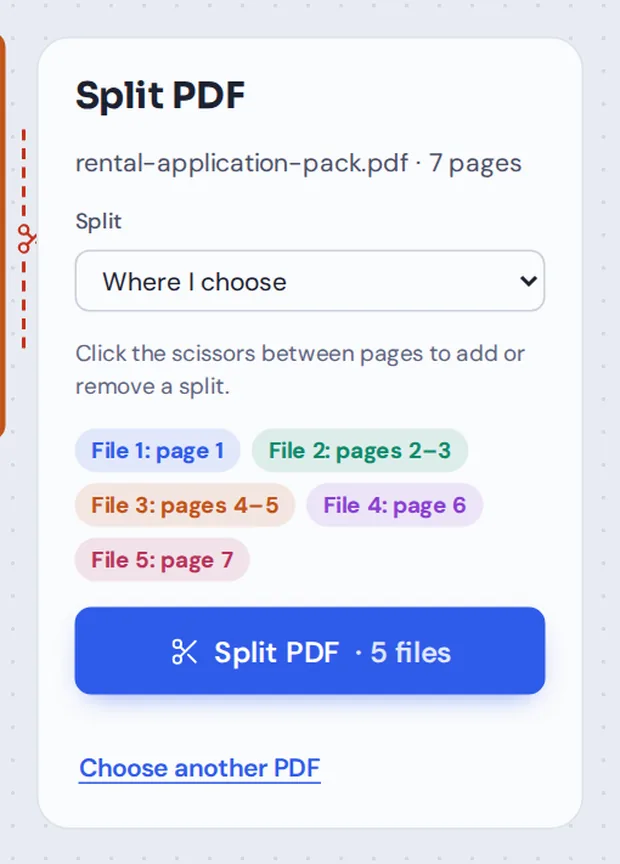
Or pick a split mode
Choose Every page into its own PDF, or Every few pages and type the number. The panel lists every new file with its pages.
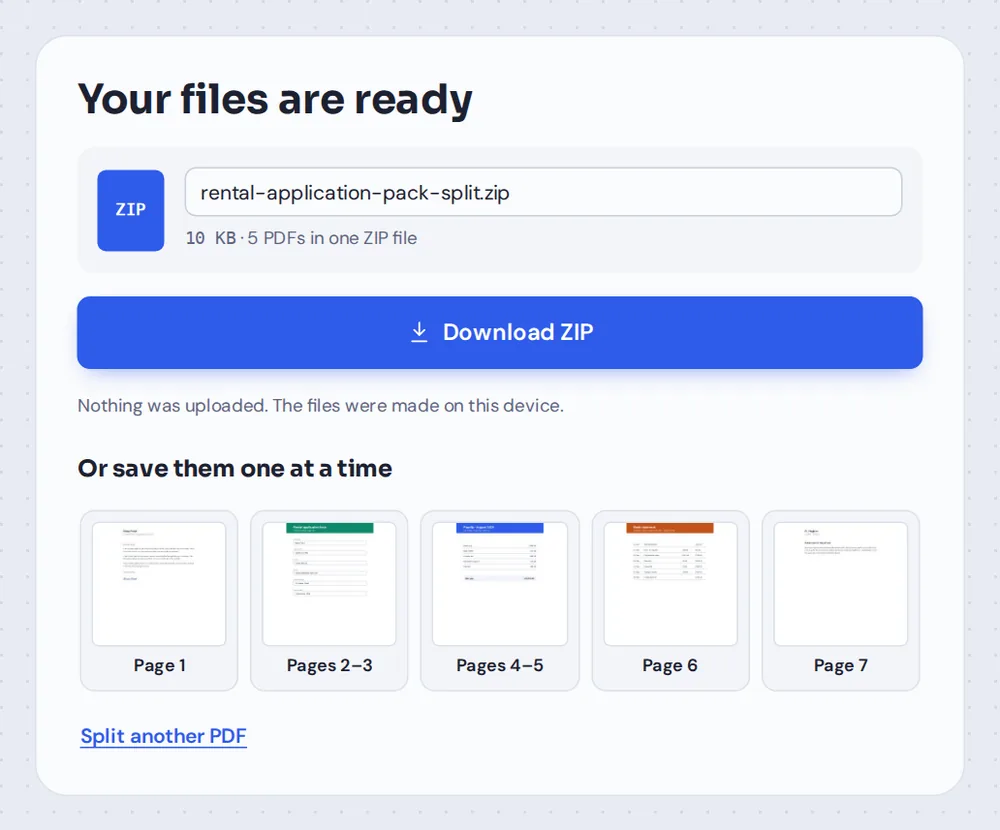
Download the files
Click Split PDF, then download all the files in one ZIP, or click a file to save just that one.
What Does It Mean to Split PDF Documents?
To split PDF documents means to cut one file into two or more smaller files. Every page ends up in exactly one of the new files, in the same order, and the original PDF is not changed.
It is the fix for a common problem: several documents scanned or saved as one PDF. A rental application, a pile of invoices or a set of contracts can be split into one file per document, so each one can be sent or filed on its own.
When you split PDF pages here, they are copied, not redrawn. Text stays sharp and selectable, and pictures keep their quality.
Split PDF
Cut one PDF into several files. This is what this page does.
Extract pages
Keep only the pages you pick, in one new PDF.
Merge PDF
The opposite: join several files into one.
Three Ways to Split PDF Pages
Choose the one that matches your document.
Where I choose
Best for documents of different lengths.
- Scissors between pages
Click to cut after any page. Click again to join the pages back.
- Color for each file
Pages in the same new file share a color and a label, such as File 2.
- File list
The panel lists each file with its pages, such as File 3: pages 4–5.
Every page
Best for forms and single sheets.
- One page, one file
A 12-page PDF becomes 12 one-page PDFs.
- Page numbers in the names
Files are named by part and page, so they sort in order.
- Change any cut
Click a scissors to keep two pages together.
Every few pages
Best for batches of the same length.
- Pages in each file
Type 2, 3 or any number, and the cuts are placed for you.
- Uneven endings
If pages are left over, they go into a shorter last file.
- Fine-tune
Adjust any cut with the scissors before you split.
Download
Your way, on any device.
- One ZIP file
All the new PDFs together, ready to unzip.
- File by file
Click any file on the finished screen to save just that one.
- Clear names
Such as application-part-2-pages-2-3.pdf.
Split PDF vs Extract PDF Pages
Two tools that sound alike but do different jobs.
| Split PDF | Extract PDF pages | |
|---|---|---|
| What you get | Several new PDFs | One new PDF, or one per page |
| Pages used | Every page, each in one of the new files | Only the pages you pick |
| Best for | Separating documents scanned together | Taking a few pages out of a long file |
| Example | A 7-page pack into 5 documents | Pages 4–6 of a 40-page handbook |
Split PDF Files Without Uploading Them
Most online tools upload your PDF to split it. PDF Magic cuts the file inside your own browser tab, so your documents never leave your device.
That matters for payslips, bank statements, medical records and ID documents, the kind of files people most often need to split before sending.
- 0files uploadedYour PDF stays on your device.
- 0copies keptWe never see your pages.
- 0accounts neededOpen the page and start.
Split PDF on iPhone, Android or Computer
- Windows
- Mac
- Linux
- Chromebook
- iPhone
- iPad
- Android
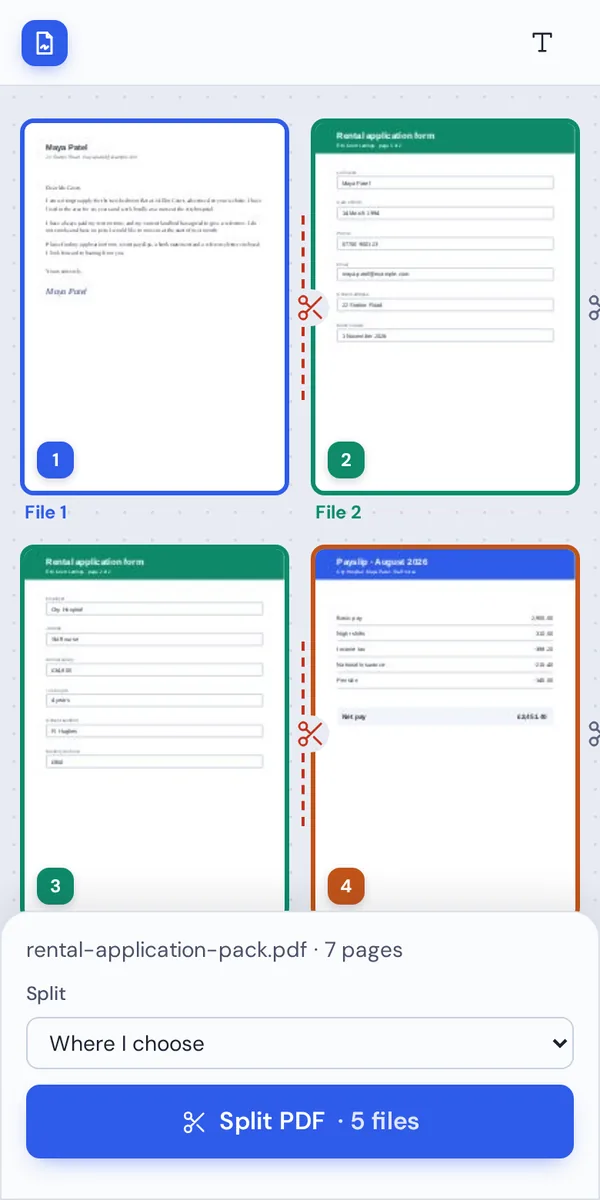
Open this page in your phone's browser, choose the PDF and tap the scissors where you want to cut. The Split PDF button stays at the bottom of the screen.
It works the same on Windows, Mac, Linux and Chromebook, with nothing to install.
When People Split PDF Files
Whenever one file holds more than one document.
Application packs
Letters, forms and payslips scanned as one file, sent separately.
Invoices and receipts
A month of scanned invoices, one file each.
Course material
A big reader split into one PDF per week or chapter.
Contracts
Separate the agreement from its schedules and appendices.
Team documents
A report cut into sections for different reviewers.
Upload limits
A large PDF cut into parts that fit a portal's size limit.
Tips to Split PDF Files Faster
- Check the colorsEach new file has its own color, so mistakes are easy to spot.
- Start from every pageChoose Every page, then click scissors to keep pairs together.
- Fix the order firstIf pages are out of order, rearrange them before you split.
- Just need a few pages?Use Extract PDF pages to save only those pages.
- Unlock protected filesPassword-protected PDFs need to be unlocked first.
- Save one fileClick a file on the finished screen to download just that one.
More Page Tools
Like Split PDF, they all run in the same private editor.
Extract PDF pages
Save only the pages you pick.
Merge PDF
Join PDFs and images into one file.
Rearrange PDF pages
Put pages in the right order first.
Delete PDF pages
Remove pages you do not need.
PDF to JPG
Turn pages into images.
Sign PDF
Sign one of the new files.
Split PDF: Frequently Asked Questions
Answers to what people ask before they split a document.
How do I split a PDF into separate files?
Open your PDF in the tool above. Click the scissors between two pages wherever one file should end and the next begin, then click Split PDF. Each part is saved as its own PDF, and you can download them all in one ZIP file.
Can I split a PDF for free?
Yes. It is free, with no account, no watermark and no page limit.
How do I extract specific pages from a PDF?
Use Extract PDF pages for that: click the pages you want, and they are saved together in one new PDF. With Split PDF, every page ends up in one of the new files.
Can I split a PDF on my phone?
Yes. Open this page in your phone's browser, choose the PDF, tap the scissors where you want to split and tap Split PDF. There is no app to install.
How do I split a PDF into individual pages?
Choose Every page into its own PDF under Split. A 10-page PDF becomes 10 one-page files, all in one ZIP file.
Can I split a password-protected PDF?
Not while it is locked. The tool shows a message when a PDF needs a password. Open it with its password, save an unlocked copy and split that instead.
How do I split a PDF by page range?
Click the scissors after the last page of each range. For example, to split pages 1–3, 4–6 and 7–9, click the scissors after page 3 and after page 6. To cut the file every few pages, choose Every few pages and type the number of pages for each file.
Can I split a PDF without Adobe Acrobat?
Yes. You do not need Acrobat or any other software. The tool runs in your browser, and the new PDFs open in Acrobat, Preview, Chrome and every other PDF reader.
Ready to Split PDF Files?
No account, no upload and no watermark: choose your PDF at the top of this page.
Open the toolPDF Magic is the quick, private way to separate documents. Choose your file and split PDF pages today.