
JPG to PDF Converter – Free and Private
JPG to PDF in seconds: turn photos into one PDF, one photo per page, right in your browser.
- No upload
- No watermark
- No sign-up
- Photos stay sharp
JPG to PDF in a few seconds: choose your photos, put them in order and download one PDF. Photos of receipts, notes, forms and ID cards each get their own page. Everything happens in your browser, so your photos are never uploaded.
How to Convert JPG to PDF
It works the same for one photo or fifty.
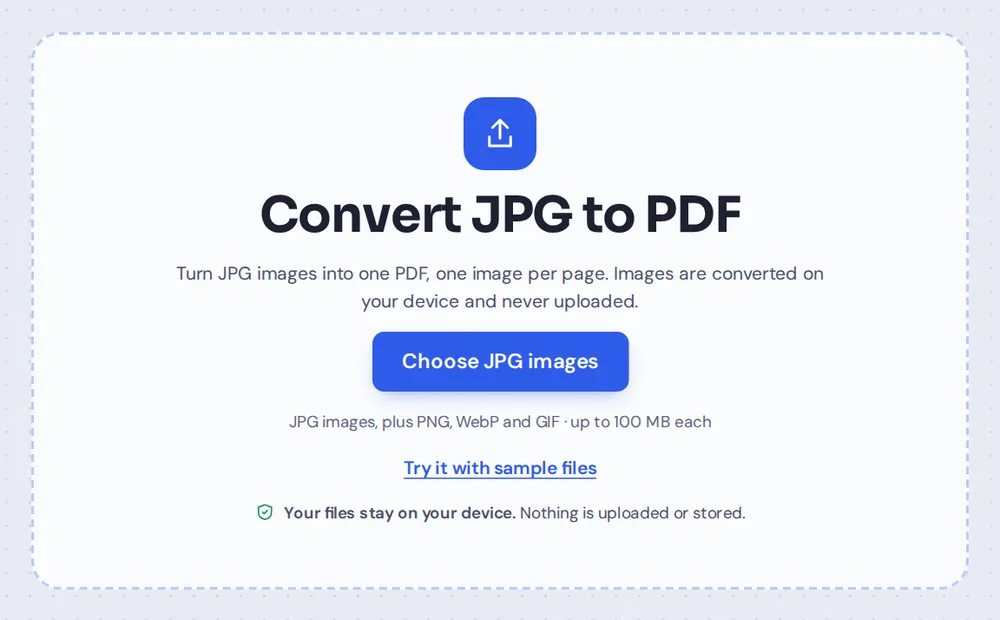
Choose your photos
Click Choose JPG images or drop your photos on the tool above. JPG and JPEG files both work, and you can pick many at once.
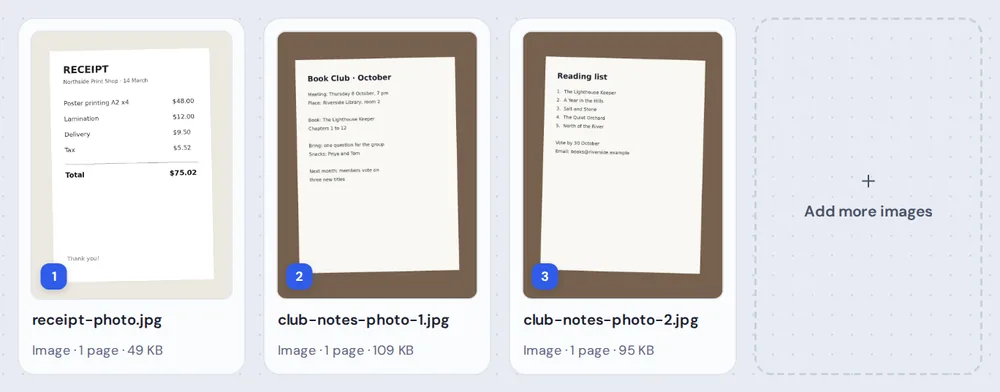
Put them in order
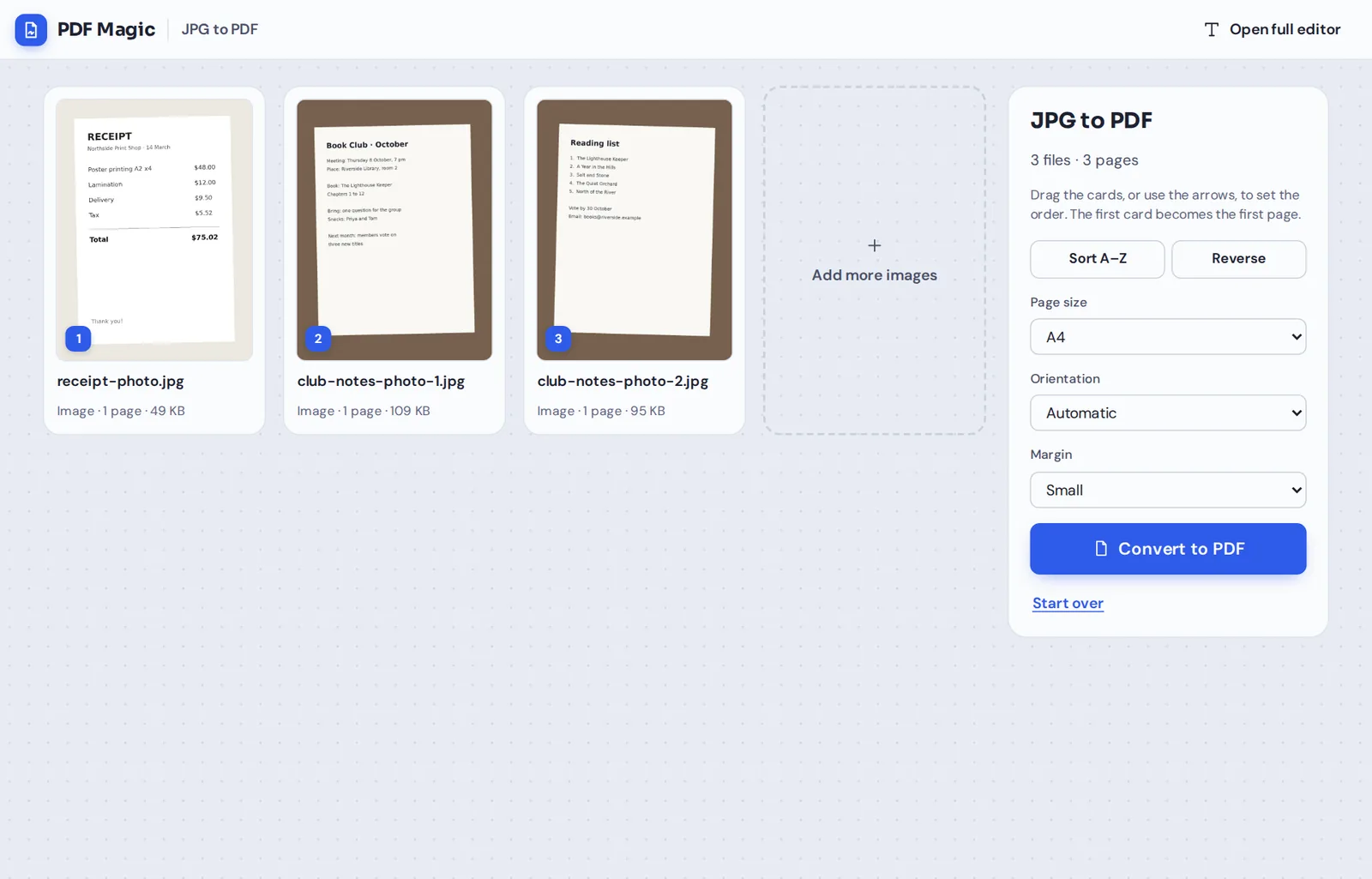
Each photo appears as a card with its page number. Drag the cards, or use the arrows, until the order is right. Sort A–Z puts them in file name order.
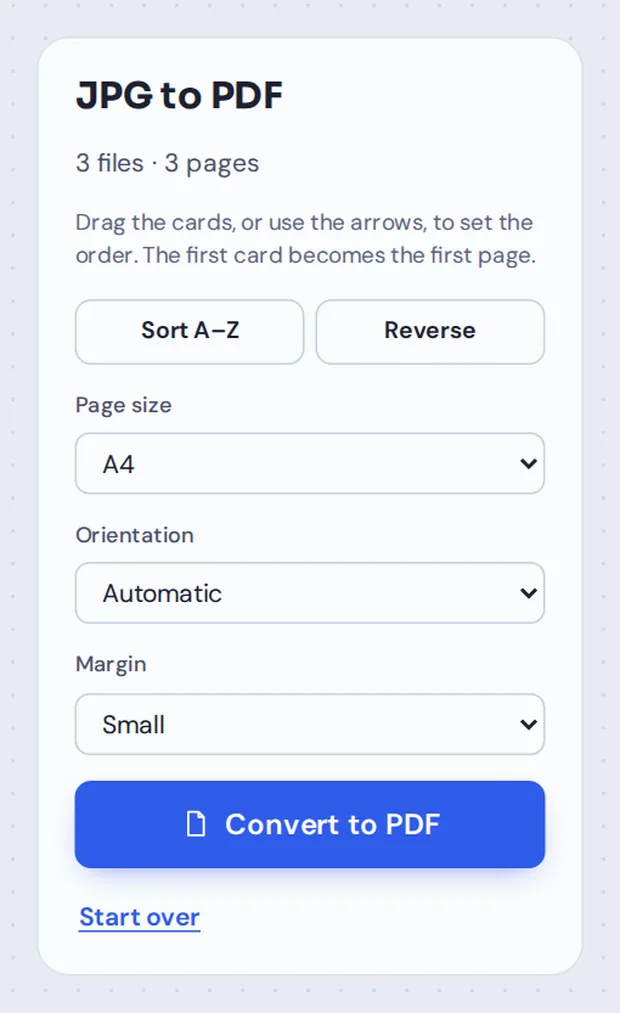
Pick the page layout
Choose A4, Letter or Same as the image, then the orientation and margin. Automatic turns wide photos onto landscape pages.
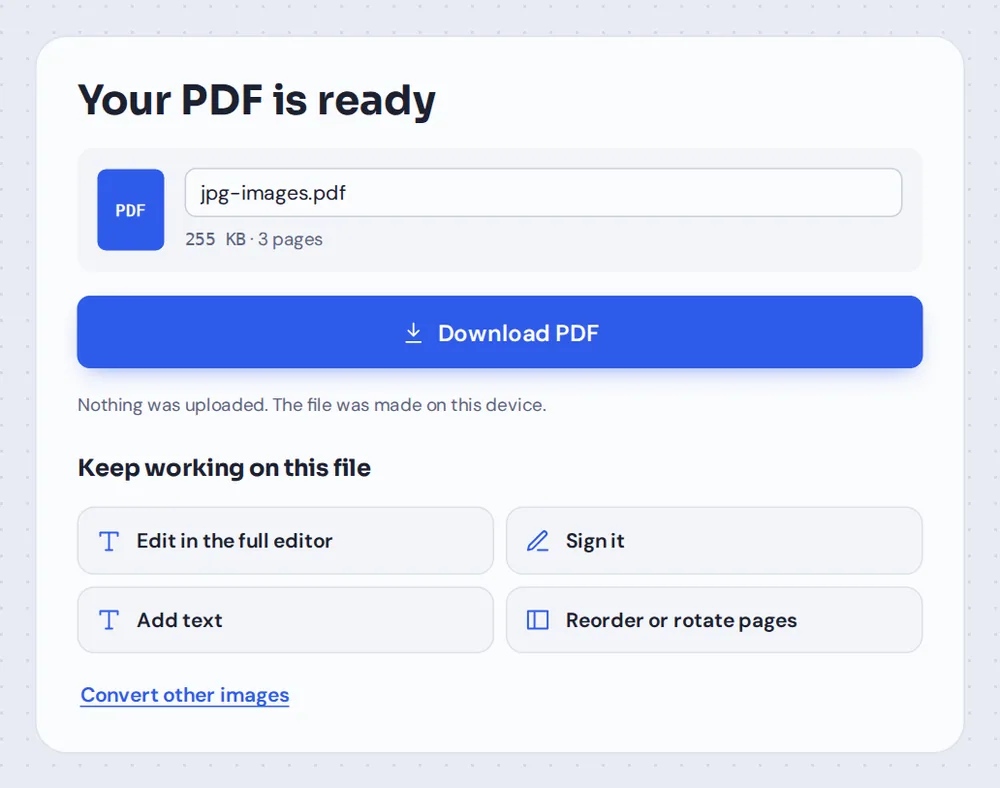
Convert and download
Click Convert to PDF, name the file and click Download PDF. There is no watermark, and you can keep working on the PDF right away.
Why Convert JPG to PDF?
JPG is the format your phone camera and most scanners use for photos. It is great for pictures, but a folder of separate photos is awkward to send. Many forms, job portals and offices ask for one PDF instead.
When you convert JPG to PDF, every photo becomes a page in a single document. The pages stay in the order you chose, they print at a proper paper size, and the file opens on any computer or phone.
When PDF Magic converts JPG to PDF, it places each photo on its page without re-compressing it, so the PDF looks exactly as sharp as your photos. A photo that your phone saved sideways is turned upright first.
JPG to PDF
Photos and scans into one PDF, one photo per page. This is what this page does.
Merge PDF
Already have PDFs? Join them with your photos into one file.
Add image to PDF
Put a photo on an existing page, such as a logo or a signature.
Everything the JPG to PDF Converter Can Do
The JPG to PDF converter is simple by default, with the options that matter when you need them.
Add photos
From your computer, phone or tablet.
- Many photos at once
Select a whole set of photos in one go, or drop them on the page. There is no limit on how many.
- Add more at any time
Click the Add more images card to add photos you forgot, without losing your order.
- Other image types too
PNG, WebP and GIF images can go in the same PDF as your JPG photos.
Set the order
The first card is the first page.
- Drag and drop
Drag any card to a new place. A blue line shows where it will land.
- Arrows and keys
Use the arrows on each card, or select a card and press the arrow keys.
- Sort and reverse
Sort by file name, or reverse the order with one click.
Page layout
Choose how the photos sit on the page.
- Page size
A4 or Letter for printing and forms, or Same as the image for pages that fit each photo exactly.
- Orientation
Automatic puts wide photos on landscape pages and tall photos on portrait pages. You can also force one for all.
- Margin
No margin, a small margin or a large one. The photo is scaled to fit and centred on the page.
Keep working
The PDF opens in the full editor.
- Add text and notes
Type a heading, a date or a note on any page.
- Sign it
Draw or type your signature and place it on the converted document.
- Reorder or rotate pages
Move single pages, turn one around or delete a page you do not need.
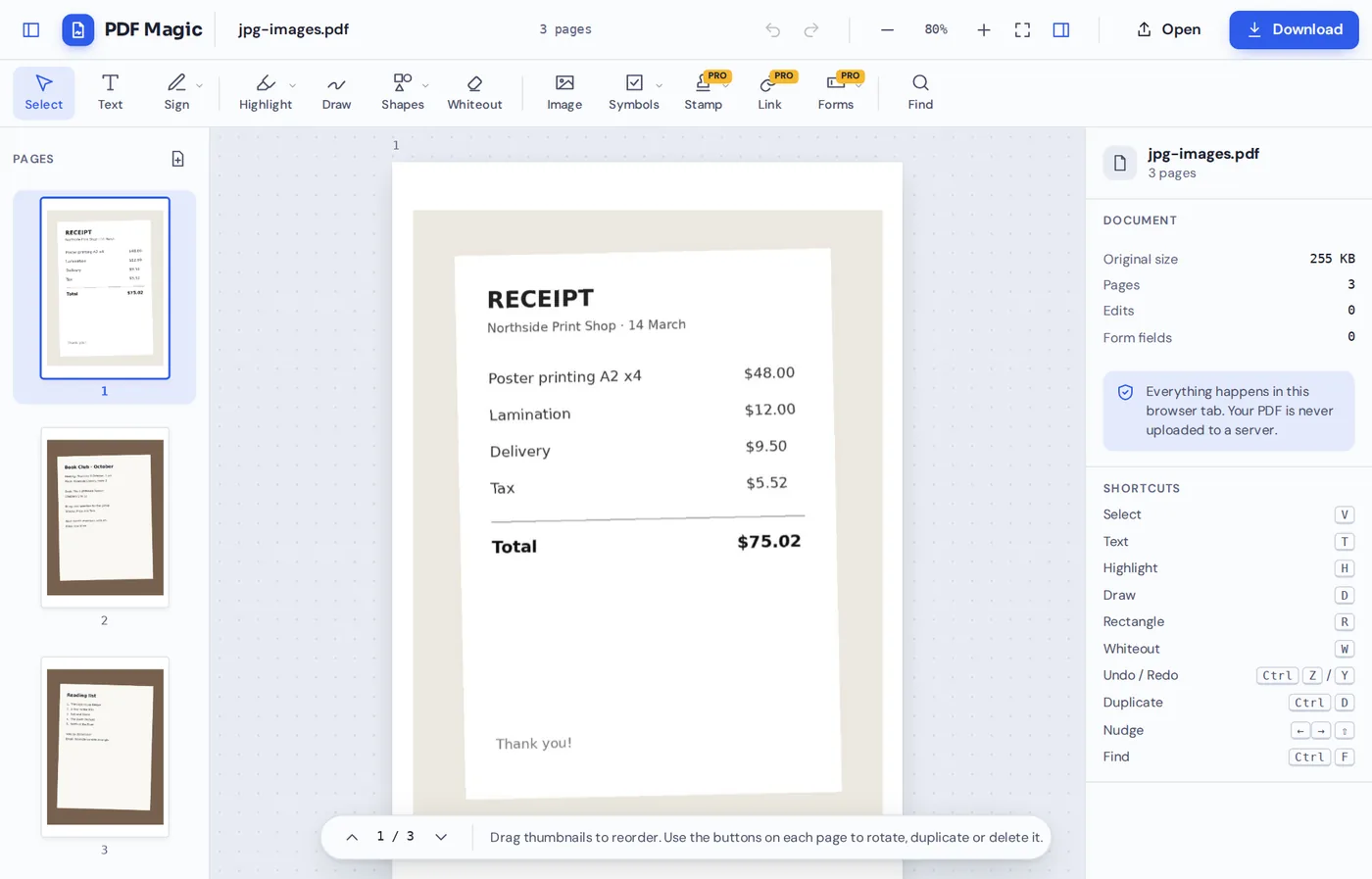
After you convert JPG to PDF, click Reorder or rotate pages and the new PDF opens in the editor with every page in the sidebar. Add text, sign or tidy up the pages, then download.
Which Page Size to Choose for JPG to PDF
The three page sizes, and when each one works best.
| What you get | Best for | |
|---|---|---|
| A4 | A standard 210 × 297 mm page with the photo scaled to fit | Printing and forms in most countries |
| Letter | A standard 8.5 × 11 inch page with the photo scaled to fit | Printing and forms in the US and Canada |
| Same as the image | Each page is the size of its photo, plus the margin you pick | Photo albums, portfolios and reading on screen |
Convert JPG to PDF Without Uploading Your Photos
Most online JPG to PDF converters send your photos to a server. PDF Magic does not. Your photos are read and turned into a PDF inside your own browser tab, and the new file is made on your device.
That matters for photos of ID cards, passports, bank cards, medical letters and receipts. Nothing is sent to us, and nothing is kept. Close the tab and it is all gone.
- 0photos uploadedThey stay on your device.
- 0copies keptWe never see your photos.
- 0accounts neededOpen the page and start.
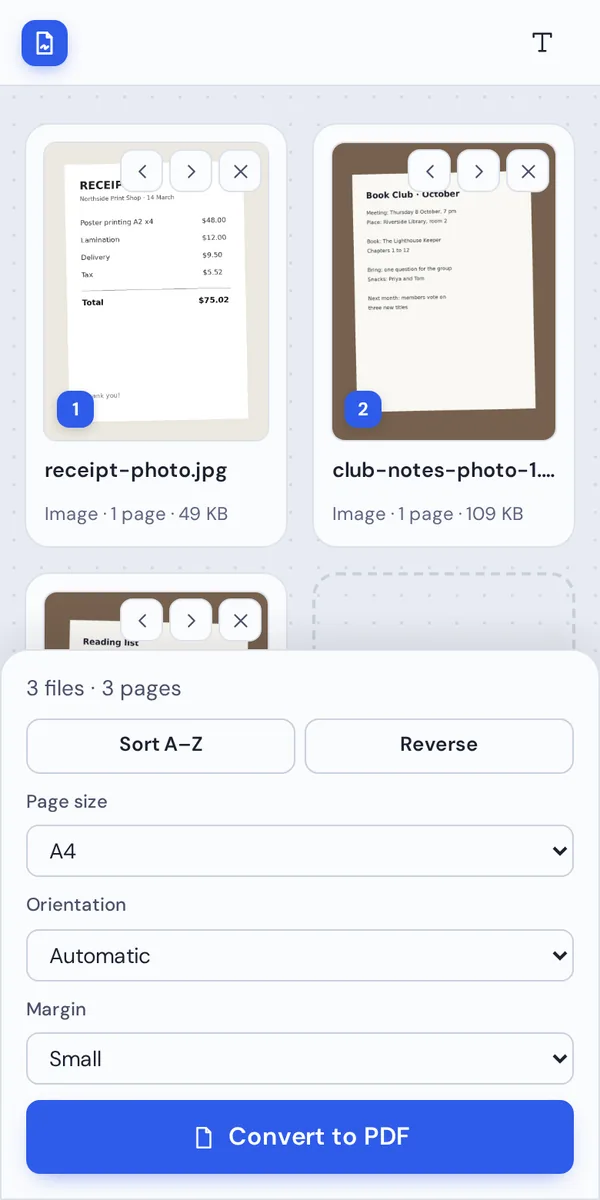
JPG to PDF on iPhone, Android or Computer
- Windows
- Mac
- Linux
- Chromebook
- iPhone
- iPad
- Android
Open this page in your phone's browser to use JPG to PDF, and pick photos straight from your gallery. The Convert to PDF button stays at the bottom of the screen.
On an iPhone, photos you pick from the Photos app are normally handed over as JPG, so they convert like any other photo. There is no app to install.
When People Convert Photos to PDF
Whenever photos need to travel as one document, JPG to PDF puts them together.
Receipts and expenses
Photos of receipts for an expense claim or tax return.
Job applications
Photos of certificates and ID, sent as one file.
Homework and notes
Photos of handwritten pages handed in as one PDF.
Rental papers
Payslips and letters photographed with your phone.
Signed forms
A photo of a signed form, turned into a proper PDF.
Photo albums
Holiday or event photos in one file that is easy to share.
Tips for Better JPG to PDF Results
- Crop close to the paperCrop photos of documents before you convert, so each page looks clean.
- Name photos in orderPhotos named 01, 02, 03 line up with one click on Sort A–Z.
- Use A4 or Letter for formsOffices and portals expect a normal paper size.
- Use Same as the image for albumsEach page fits its photo, with no white space.
- Shoot in good lightA sharp, well-lit photo makes a much clearer PDF page.
- Name the fileRename the PDF before you download so it is easy to find.
More Image and PDF Tools
Like JPG to PDF, they all run in the same private editor.
PNG to PDF
Screenshots and graphics into one PDF.
WebP to PDF
Images saved from websites into a PDF.
Merge PDF
Join PDFs and photos into one document.
Sign PDF
Sign the PDF you just made.
PDF Editor
Add text, highlight and white out parts of a page.
Rearrange PDF pages
Move, rotate and delete single pages.
JPG to PDF: Frequently Asked Questions
Answers to what people ask before they convert photos.
How do I convert JPG to PDF?
Click Choose JPG images or drop your photos on the tool at the top of this page. Put them in order, pick a page size and click Convert to PDF. Then click Download PDF.
Can I convert JPG to PDF for free?
Yes. Converting and downloading are free, with no account, no watermark and no limit on the number of images.
How do I combine multiple JPG images into one PDF?
Add all the photos at once and drag the cards into the order you want. Each photo becomes one page of the same PDF, and the first card is the first page.
How do I convert JPG to PDF on my phone?
Open this page in your phone's browser, tap Choose JPG images and pick your photos from the gallery. Tap Convert to PDF, then Download PDF. There is no app to install.
Can I convert JPG to PDF without losing quality?
Yes. JPG photos are placed in the PDF as they are, without being compressed again, so the pages are exactly as sharp as your photos. Choose Same as the image as the page size if you want each page to fit its photo.
How do I convert a photo to PDF?
Choose the photo above, click Convert to PDF and download. Photos from a phone camera are JPG files, and on an iPhone, photos picked from the Photos app are normally handed over as JPG too.
How many JPG images can I convert to one PDF?
As many as you like. There is no limit on the number of photos, and each one can be up to 100 MB.
Can I convert JPG to PDF without an app?
Yes. The converter runs in your browser on any phone or computer, so there is nothing to install. Open this page, choose your photos and download the PDF.
Ready to Convert JPG to PDF?
No account, no upload and no watermark: choose your photos at the top of this page.
Open the converterPDF Magic is the quick, private way to turn photos into a document. Choose your photos and convert JPG to PDF today.