
Rotate PDF Online Free
Rotate PDF pages that came out sideways or upside down, then download the fixed file.
- No upload
- No watermark
- No sign-up
- No quality loss
Rotate PDF pages online for free and fix sideways or upside-down scans in seconds. Click the rotate button on any page, check the result and download. Nothing is uploaded, and the quality of your pages does not change.
How to Rotate PDF Pages Online in 4 Steps
It takes a few clicks to rotate PDF pages, even in a long scanned document.
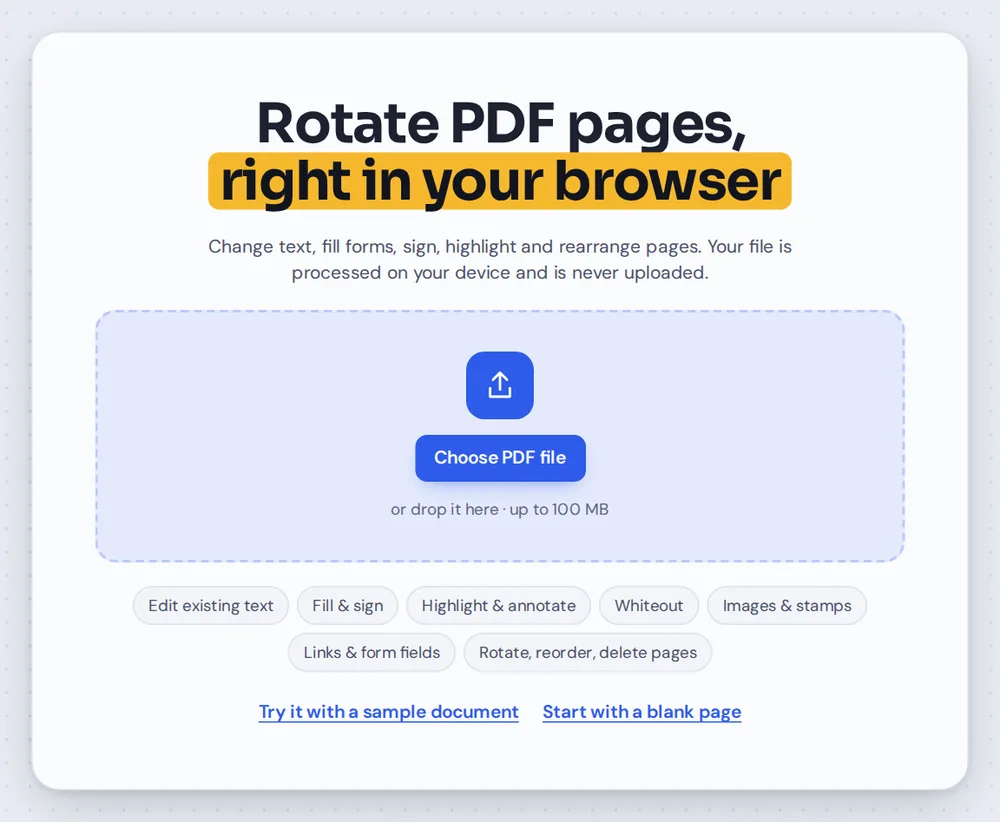
Open your PDF
Click Choose PDF file or drag your document onto the editor above. The page sidebar opens by itself.
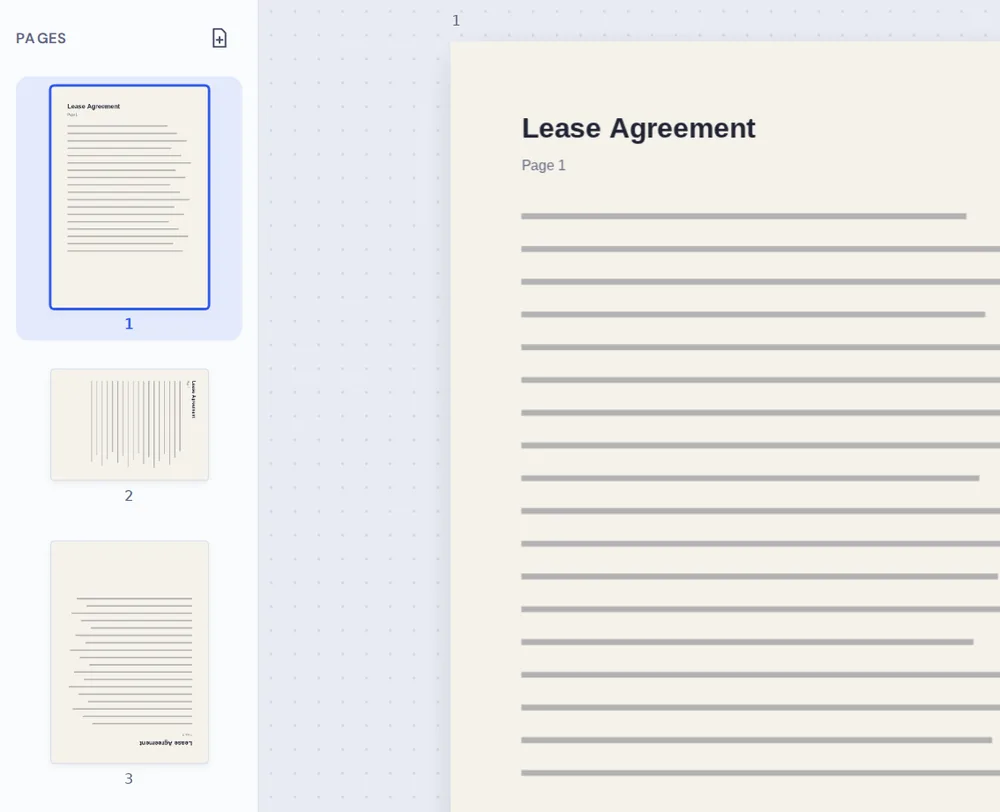
Find the wrong pages
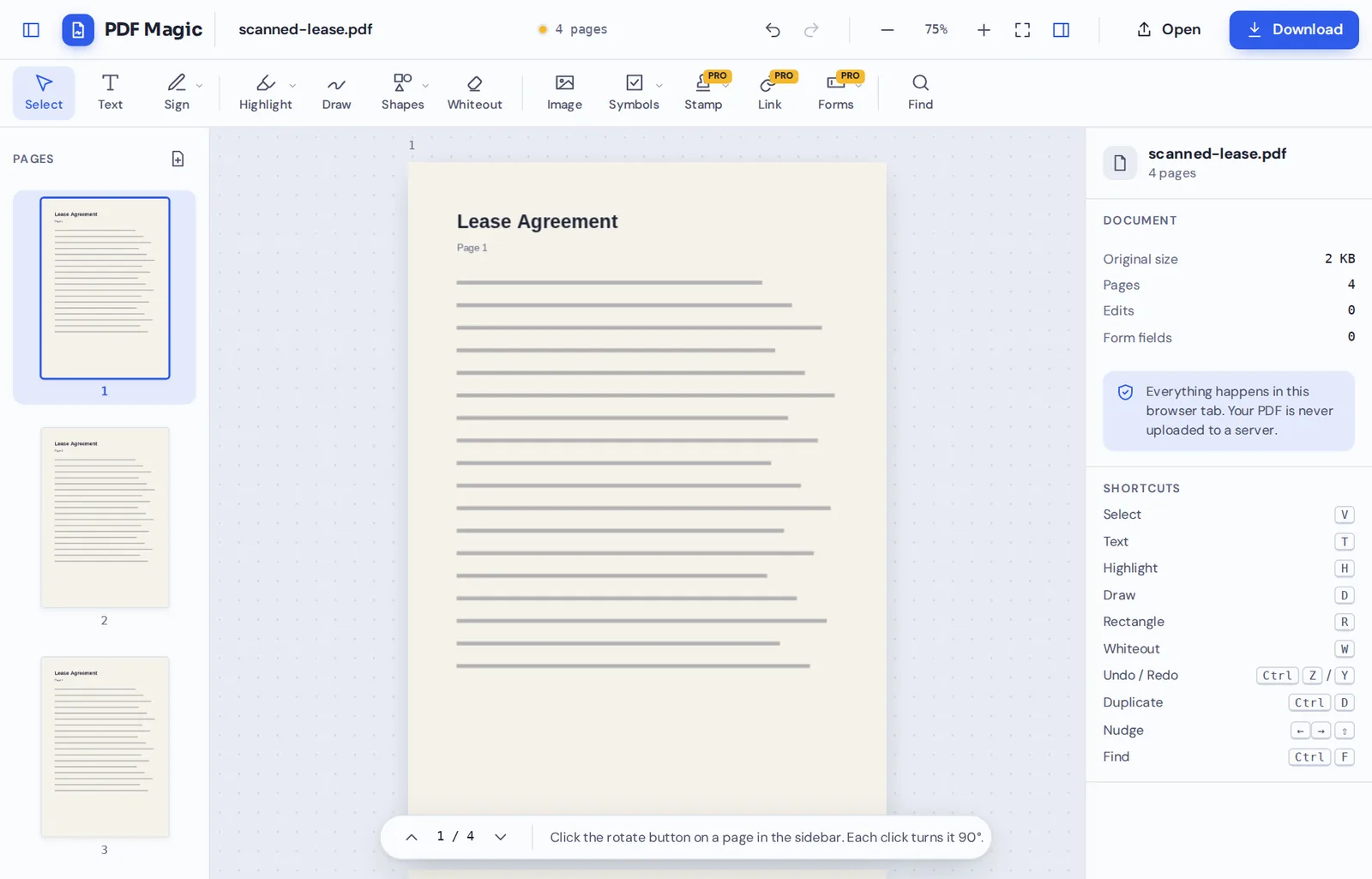
The sidebar shows a small picture of every page, so sideways and upside-down pages are easy to spot.
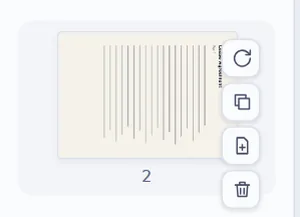
Click rotate
Click the rotate button on a page. Each click turns it 90° clockwise, so click once, twice or three times until it is upright.
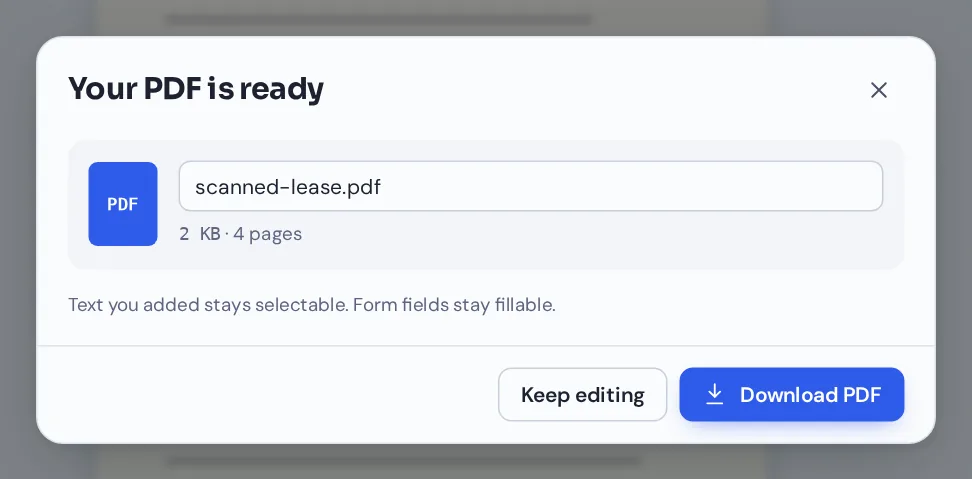
Download your file
Click Download and name your file. Every page opens the right way up in any PDF reader.
Rotate PDF Scans So Every Page Reads Upright
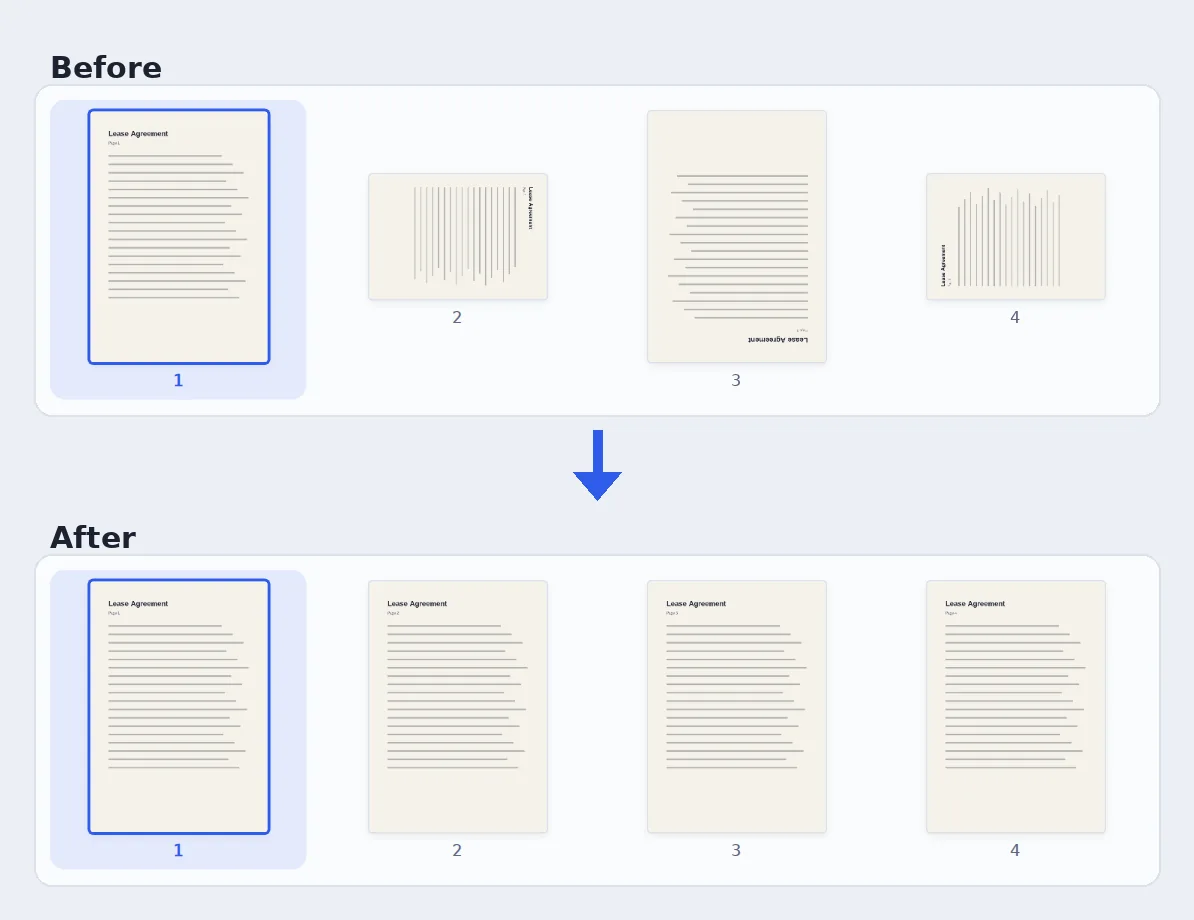
A four-page scanned lease with three pages the wrong way round, fixed in six clicks.
Why Pages Come Out Sideways, and How to Rotate PDF Pages Back
Scanners and phone cameras often save pages sideways or upside down, especially when a stack of paper goes in the wrong way or a landscape table sits between portrait pages.
When you rotate PDF pages with PDF Magic, the editor changes the page's rotation setting rather than redrawing it. Text, images and signatures keep exactly the same quality, and any text on the page stays selectable.
Each page rotates on its own, so you can fix one sideways page without touching the rest of the document.
90° per click
One click turns a page a quarter turn clockwise. Two clicks turn it upside down.
One page at a time
Fix only the pages that need it. The others stay as they are.
No quality loss
The page itself is not changed, only the direction it is shown in.
Everything in the Sidebar When You Rotate PDF Pages
The buttons you use to rotate PDF pages sit next to other handy page tools.
Rotate
Turn a page the right way up.
- Quarter turns
Every click turns the page 90° clockwise. Three clicks equal a quarter turn to the left.
- See it right away
The thumbnail and the page in the editor update the moment you click.
- Undo
Press Ctrl+Z to step back if you turned a page too far.
Organize
Tidy the whole document while you are there.
- Reorder
Drag a thumbnail up or down to move that page.
- Duplicate
Copy a page, including anything you added to it.
- Insert a blank page
Add an empty page after any page.
- Delete
Remove a page you do not need. PDF Magic asks before it deletes.
Edit
The full editor is one click away.
- Add text and signatures
Type, sign or add dates once the pages are upright.
- Highlight and draw
Mark up the pages you just fixed.
Download
Save a clean, upright copy.
- Name your file
Rename the download before you save it.
- No watermark
Your pages look exactly like the originals, just the right way up.
Other Page Tools to Use After You Rotate PDF Files
They open in the same editor, so your file never leaves your device.
Rearrange PDF pages
Drag pages into the right order.
Delete PDF pages
Remove blank or unwanted pages.
Merge PDF
Combine several files into one.
Add a blank page
Insert an empty page anywhere.
Sign PDF
Sign the document once it reads the right way up.
PDF Editor
Add text, highlight and more.
Rotate PDF Files Without Uploading Them
Scanned documents are often private: leases, IDs, bank statements and medical letters. When you rotate PDF files here, the document is opened and changed inside your browser tab and is never sent to our servers.
Close the tab and nothing is left behind. Only the file you download keeps your changes.
- 0files uploadedYour PDF stays on your device.
- 0quality lostPages are turned, not redrawn.
- 0accounts neededOpen the page and start.
Rotate PDF Pages on iPhone, Android or Computer
- Windows
- Mac
- Linux
- Chromebook
- iPhone
- iPad
- Android
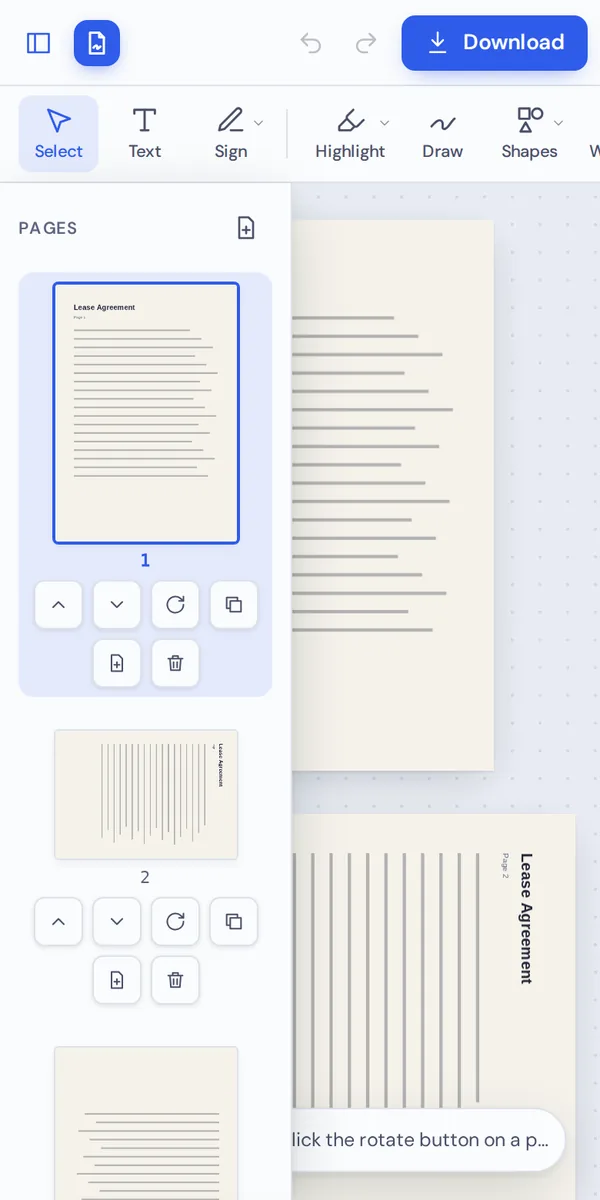
It works in any modern browser, with nothing to install. On a phone or tablet, the rotate, move and delete buttons sit under each page thumbnail, ready to tap.
Scanned something sideways with your phone? Open the file here, rotate PDF pages with a tap and send it straight on.
When People Rotate PDF Pages
Most people rotate PDF pages that came from scanners, phone cameras or mixed page sizes.
Phone scans
Photos of documents saved sideways by the camera.
Scanner mistakes
Pages fed upside down into a document scanner.
Landscape tables
Wide tables and charts that sit sideways between portrait pages.
Leases and contracts
Signed agreements scanned in the wrong direction.
Homework and notes
Scanned worksheets and handwritten notes.
Receipts and invoices
Receipts photographed at an angle for expense claims.
Tips to Rotate PDF Pages Quickly
- Check the thumbnailsScroll the sidebar first and note every page that needs turning.
- Count the clicksSideways left: one click. Upside down: two. Sideways right: three.
- Zoom out for an overviewUse the − button to see more pages at once.
- Fix the order tooDrag thumbnails to reorder pages while the sidebar is open.
- Keep the originalYour original file is not changed, so keep it as a backup.
- Undo anythingCtrl+Z steps back if you turn a page too far.
Rotate PDF: Frequently Asked Questions
Answers to what people ask most before they start.
How do I rotate a PDF?
Open your PDF above and click the rotate button on the page in the sidebar. Each click turns it 90° clockwise. Then click Download.
Can I rotate PDF pages permanently?
Yes. When you download the file, the new direction is saved in it, so the pages open the right way up in every PDF reader.
How do I rotate a PDF and save it?
Rotate the pages you need, then click Download and name your file. The saved copy keeps the new rotation.
Can I rotate a PDF for free?
Yes. Rotating pages and downloading the file are free, with no account and no watermark.
How do I rotate one page in a PDF?
Click the rotate button on that page only. The other pages are not turned.
Can I rotate a PDF on my phone?
Yes. Open this page in your phone's browser, open the file and tap the rotate button under a page thumbnail.
How do I rotate all pages in a PDF?
Click the rotate button on each page. It takes one click per quarter turn, and the thumbnails show you which pages are done.
Can I rotate a PDF without Adobe Acrobat?
Yes. You do not need Acrobat. The tool runs in your browser, and the rotated file opens in every PDF reader.
Ready to Rotate PDF Pages?
No account, no upload and no watermark: open your document above and turn every page the right way up.
Open the editorPDF Magic is the easy, private way to fix sideways scans. Open your file and rotate PDF pages today.