
PDF Editor for Mac – Free, No Install
A free PDF editor for Mac that runs right in Safari or Chrome, with nothing to download.
- No install
- No upload
- No watermark
- Safari, Chrome, Firefox
Open a PDF above and start editing on your MacBook or iMac. This PDF editor for Mac changes text, adds signatures, fills forms and moves pages, all inside your browser. Your file stays on your Mac the whole time, and the download has no watermark.
How to Use the PDF Editor for Mac
No App Store, no installer and no admin password.
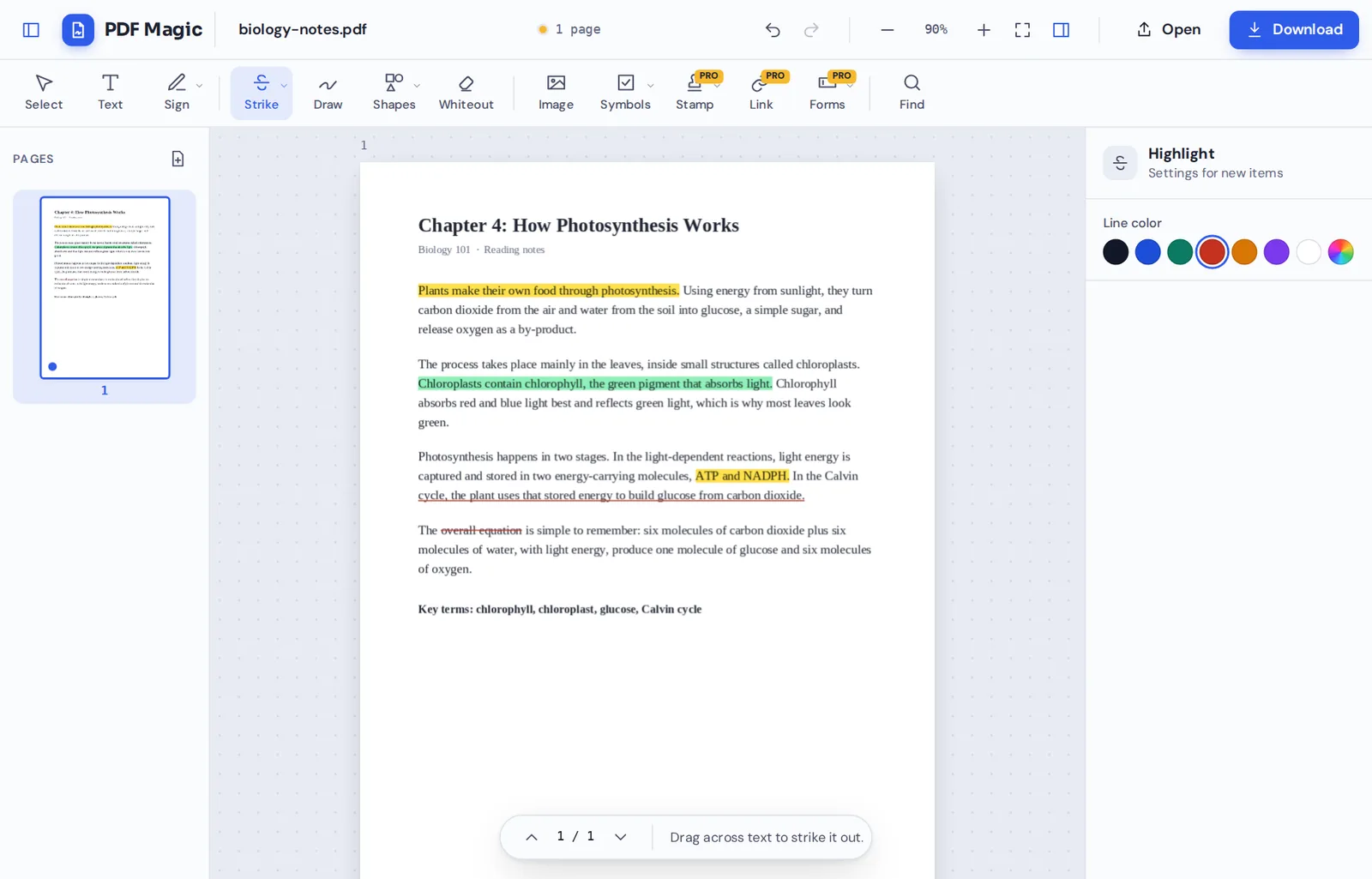
Open the page in Safari
Safari, Chrome, Firefox and Edge all work. Click Choose PDF file and pick a file from Finder, iCloud Drive or your Desktop.
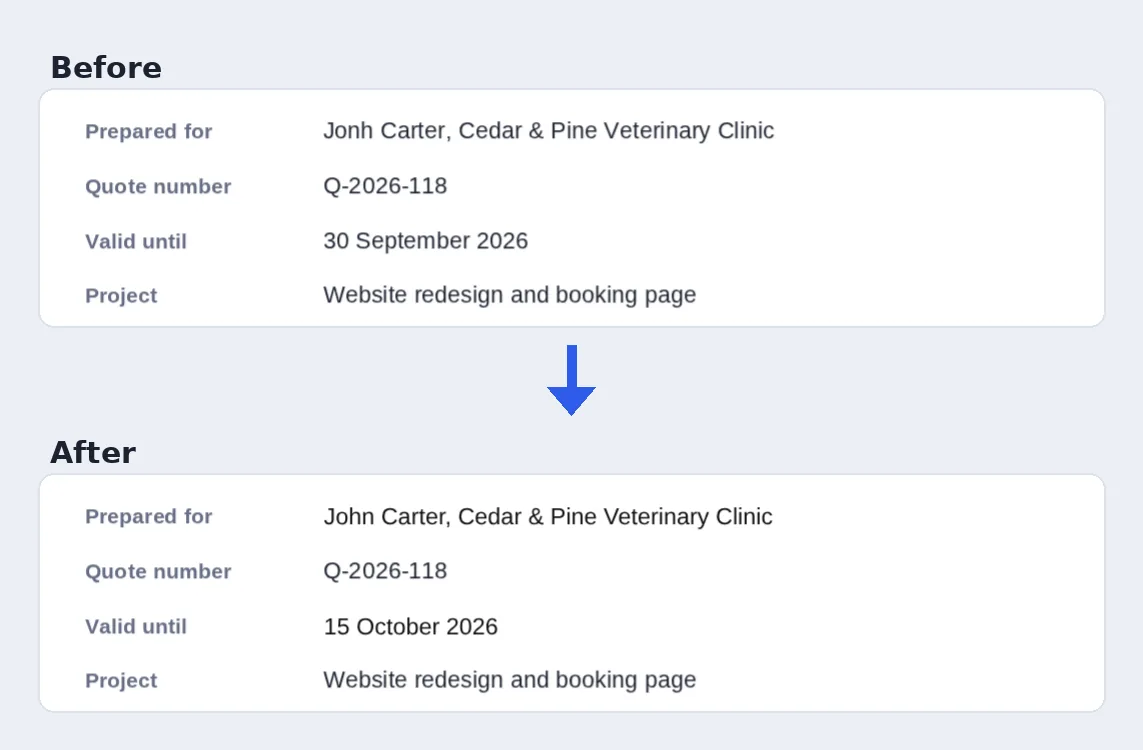
Edit the text
Click a line to retype it, or choose Text to type anywhere. It matches the original font where it can.
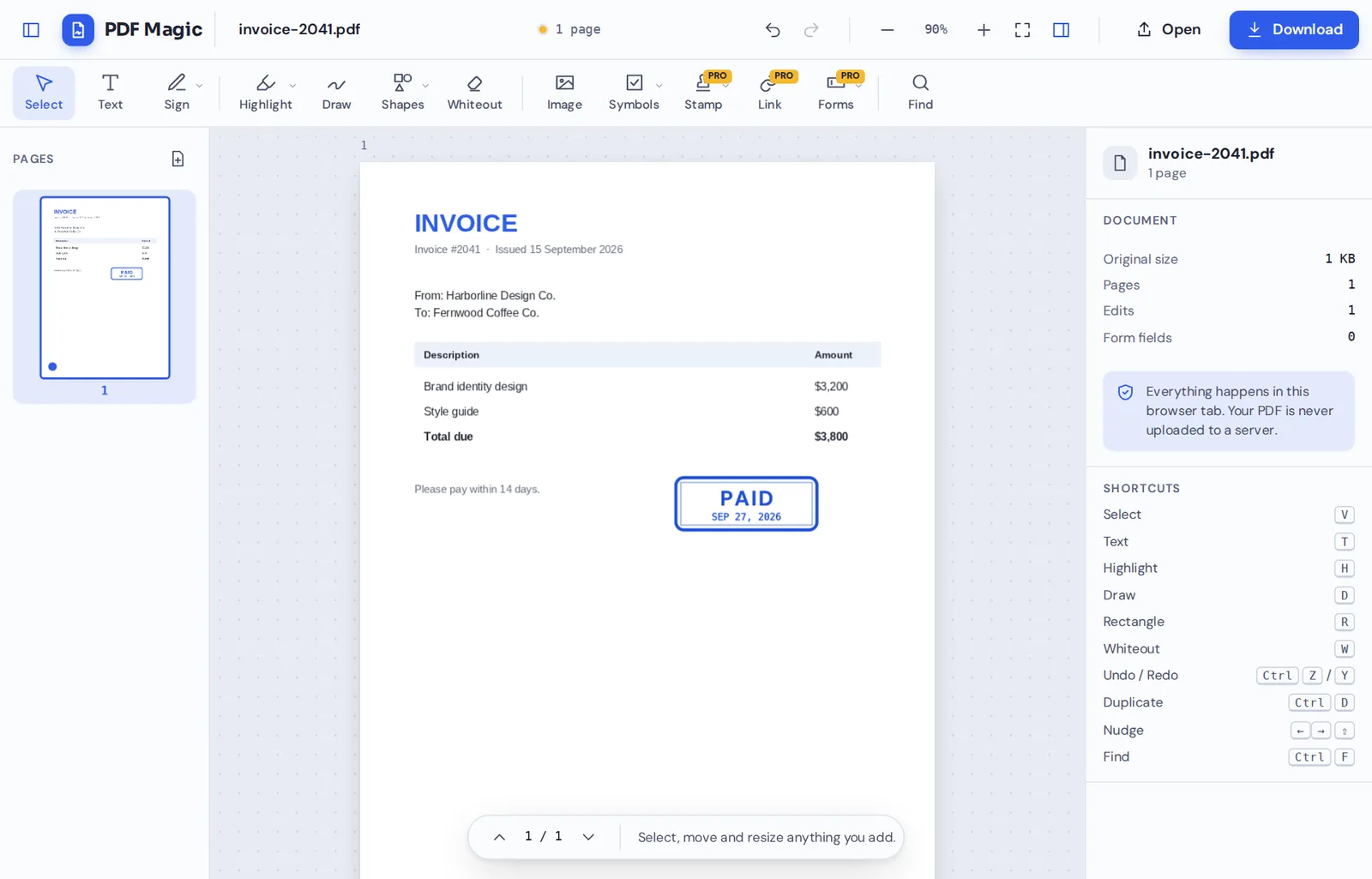
Sign, stamp or mark up
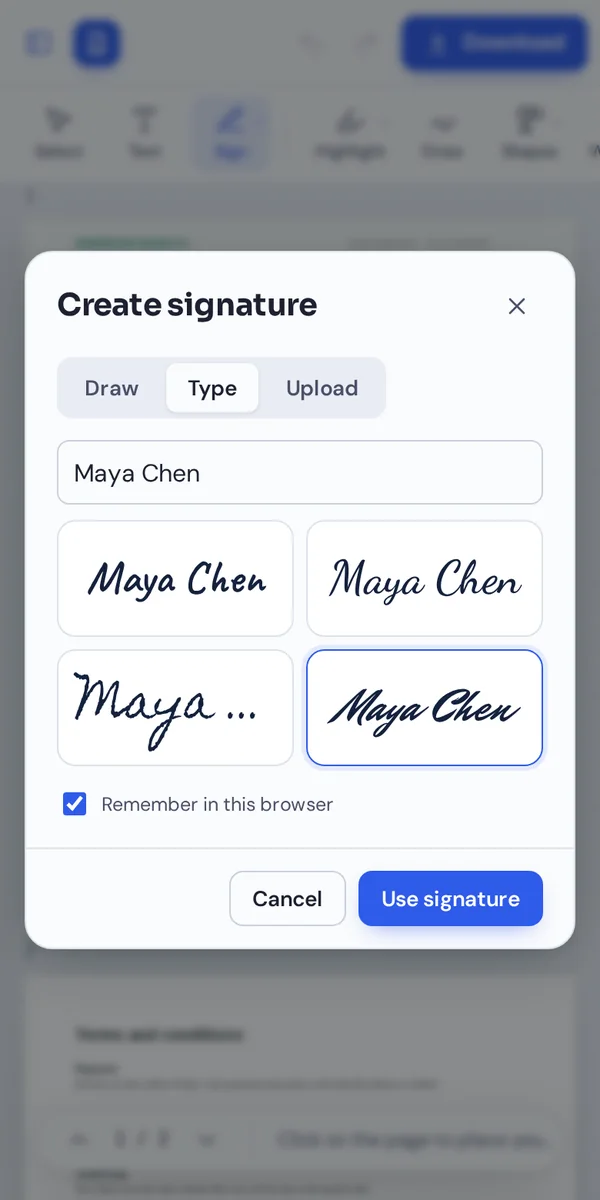
Add a signature, a Paid stamp or highlights. Use Cmd+Z to undo and Cmd+D to duplicate anything you add.
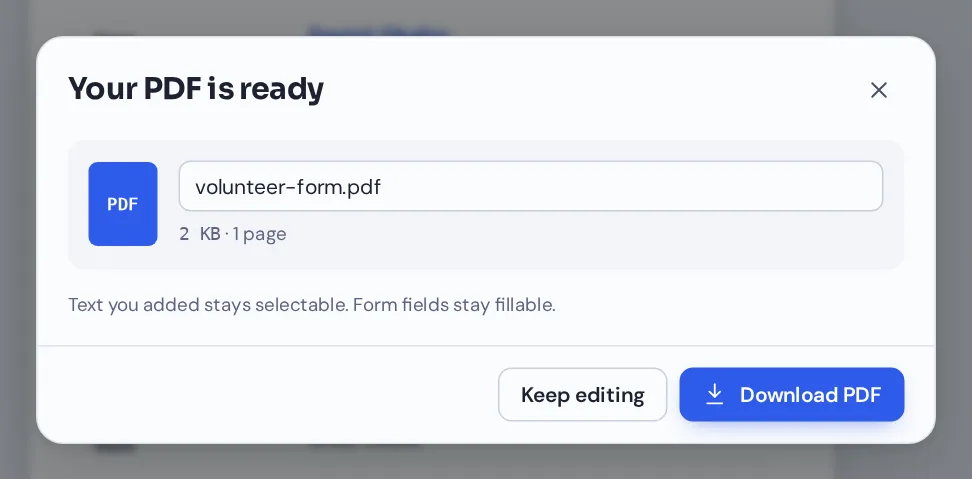
Save to Downloads
Click Download. The PDF lands in your Downloads folder, ready to open in Preview or attach to Mail.
Why Use a PDF Editor for Mac When You Have Preview?
Preview, the app that comes with every Mac, is good at reading PDFs and can add simple notes, shapes and signatures. It cannot change the text that is already in a document, and it has no whiteout or find and replace.
PDF Magic fills those gaps. You can retype a line in a matching font, cover details and type over them, replace a name on every page at once, and add stamps, links and form fields.
Because it runs in your browser, there is nothing to buy from the App Store and nothing to update. It works the same on an older Intel MacBook and on the newest Apple silicon models.
Edit existing text
Retype words that are already on the page.
No App Store
Nothing to download, install or update.
Stays on your Mac
Your file is never uploaded.
PDF Editor for Mac Options Compared
The three ways most Mac users edit PDFs, side by side.
| PDF Magic | Preview (built in) | Paid desktop apps | |
|---|---|---|---|
| Change existing text | Yes | No | Yes |
| Whiteout and find and replace | Yes | No | Usually |
| Signatures and forms | Yes | Yes | Yes |
| Cost | Free | Free | Often a subscription |
| Install | None | Comes with macOS | Download and install |
| Works on iPhone and Windows too | Yes, same editor | Mac only | Separate apps |
Getting the Most From the PDF Editor on a Mac
A few things that make the PDF editor for Mac faster to use on macOS.
Keyboard
Mac shortcuts work as expected.
- Cmd+Z and Cmd+Y
Undo and redo every change.
- Cmd+D
Duplicate the item you selected.
- Cmd+F
Find text, and replace it on every page.
Trackpad
Move around a document quickly.
- Scroll
Two fingers scroll through pages.
- Zoom
Use the + and − buttons for small print.
Files
Open and save like any Mac app.
- Drag and drop
Drag a PDF from Finder onto the editor.
- Downloads folder
Edited files are saved to Downloads.
Signatures
Sign once, reuse later.
- Trackpad signature
Draw your signature with one finger.
- Saved in the browser
Your signature stays on this Mac only.
Your Files Stay on Your Mac
Online editors usually upload your file to a server. This one opens and changes it inside Safari or Chrome on your Mac, so it never leaves your computer.
There is no account and no copy on our side. Close the tab and nothing is left behind.
If your Mac is managed by work or school, that also means there is no software for IT to approve before you can use this PDF editor for Mac. Safari only needs to open a web page, and your documents stay inside the folders you already use, such as Downloads, Desktop and iCloud Drive.
- 0files uploadedYour PDF stays on your Mac.
- 0installsIt runs in your browser.
- 0watermarksDownloads stay clean.
The Same Editor on Your iPhone and iPad
- Windows
- Mac
- Linux
- Chromebook
- iPhone
- iPad
- Android
Started a document on your Mac? Finish it on your iPhone or iPad in Safari. It is the same editor, with the same tools, and nothing to install on either.
It also works on Windows PCs and Chromebooks, so you can use it on a work computer too.
What Mac Users Edit Most
Everyday jobs where a PDF editor for Mac saves a trip to the printer.
Leases
Fill in, initial and sign every page.
Invoices
Fix a figure and stamp it Paid.
Contracts
Change a name and sign.
Applications
Complete school and job forms.
Reports
Highlight and comment before a meeting.
Team documents
Mark up drafts from colleagues.
PDF Editor for Mac: Frequently Asked Questions
Answers to what Mac users ask most before they start.
How do I use a PDF editor for Mac?
Open this page in Safari, Chrome or Firefox, click Choose PDF file and pick your document from Finder, iCloud Drive or your Desktop. Choose a tool, make your changes and click Download.
Is there a free PDF editor for Mac?
Yes. PDF Magic is a free PDF editor for Mac, with no account and no watermark on your downloads. During our launch every tool is free.
Can I use a PDF editor for Mac online?
Yes. This PDF editor for Mac runs in your web browser, so there is nothing to download or install, and it is always up to date.
Can I use the same PDF editor for Mac on my iPhone?
Yes. The same editor runs in Safari on iPhone and iPad, so you can start on your Mac and finish on your phone.
Can I use a PDF editor for Mac without Adobe Acrobat?
Yes. You do not need Acrobat or any other software, and the PDF you download opens in every PDF reader.
Is it safe to use a PDF editor for Mac online?
Yes. Your file is opened and changed inside the browser on your Mac. It is never uploaded to our servers.
Does a PDF editor for Mac keep the quality of my files?
Yes. Only what you change is changed. Text stays sharp and images keep their quality.
What is the easiest PDF editor for Mac?
One you do not have to install. Open a file at the top of this page and the tools are ready straight away.
Ready to Try the PDF Editor for Mac?
No App Store, no upload and no watermark: open a file at the top of this page.
Open the editorPDF Magic works in the browser you already use on macOS. Open your file in the PDF editor for Mac today.