
PDF to PNG Converter – Sharp and Lossless
PDF to PNG in seconds: turn PDF pages into crisp PNG images, right in your browser.
- No upload
- No watermark
- No sign-up
- Lossless images
PDF to PNG saves each page of a PDF as a lossless PNG image, so text, charts, diagrams and slides stay perfectly sharp. Convert every page or only the ones you pick, choose the quality, and download the images in one ZIP file. Your PDF is never uploaded.
How to Convert PDF to PNG
It takes a few seconds, even for long documents.
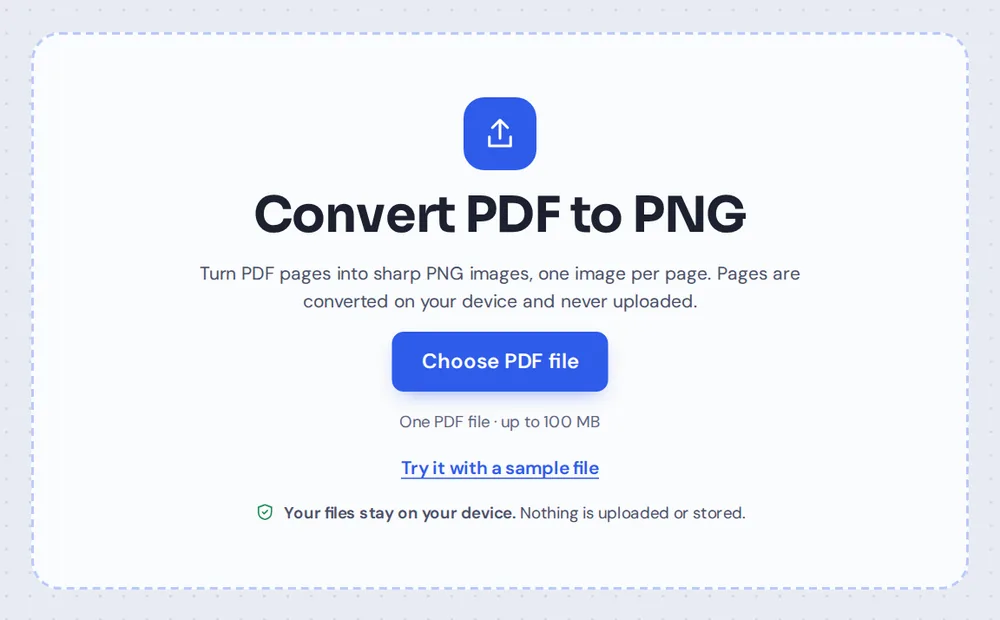
Choose your PDF
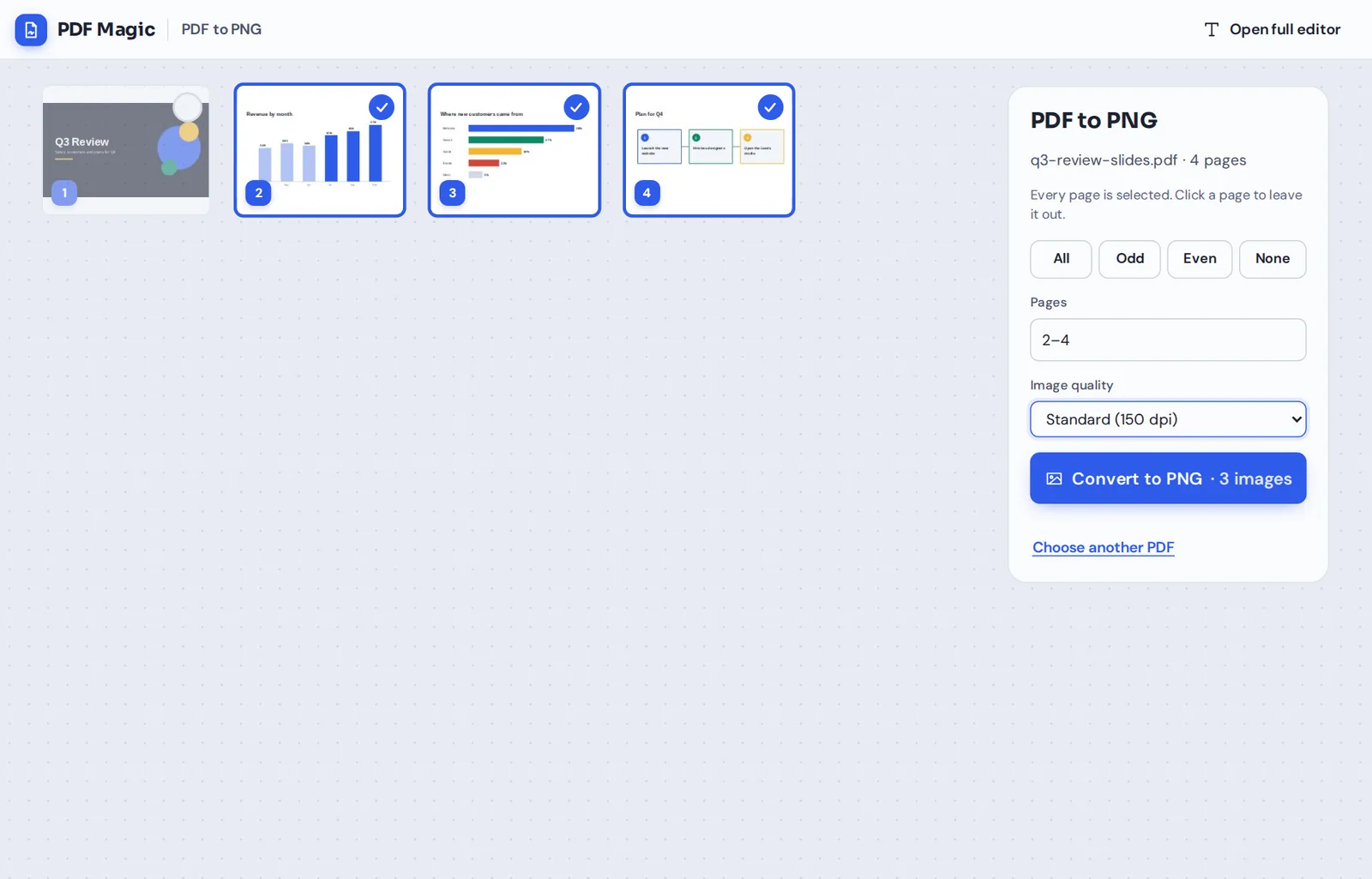
Click Choose PDF file or drop the PDF on the tool above. Every page appears as a thumbnail.

Pick the pages
All pages start selected. Click a page to leave it out, such as a title slide, or type the pages you want, such as 2-4.
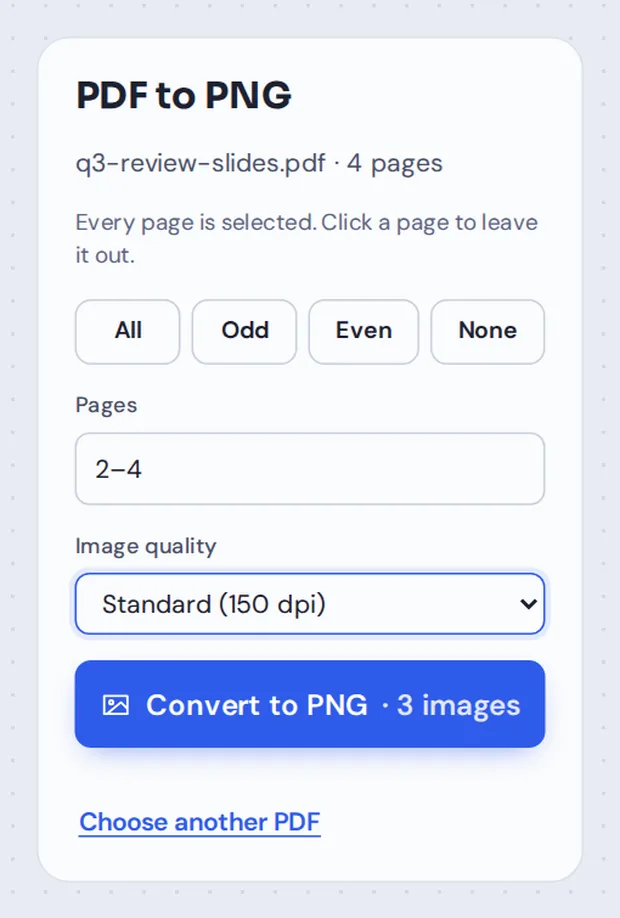
Choose the quality
Pick Standard (150 dpi) for screens or High (300 dpi) for printing and zooming in. Then click Convert to PNG.
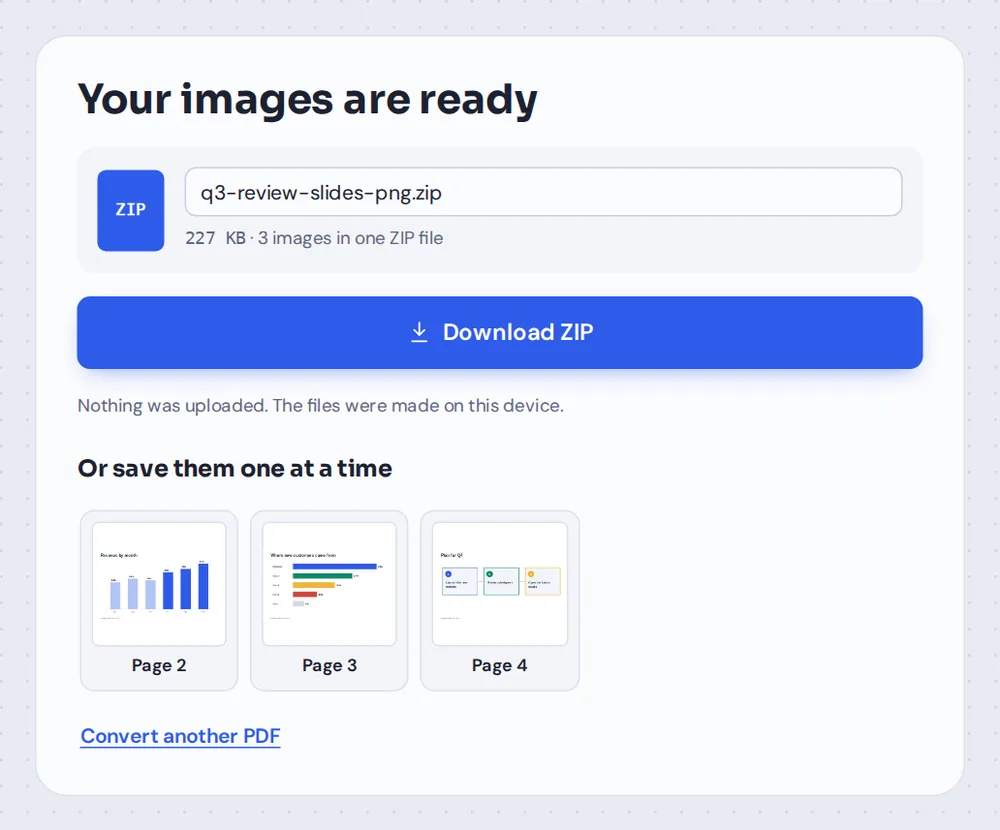
Download the images
Download everything in one ZIP file, or click a page to save just that PNG. A single page is saved as one PNG, with no ZIP.
Why Convert PDF to PNG Instead of JPG?
JPG makes files small by blurring fine detail a little. On photos you never notice. On text, thin lines and flat colors, you can see soft edges and faint smudges around the letters.
PNG is lossless: every pixel is kept exactly as it was drawn. That is why PDF to PNG is the better choice for slides, charts, diagrams, floor plans, sheet music, code and any page that is mostly text.
This PDF to PNG converter draws each page in your browser exactly as a PDF reader shows it, including fonts and colors, and saves it on a clean white background. Pages that are turned sideways in the PDF come out the right way round.
PDF to PNG
Lossless images, best for text and charts. This is what this page does.
PDF to JPG
Smaller files, best for pages with photos.
PNG to PDF
The other way round: images into one PDF.
What the PDF to PNG Converter Can Do
Made for pages where every line matters.
Choose pages
All of them, or just a few.
- Click to pick
Every page starts selected. Click a thumbnail to leave it out.
- Quick buttons
All, Odd, Even and None select pages in one click.
- Type the pages
Type ranges such as 2-4, 9 in the Pages box.
Image quality
From quick previews to print.
- Screen (72 dpi)
Small images for previews and web pages.
- Standard (150 dpi)
Sharp on any screen. This is the default.
- High (300 dpi)
Print quality, with tiny text and fine lines kept crisp.
Download
Your way, on any device.
- One ZIP file
All the images together, named by page, such as slides-page-02.png.
- Single images
Click any page on the finished screen to save just that one.
- One page, one file
A single page is saved as one PNG, with no ZIP.
Private
Made on your device.
- No upload
Pages are drawn in your browser, not on a server.
- No watermark
The images are clean, with no logo added.
- No account
Open the page and start.
PDF to PNG or PDF to JPG?
Both are free here. Pick the one that suits your pages.
| PNG | JPG | |
|---|---|---|
| Text, charts and diagrams | Perfectly sharp | Slightly soft edges |
| Photos | Sharp, but large files | Sharp, with small files |
| File size | Larger | Smaller |
| Quality loss | None, it is lossless | A little, to save space |
| Best for | Slides, plans, forms and documents | Flyers, menus and photo pages |
Convert PDF to PNG Without Uploading Your File
Most online PDF to PNG converters send your PDF to a server. PDF Magic draws the pages inside your own browser tab, so the PDF and the images stay on your device.
That makes it safe for internal slides, plans, contracts and reports. Nothing is sent to us and nothing is kept.
- 0files uploadedYour PDF stays on your device.
- 0copies keptWe never see your pages.
- 0accounts neededOpen the page and start.
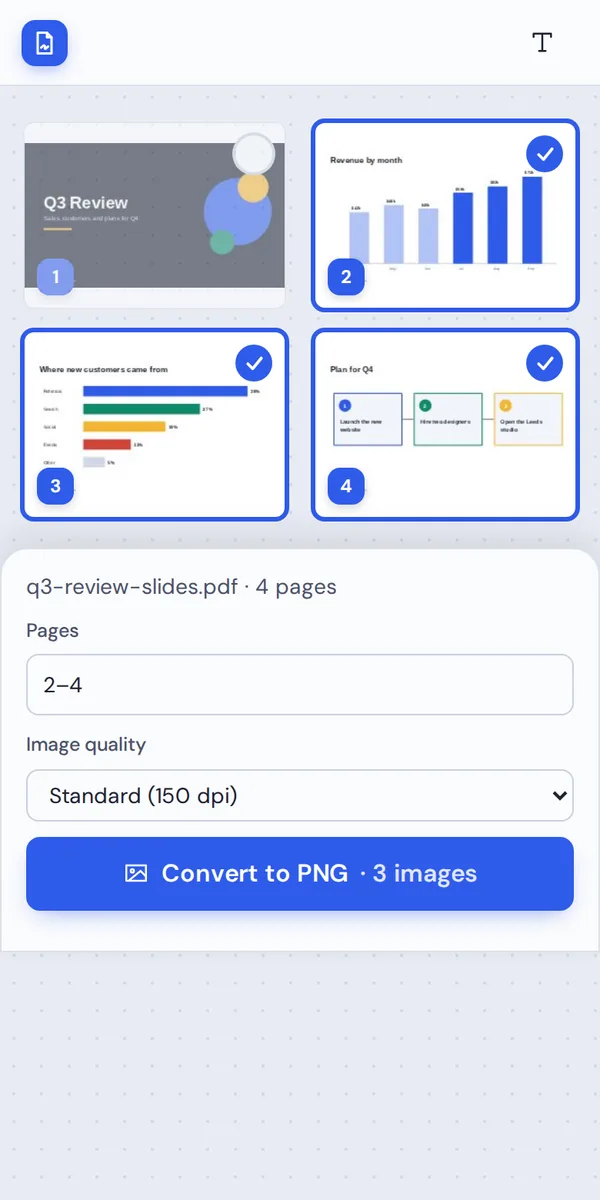
PDF to PNG on iPhone, Android or Computer
- Windows
- Mac
- Linux
- Chromebook
- iPhone
- iPad
- Android
Open this page in your phone's browser, choose the PDF and tap Convert to PNG. Save every image in one ZIP file, or tap a page to save just that image.
It works the same on Windows, Mac, Linux and Chromebook, with nothing to install.
When People Choose PNG
PDF to PNG is the right choice when sharp detail matters.
Slides and charts
Report charts pasted into emails, docs or other decks.
Design reviews
Layouts and mockups shared as crisp images.
Floor plans
Plans and drawings with thin lines and small labels.
Teaching material
Diagrams and worked examples for slides and handouts.
Documentation
Pages of a manual placed in a help article or wiki.
Forms and tables
Tables and forms that must stay readable when zoomed in.
Tips for Better PDF to PNG Results
- High for printingChoose 300 dpi for pages that will be printed or zoomed.
- Standard for screens150 dpi looks sharp on screens with smaller files.
- Skip the title slideClick the pages you do not need to leave them out.
- JPG for photo pagesPages that are mostly photos make smaller files as JPG.
- Save one imageClick a page on the finished screen to download just that PNG.
- Keep it privateNothing is uploaded, so internal slides stay internal.
More PDF and Image Tools
Like PDF to PNG, they all run in the same private editor.
PDF to JPG
Smaller images for photo pages.
PNG to PDF
Screenshots and graphics into one PDF.
Split PDF
Cut one PDF into smaller files.
Extract PDF pages
Save the pages you need as a new PDF.
Highlight PDF
Mark a chart before you turn it into an image.
PDF Editor
Edit a page before converting it.
PDF to PNG: Frequently Asked Questions
Answers to what people ask before they convert pages to PNG.
How do I convert PDF to PNG?
Click Choose PDF file or drop your PDF on the tool at the top of this page. Every page is selected, so click any page you want to leave out, pick the image quality and click Convert to PNG. Then download the images.
Can I convert PDF to PNG for free?
Yes. It is free, with no account, no watermark and no page limit.
Can I convert PDF to PNG online?
Yes. The converter runs in your web browser on Windows, Mac, Linux and Chromebook, with nothing to install. Open your PDF at the top of this page to start.
How do I convert PDF to PNG on my phone?
Open this page in your phone's browser, tap Choose PDF file and tap Convert to PNG. Save all the images in one ZIP file, or tap a page to save just that image. There is no app to install.
Can I convert PDF to PNG without Adobe Acrobat?
Yes. You do not need Acrobat or any other software. The converter runs in your browser, and the PNG images open in every photo viewer, document and design app.
Is it safe to convert PDF to PNG online?
Yes. Your PDF is not uploaded. It is opened and processed inside your browser tab and never sent to our servers, so nobody else sees it. Close the tab and nothing is left behind.
How do I convert PDF to PNG without losing quality?
PNG is lossless, so there is no blur or compression noise. For the sharpest result, choose High (300 dpi) under Image quality before you convert. Text, lines and charts then stay crisp even when you zoom in or print.
What is the easiest way to convert PDF to PNG?
Drop the PDF on the tool above and click Convert to PNG. Every page is selected for you, and the images are ready in seconds.
Ready to Convert PDF to PNG?
No account, no upload and no watermark: choose your PDF at the top of this page.
Open the converterPDF Magic keeps every line sharp and every file on your device. Choose your file and convert PDF to PNG today.