
Extract PDF Pages Online Free
Extract PDF pages in seconds: save only the pages you need as a new PDF.
- No upload
- No watermark
- No sign-up
- Original quality
Extract PDF pages from long documents without printing or scanning. Click the pages you need, or type them, and save them as a new PDF or as separate files. The pages keep their original quality, and your file is never uploaded.
How to Extract PDF Pages
From a 300-page manual or a two-page form, it works the same way.
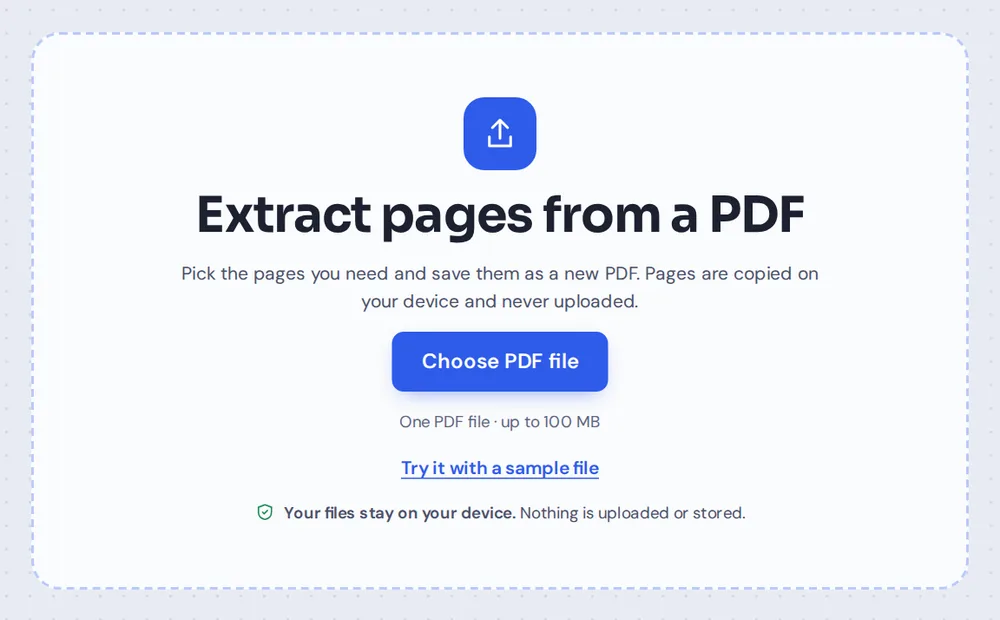
Choose your PDF
Click Choose PDF file or drop the PDF on the tool above. Every page appears as a thumbnail.
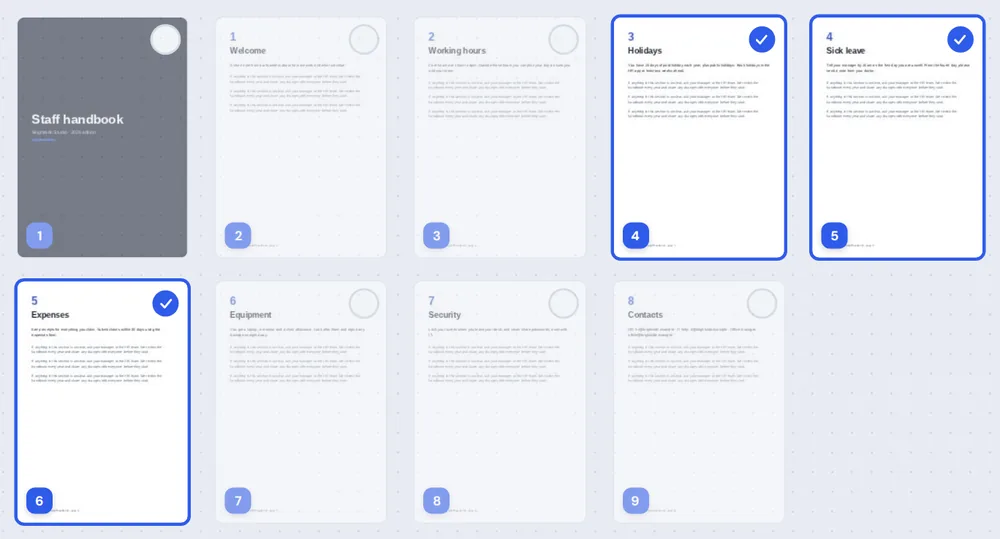
Pick the pages
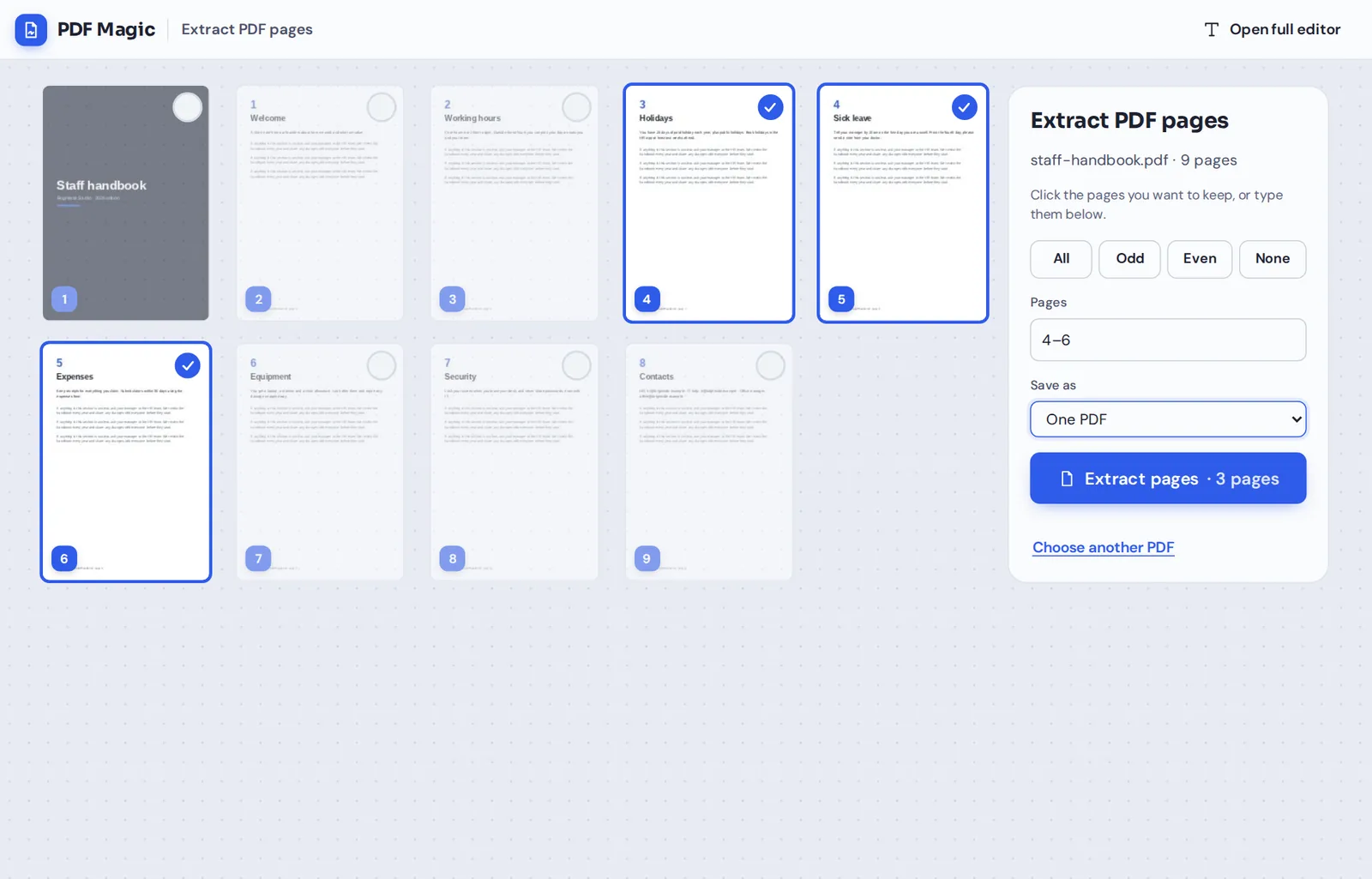
Click each page you need. Selected pages get a blue check, and the others fade. Use Odd, Even or All to select many at once.
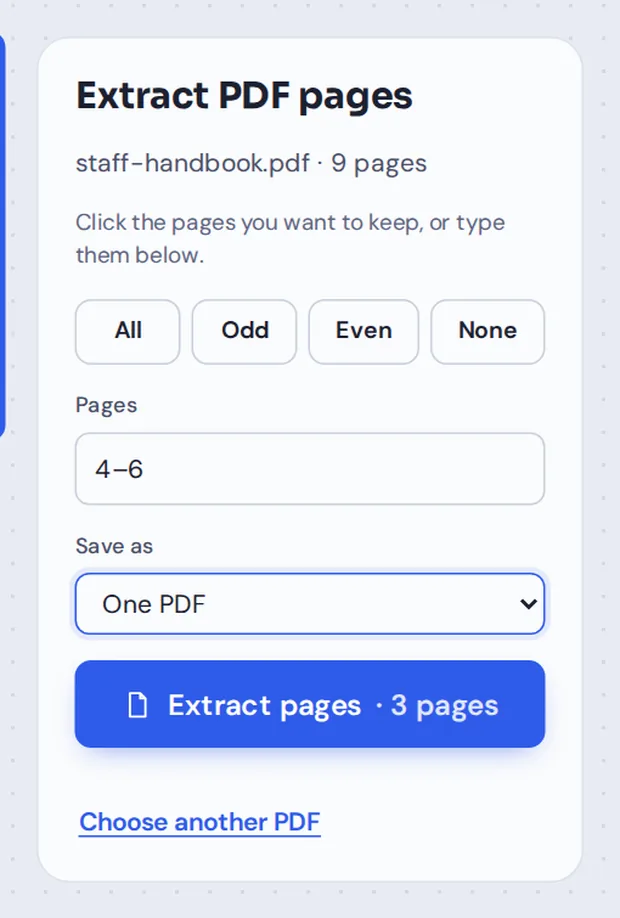
Or type them
Type pages in the Pages box, such as 4-6 or 1, 3, 10-12. Under Save as, choose one PDF or a separate PDF for each page.
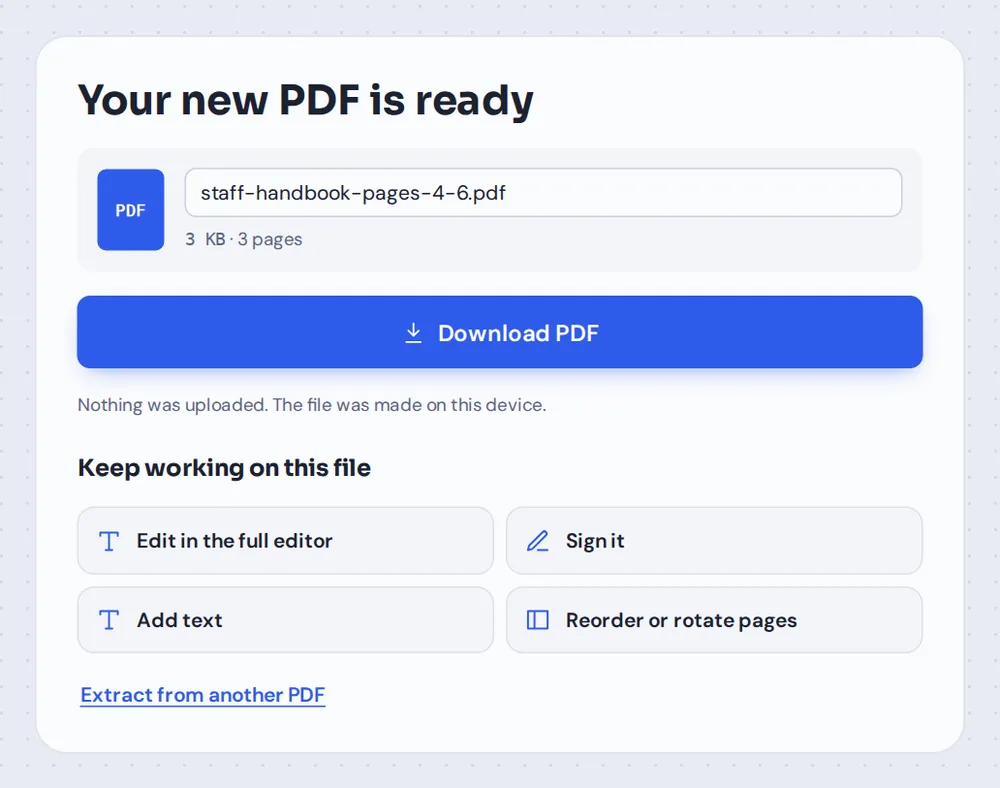
Download your new PDF
Click Extract pages and download the new file. You can also open it in the editor to sign it, add text or reorder the pages.
Why Extract Pages From a PDF?
Long PDFs often hold only a few pages that matter to the person you are sending them to. A landlord needs one page of a bank statement, a new colleague needs the holiday policy, and a client needs two pages of a 40-page proposal.
When you extract PDF pages, you make a new, smaller PDF with just those pages, in their original order. The person you send it to sees only what they need, and nothing private from the rest of the document.
The pages are copied, not redrawn, so text stays sharp and selectable and pictures keep their quality. Your original PDF stays exactly as it was.
Extract pages
Keep only the pages you pick. This is what this page does.
Split PDF
Cut the whole file into several parts.
Delete pages
Remove a few pages and keep the rest.
Everything You Can Do When You Extract PDF Pages
The tool to extract PDF pages is quick for one page, and just as quick for fifty.
Select pages
Click, tap or type.
- Click the thumbnails
Each click adds or removes a page. Selected pages show a blue check.
- Quick buttons
All, Odd, Even and None set the selection in one click.
- Type ranges
Type 2-5, 9 in the Pages box. The thumbnails update as you type.
Save as
One file or many.
- One PDF
All the pages you picked, in one new file.
- A separate PDF for each page
Every page in its own file, downloaded together in one ZIP.
- Clear file names
Such as handbook-pages-4-6.pdf.
Original quality
Nothing is lost.
- Copied, not redrawn
Text stays sharp and selectable.
- Pictures untouched
Photos and scans keep their full resolution.
- Original unchanged
The PDF you opened stays as it was.
Keep working
The new PDF opens in the editor.
- Sign it
Add your signature before you send it.
- Add text or highlight
Point out the lines that matter.
- Reorder or rotate
Change the page order or turn a page around.
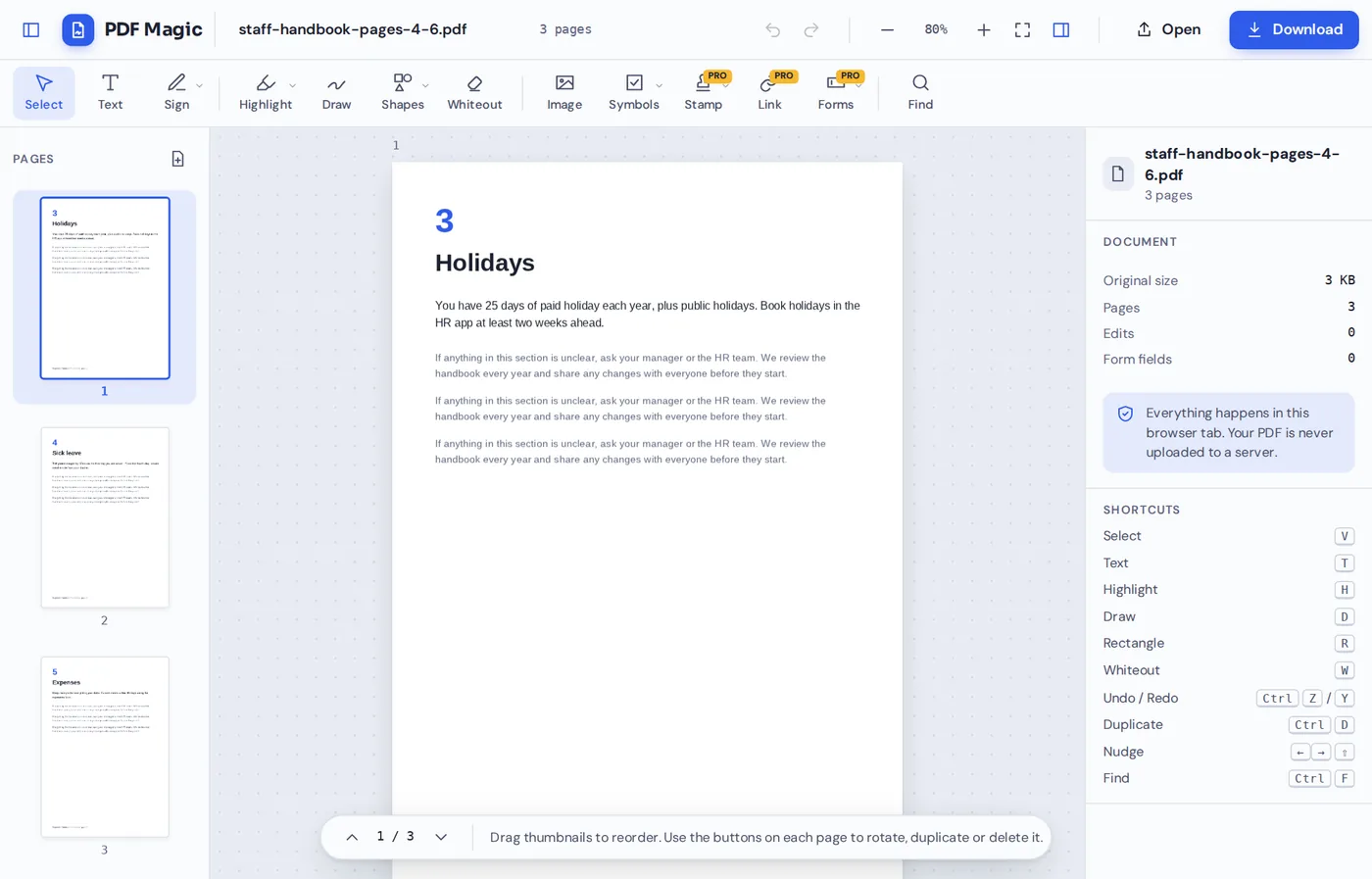
After you extract PDF pages, click Reorder or rotate pages and the new file opens in the editor with every page in the sidebar. Sign it, add a note or change the order, then download.
Extract, Split or Delete: Which One Do You Need?
Three page tools that keep different pages.
| What you keep | Best for | |
|---|---|---|
| Extract PDF pages | Only the pages you pick | Sending a few pages of a long document |
| Split PDF | Every page, cut into several files | Separating documents scanned together |
| Delete PDF pages | Every page except the ones you remove | Removing a blank or unwanted page |
Extract Pages Without Uploading Your PDF
Most online tools upload the whole document to pull out a few pages. PDF Magic copies the pages inside your own browser tab, so the full PDF never leaves your device.
It is also a simple way to share less: send only the pages someone needs, and keep the rest of a statement, contract or report private.
- 0files uploadedYour PDF stays on your device.
- 0copies keptWe never see your pages.
- 0accounts neededOpen the page and start.
Extract PDF Pages on iPhone, Android or Computer
- Windows
- Mac
- Linux
- Chromebook
- iPhone
- iPad
- Android
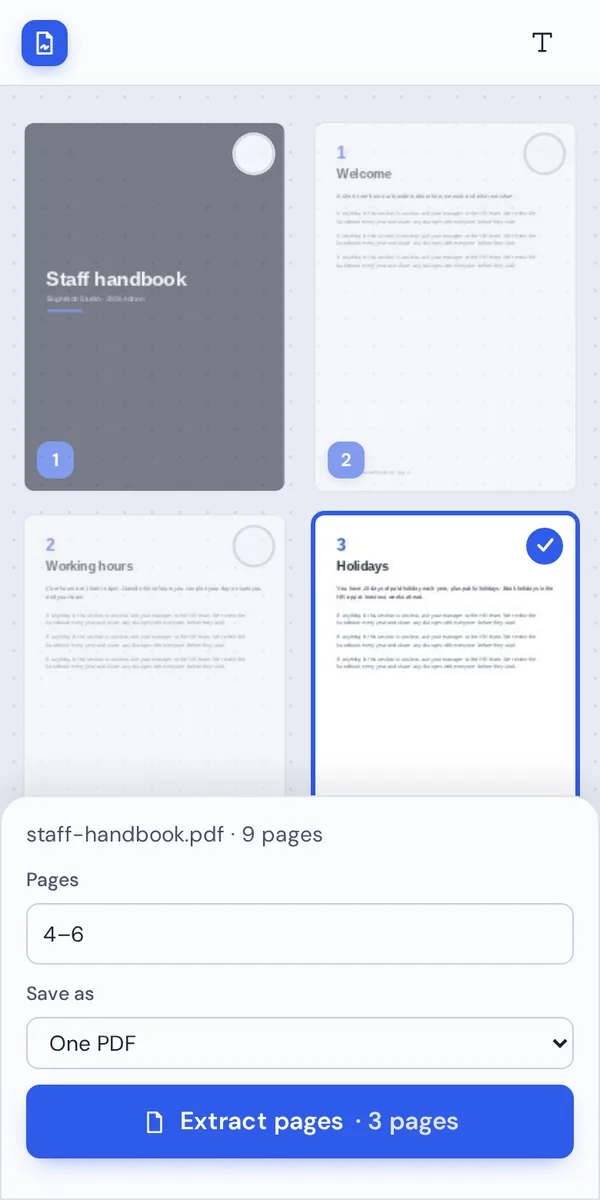
On a phone, typing the pages is often quickest. Open this page in your browser, choose the PDF, type the pages in the Pages box and tap Extract pages.
It works the same on Windows, Mac, Linux and Chromebook, with nothing to install.
When People Pull Pages Out of a PDF
Whenever only part of a document needs to go somewhere.
Proof of address
One page of a bank statement or utility bill.
Policies
The holiday or expenses pages from a staff handbook.
Proposals
The pricing pages of a long proposal for finance.
Study material
One chapter of a textbook or course pack.
Forms
The one form inside a large information pack.
Medical letters
The results page for an insurer, without the rest.
Tips for Picking the Right Pages
- Type long rangesTyping 10-40 is quicker than clicking 31 pages.
- Check the thumbnailsPage numbers in the PDF may not match the printed ones.
- One file per pageChoose A separate PDF for each page when pages go to different people.
- Need every page?Use Split PDF to cut the whole file into parts.
- Sign straight awayOpen the new PDF in the editor and sign it before sending.
- Share lessSend only the pages someone needs, not the whole document.
More Page Tools
They all run in the same private editor.
Split PDF
Cut one PDF into several files.
Delete PDF pages
Remove the pages you do not need.
Merge PDF
Join the pages with other files.
Rearrange PDF pages
Change the order of pages.
PDF to JPG
Turn pages into images.
Sign PDF
Sign the new PDF.
Extract PDF Pages: Frequently Asked Questions
Answers to what people ask before they take pages out of a PDF.
How do I extract PDF pages?
Open your PDF in the tool above and click the pages you want to keep, or type them in the Pages box, such as 2-4, 7. Then click Extract pages and download your new PDF.
Can I extract PDF pages for free?
Yes. It is free, with no account, no watermark and no page limit.
Can I extract PDF pages online?
Yes. The tool runs in your web browser on Windows, Mac, Linux and Chromebook, with nothing to install. Open your PDF at the top of this page to start.
How do I extract PDF pages on my phone?
Open this page in your phone's browser, tap Choose PDF file and type the pages you need in the Pages box, or tap them. Then tap Extract pages and download the new PDF. There is no app to install.
Can I extract PDF pages without Adobe Acrobat?
Yes. You do not need Acrobat or any other software. The tool runs in your browser, and the new PDF opens in Acrobat, Preview, Chrome and every other PDF reader.
Is it safe to extract PDF pages online?
Yes. Your PDF is not uploaded. It is opened and processed inside your browser tab and never sent to our servers, so nobody else sees it. Close the tab and nothing is left behind.
How do I extract PDF pages without losing quality?
The pages are copied, not redrawn, so text stays sharp and selectable and pictures keep their quality. Your original PDF is not changed.
What is the easiest way to extract PDF pages?
Type the page numbers in the Pages box, for example 4-6, and click Extract pages. Choose A separate PDF for each page if you want every page as its own file.
Ready to Extract PDF Pages?
No account, no upload and no watermark: choose your PDF at the top of this page.
Open the toolPDF Magic lets you share only what matters. Choose your file and extract PDF pages today.