
Delete PDF Pages Online Free
Delete PDF pages in a few clicks and download the shorter document.
- No upload
- No watermark
- No sign-up
- Undo any time
Delete PDF pages online for free, right in your browser. Click the delete button on any page, confirm, and download a shorter document. Your file is never uploaded, and you can undo any page you removed by mistake.
How to Delete PDF Pages in 4 Steps
It takes two clicks to delete PDF pages, one page at a time.
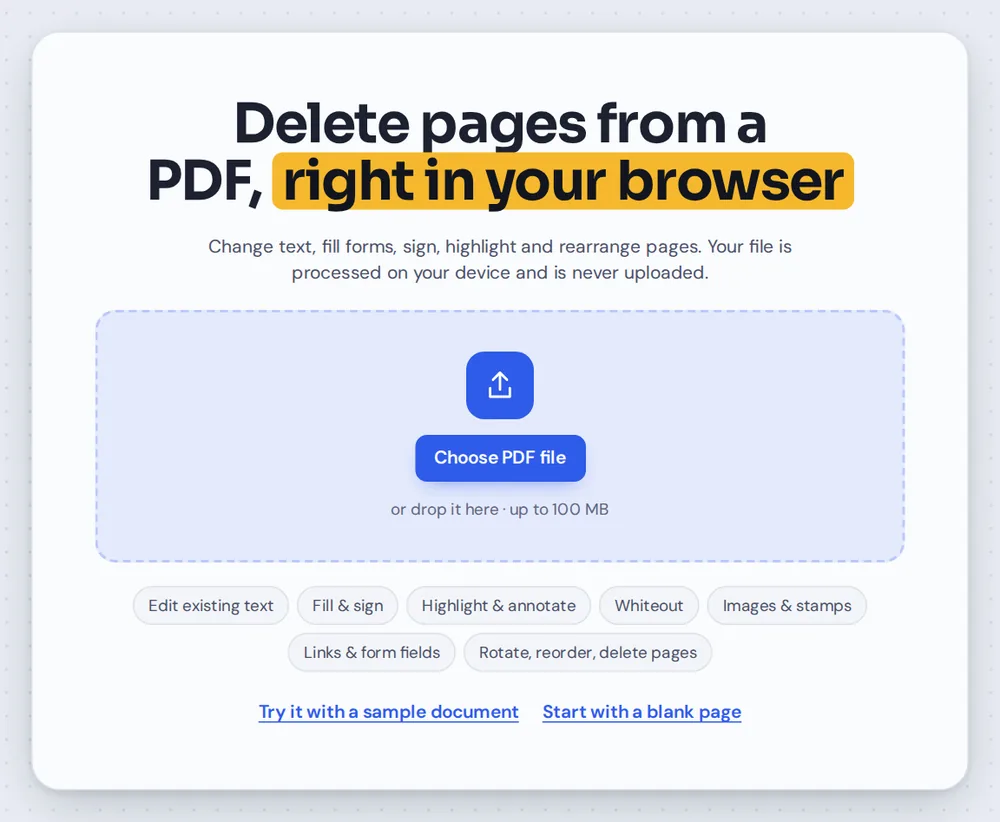
Open your PDF
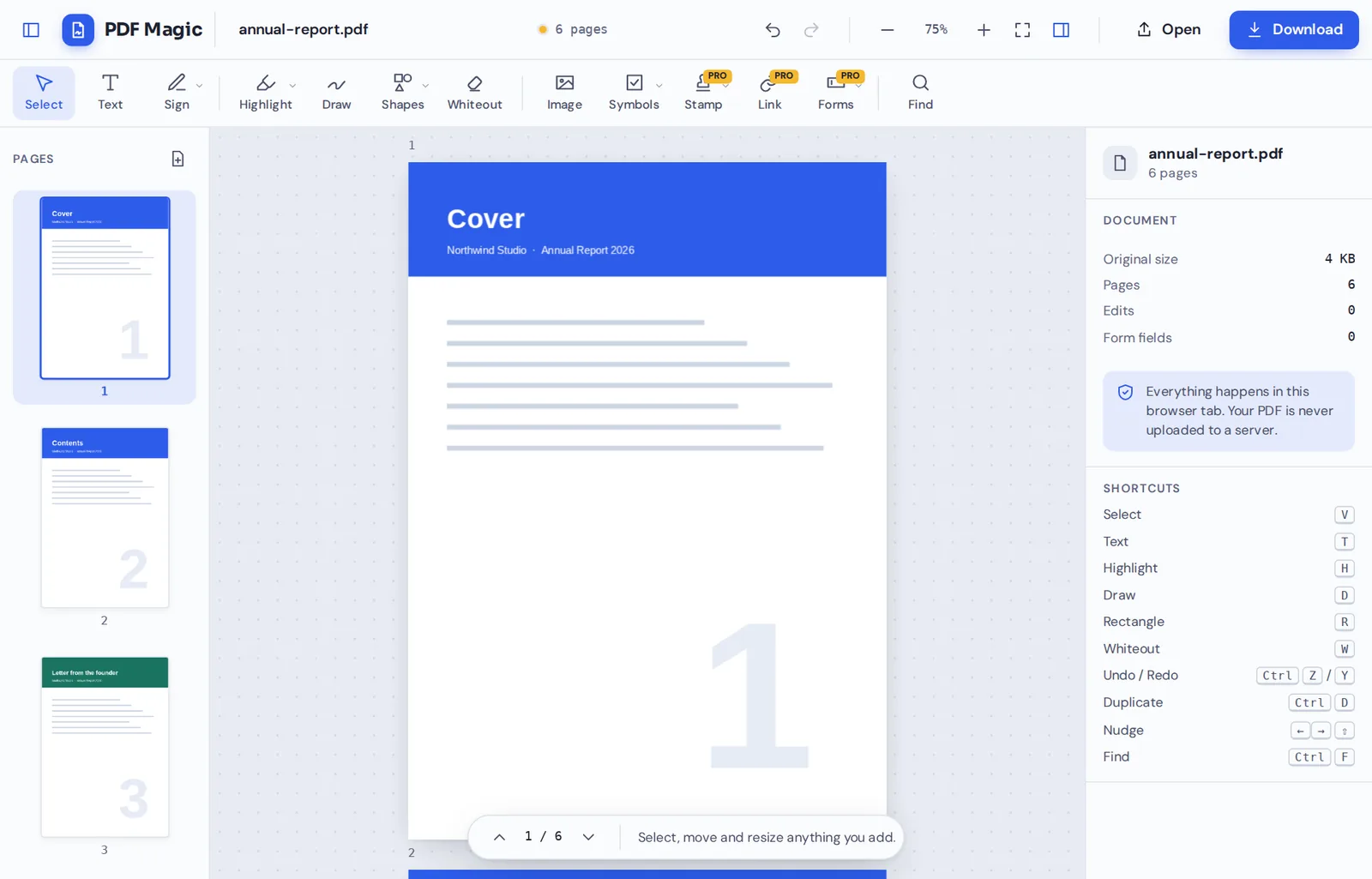
Click Choose PDF file or drag your document onto the editor above. The page sidebar opens with a picture of every page.
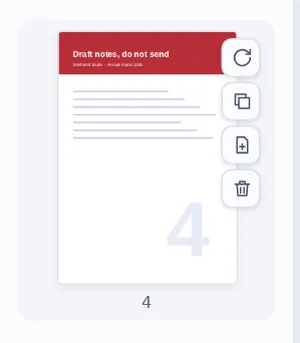
Click delete on a page
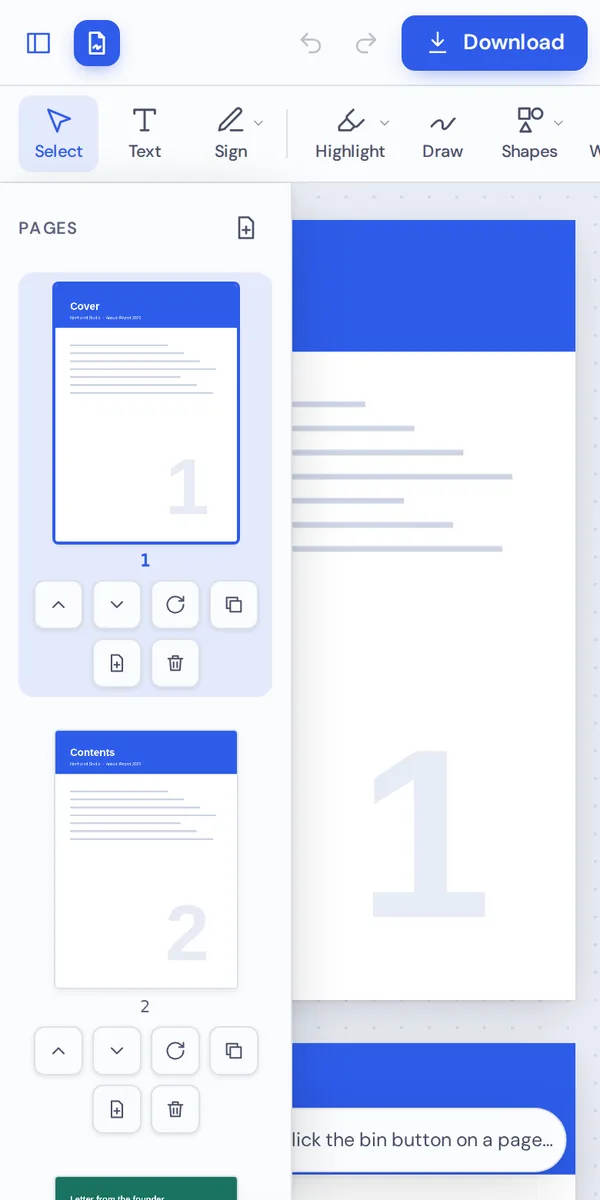
Find the page you do not need and click its bin button. On a computer, the buttons appear when you point at a page.
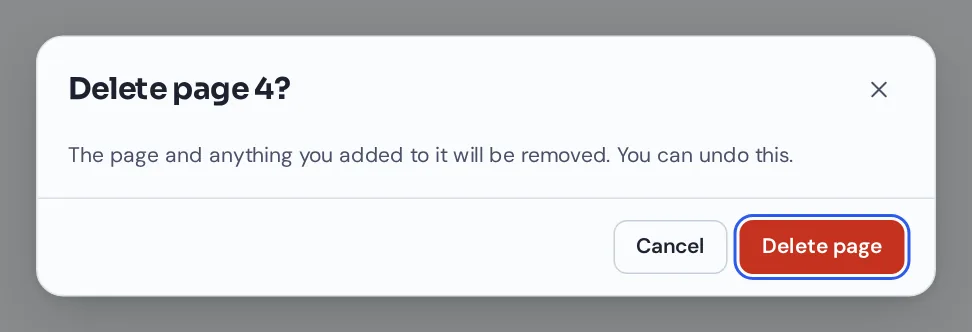
Confirm
PDF Magic asks before it removes anything. Click Delete page, and repeat for any other pages.
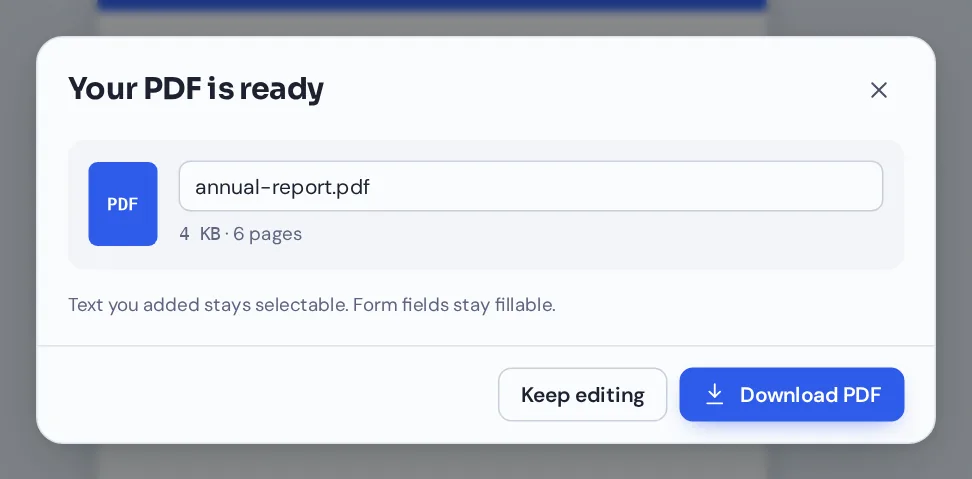
Download your file
Click Download and name your file. The pages you removed are gone from the new copy.
Delete PDF Pages Reports Before You Share Them
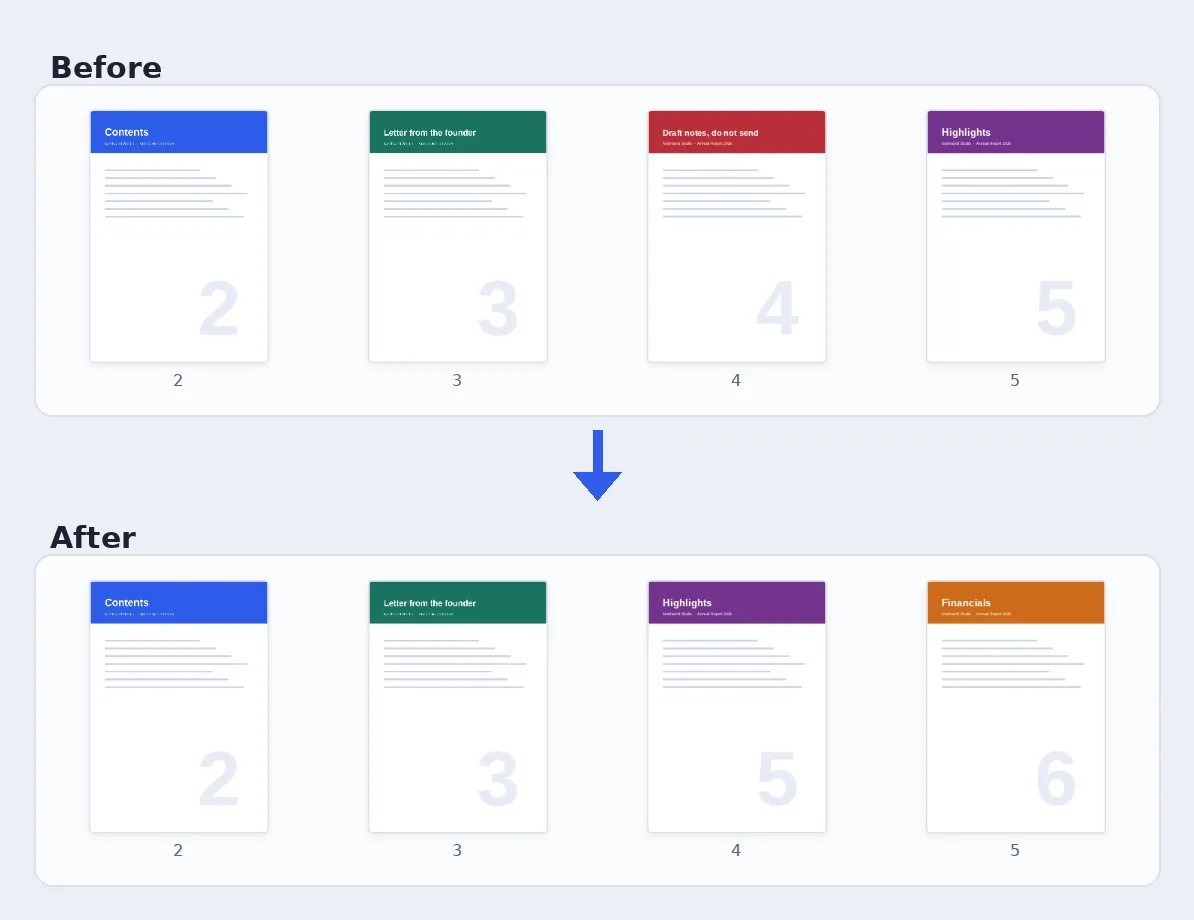
A draft notes page and an old version of a page removed from an eight-page report.
What Happens When You Delete PDF Pages
A PDF keeps every page as a separate part of the file. When you delete PDF pages with PDF Magic, those pages are left out of the new file you download. The pages you keep are copied exactly as they were, with the same text, images and quality.
Your original file is not changed. If you delete the wrong page, press Ctrl+Z to bring it back, or open the original again.
A document always needs at least one page, so the last remaining page cannot be deleted.
Delete a page
Removes the page from the file you download. The others stay exactly as they were.
Undo
Brings back a deleted page, along with anything you added to it.
Your original
Stays untouched on your device, as a backup.
Everything You Can Do While You Delete PDF Pages
The sidebar you use to delete PDF pages handles every other page job too.
Delete
Remove pages safely.
- One click per page
Click the bin button on a page thumbnail.
- A quick check first
A message asks you to confirm, so a slip of the mouse does not cost you a page.
- Keyboard
Select a page thumbnail and press Delete, then confirm.
- Undo and redo
Press Ctrl+Z to bring a page back, and Ctrl+Shift+Z to remove it again.
Organize
Tidy up the rest of the document.
- Reorder
Drag thumbnails to move pages.
- Rotate
Turn sideways pages the right way up.
- Duplicate and insert
Copy a page or add a blank page after it.
Edit
Finish the document in the same place.
- Whiteout parts of a page
Hide a single paragraph or number instead of deleting the whole page.
- Sign and add text
Add your signature, a date or a note before you send it.
Download
Save a shorter copy.
- Name your file
Rename it, for example report-final.pdf.
- No watermark
The pages you keep look exactly like the original.
Other Tools to Use After You Delete PDF Pages
They all open in the same editor, so nothing is uploaded.
Rearrange PDF pages
Drag pages into a new order.
Rotate PDF
Turn sideways pages upright.
Merge PDF
Combine the result with other files.
Extract PDF pages
Save only the pages you choose as a new file.
Whiteout PDF
Cover part of a page instead of deleting it.
PDF Editor
Add text, sign and highlight.
Delete PDF Pages Without Uploading Them
Pages are often removed because they are private: a bank statement, a draft, or personal details that should not be shared. When you delete PDF pages here, the document stays inside your browser tab and is never sent to our servers.
The pages you remove are left out of the downloaded file completely, not hidden or covered.
- 0files uploadedYour PDF stays on your device.
- 0hidden leftoversDeleted pages are not in the new file.
- 0accounts neededOpen the page and start.
Delete PDF Pages on iPhone, Android or Computer
- Windows
- Mac
- Linux
- Chromebook
- iPhone
- iPad
- Android
It works in any modern browser, with nothing to install. On a phone or tablet, the delete button sits under each page thumbnail, ready to tap.
Need to send only part of a document from your phone? Open it here, delete PDF pages in a few taps and share the shorter copy.
When People Delete PDF Pages
Most people delete PDF pages because a page or two should not go out with the rest.
Blank pages
Empty pages left by double-sided scanning.
Drafts and notes
Internal notes or old versions before a report goes out.
Statements
Pages of a bank statement you do not need to share.
Course material
Only the chapters students need.
Applications
Remove instruction pages before sending a completed form.
Presentations
Backup slides that should not be in the shared copy.
Tips to Delete PDF Pages Safely
- Check the thumbnailsZoom in on a page before you delete it, to be sure.
- Undo mistakesCtrl+Z brings back the last page you deleted.
- Delete from the end firstPage numbers above the one you delete stay the same.
- Hide, don't deleteNeed to hide one line? Use whiteout and keep the page.
- Rename the copyGive the shorter file a new name so you can tell them apart.
- Keep the originalYour original is not changed, so keep it as a backup.
Delete PDF Pages: Frequently Asked Questions
Answers to what people ask most before they start.
How do I delete pages from a PDF?
Open your PDF above and click the bin button on the page in the sidebar. Confirm, then click Download to save the shorter file.
Can I remove a page from a PDF for free?
Yes. Deleting pages and downloading the file are free, with no account and no watermark.
How do I delete multiple pages from a PDF?
Click the bin button on each page you want to remove. Each page asks for a quick confirmation, so nothing is deleted by accident.
Can I delete a PDF page on my phone?
Yes. Open this page in your phone's browser, open the file and tap the bin button under a page thumbnail.
How do I remove a blank page from a PDF?
Find the blank page in the sidebar and click its bin button. The thumbnails make empty pages easy to spot.
Can I delete pages without Adobe Acrobat?
Yes. You do not need Acrobat. The tool runs in your browser, and the new file opens in every PDF reader.
How do I save a PDF after deleting pages?
Click Download and name your file. The pages you deleted are not in the new file, and your original file is not changed.
Can I remove pages from a password-protected PDF?
Not while it is locked. Open the file with its password, save an unlocked copy and open that copy here.
Ready to Delete PDF Pages?
No account, no upload and no watermark: open your document above and remove the pages you do not need.
Open the editorPDF Magic is the easy, private way to trim a document. Open your file and delete PDF pages today.