
Stamp PDF Online
Stamp PDF documents: Approved, Paid, Draft or a custom stamp with your name and the date.
- No upload
- No watermark
- 7 ready-made stamps
- Today's date included
Stamp PDF documents online in two clicks. Pick Approved, Paid, Received, Draft, Confidential, Rejected or Final, click the page, and the stamp appears with today's date. Put it on every page if you need to. Your file is never uploaded.
How to Stamp PDF Pages in 4 Steps
Stamping a document takes seconds.
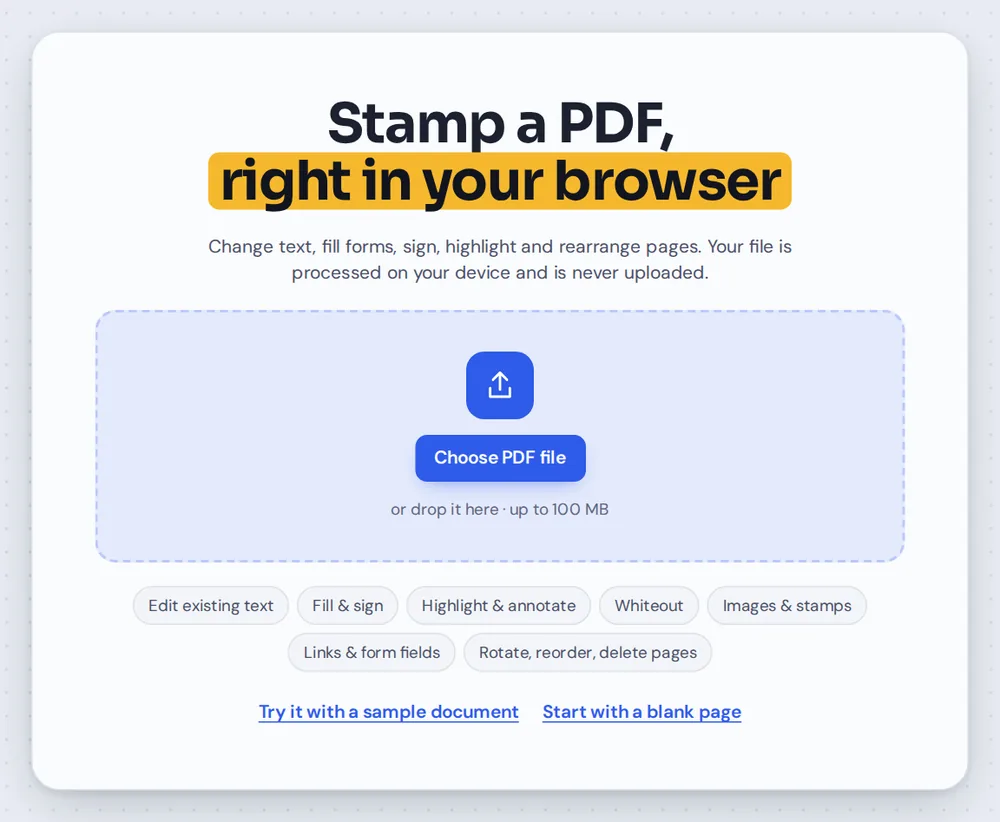
Open your PDF
Click Choose PDF file or drag your document onto the editor above. The stamp menu opens by itself.
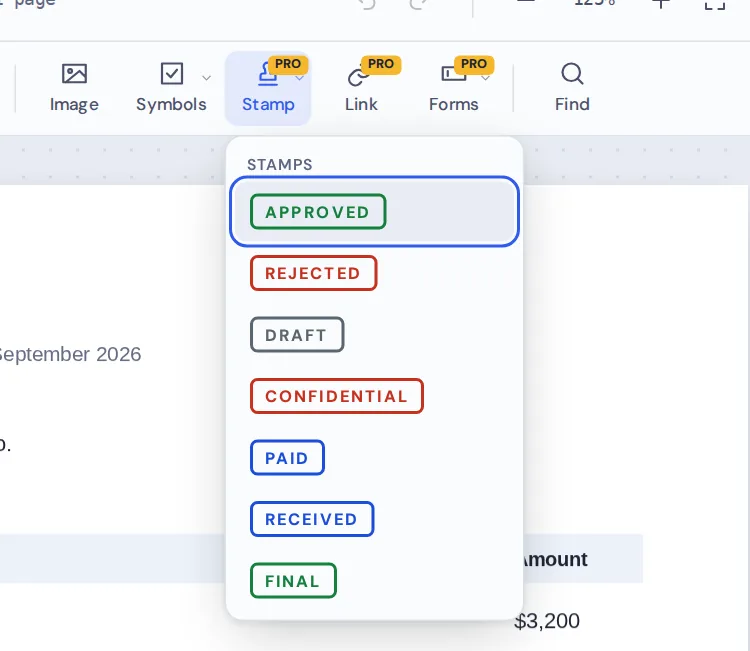
Pick a stamp
Choose one of seven stamps. Each one shows today's date under the word.
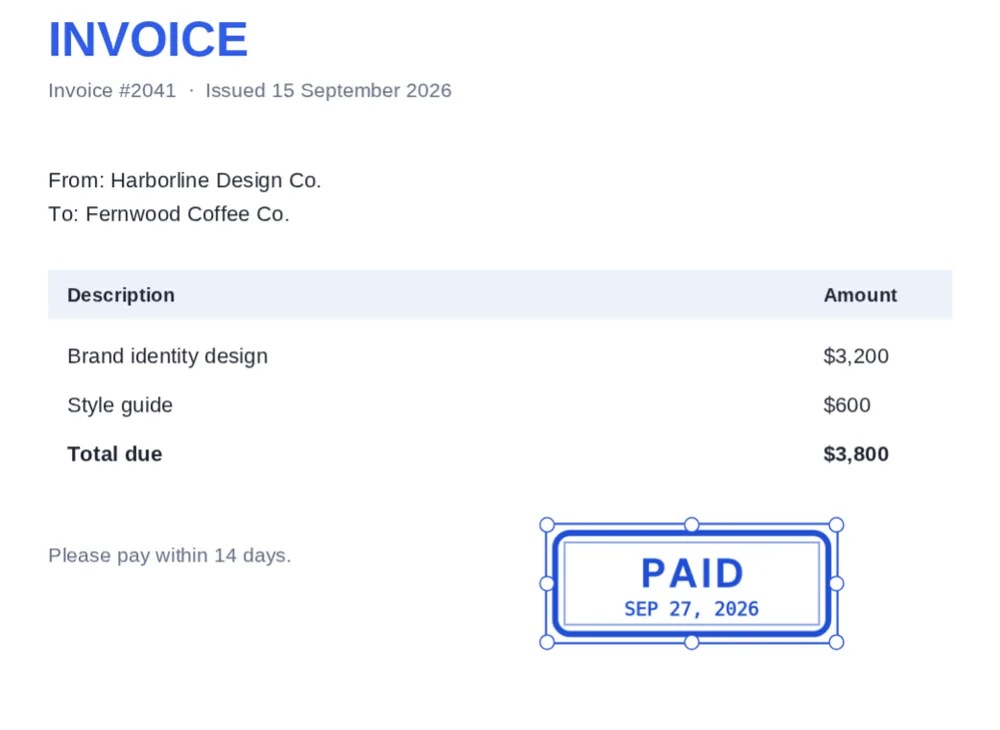
Click the page
Click where the stamp should go. Drag it into place and pull a corner to resize it.
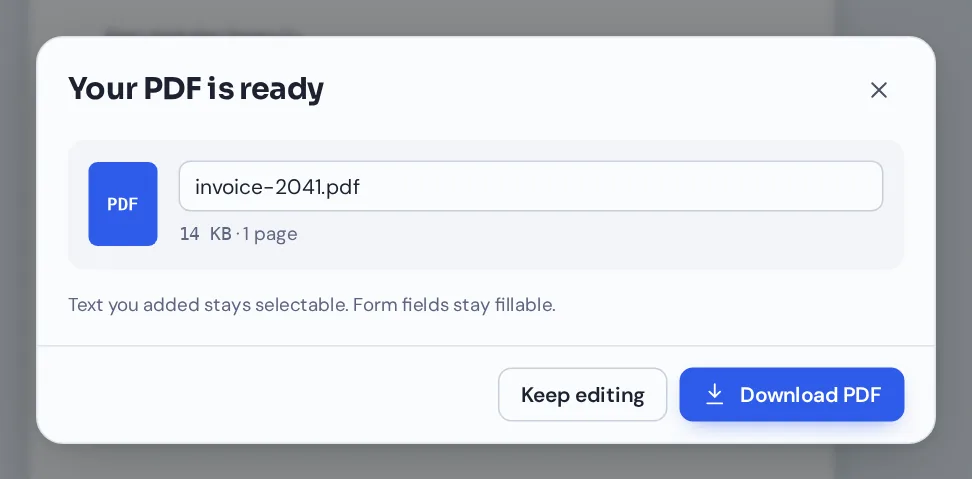
Download your file
Click Download and name your file. The stamp prints sharply in any PDF reader.
Stamp PDF Invoices, Reports and Forms
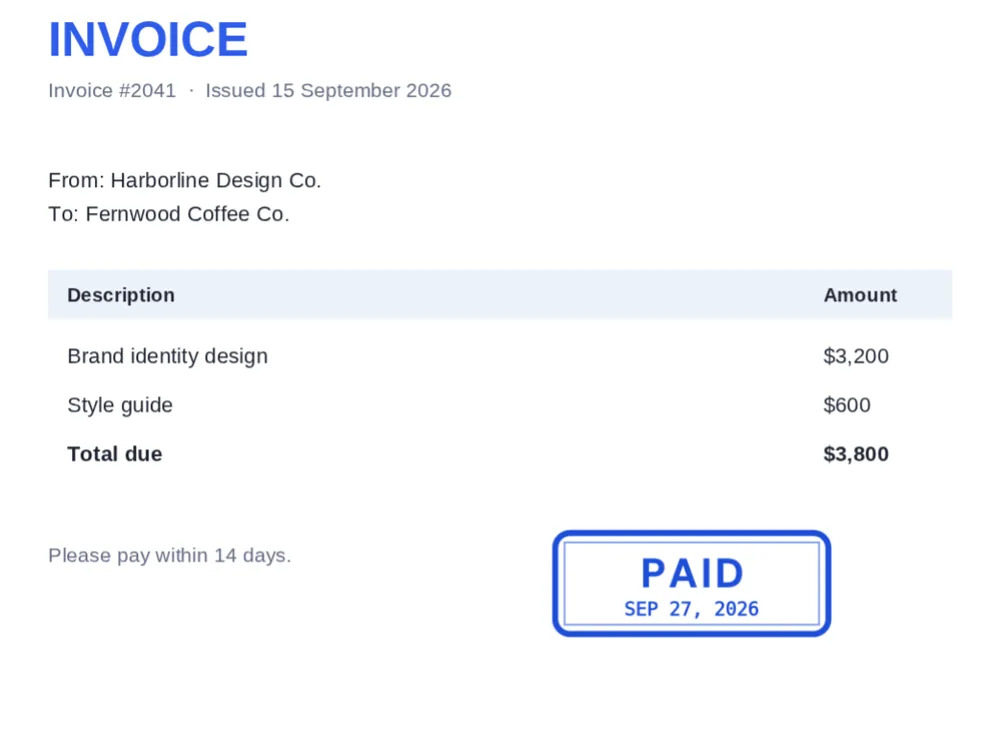
An invoice marked PAID with the date it was settled, placed clear of the amounts.
Which Stamp to Use When You Stamp PDF Files
Stamps are a quick, clear way to show the status of a document. They are easy to spot at a glance, which is why offices have used rubber stamps for so long.
When you stamp PDF pages with PDF Magic, each stamp includes today's date, so everyone can see when the document was approved, paid or received.
Stamps are part of PDF Magic Pro. You can try them for free: stamp your document first, and you are only asked to upgrade when you download.
Approved, Final, Paid, Received
For documents that are done: signed off, settled or delivered.
Draft, Confidential
For documents still in progress or not for sharing.
Rejected
For documents that need to go back.
Everything You Can Do When You Stamp PDF Documents
Select a stamp to change it in the side panel.
Seven stamps
The statuses offices use most.
- Approved and Final
In green, for documents that are signed off.
- Paid and Received
In blue, for invoices and deliveries.
- Draft, Confidential and Rejected
In gray and red, for work in progress and warnings.
Dated
Every stamp shows when.
- Today's date
Each stamp includes the date from your device.
- In your date style
The date follows your device's language settings.
Place
Put it where it is easy to see.
- Move and resize
Drag the stamp or pull its corners.
- Opacity
Fade it so the text underneath stays readable.
- Every page
Select a stamp and click Add to every page, for example to mark a whole report as Draft.
Change your mind
Nothing is final until you download.
- Delete
Select a stamp and press Delete.
- Undo
Press Ctrl+Z to step back.
Other Tools to Use When You Stamp PDF Files
They open the same document in the same editor, so nothing is uploaded.
Sign PDF
Add your signature next to the stamp.
Add the date
Place a date on its own.
Add image to PDF
Use a picture of your own company stamp.
Add initials
Initial the stamp to show who approved it.
Add text to PDF
Add a reference number or note.
PDF Editor
Every editing tool in one place.
Private by Design, With No Upload
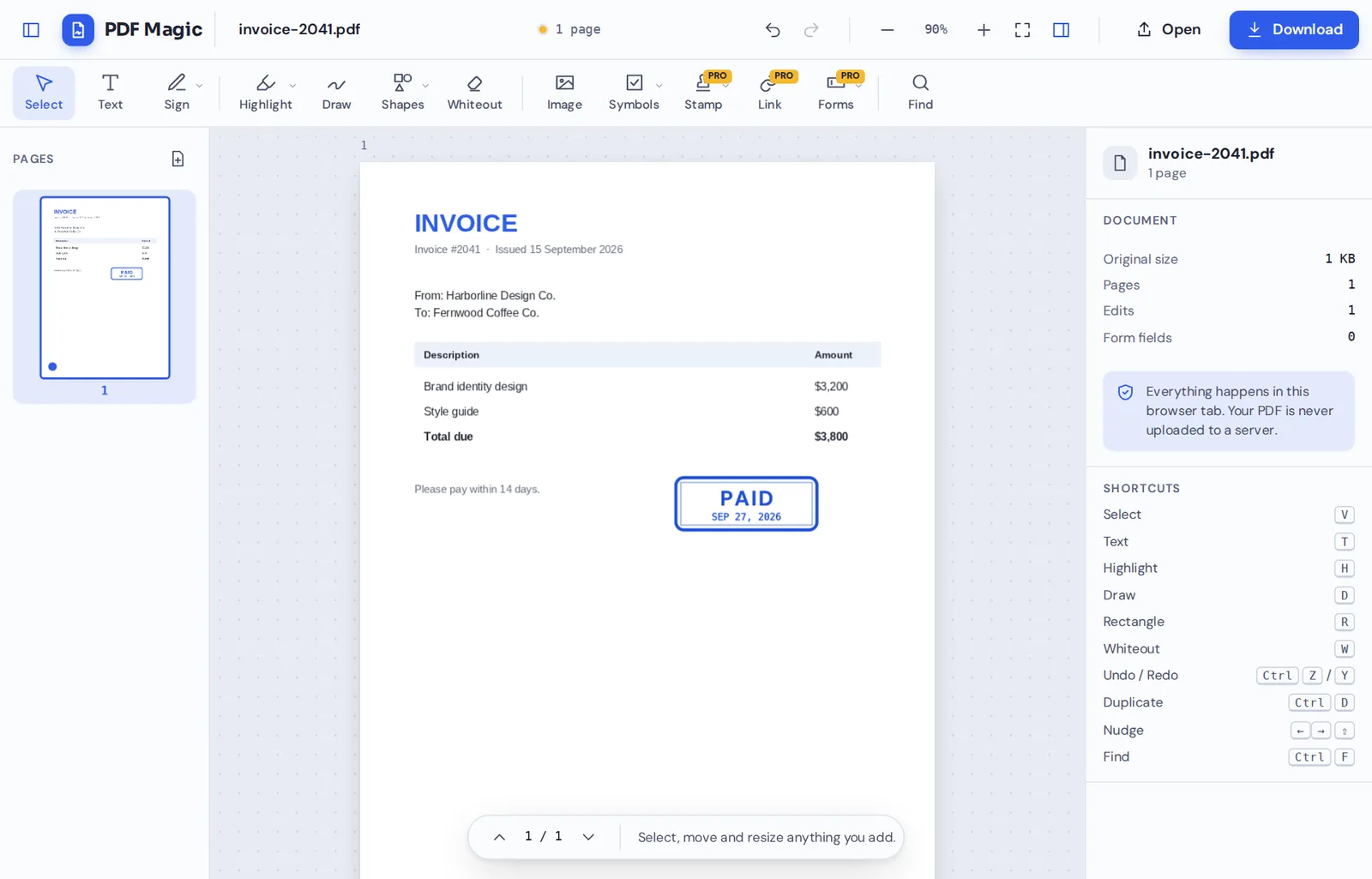
When you stamp PDF documents here, the file is opened and changed inside your own browser tab. It is never sent to our servers.
That makes it a safe choice for invoices, purchase orders, contracts and internal reports.
- 0files uploadedYour PDF stays on your device.
- 0watermarksOnly your stamp is added.
- 0installsIt runs in your browser.
Works on iPhone, Android and Computer
- Windows
- Mac
- Linux
- Chromebook
- iPhone
- iPad
- Android
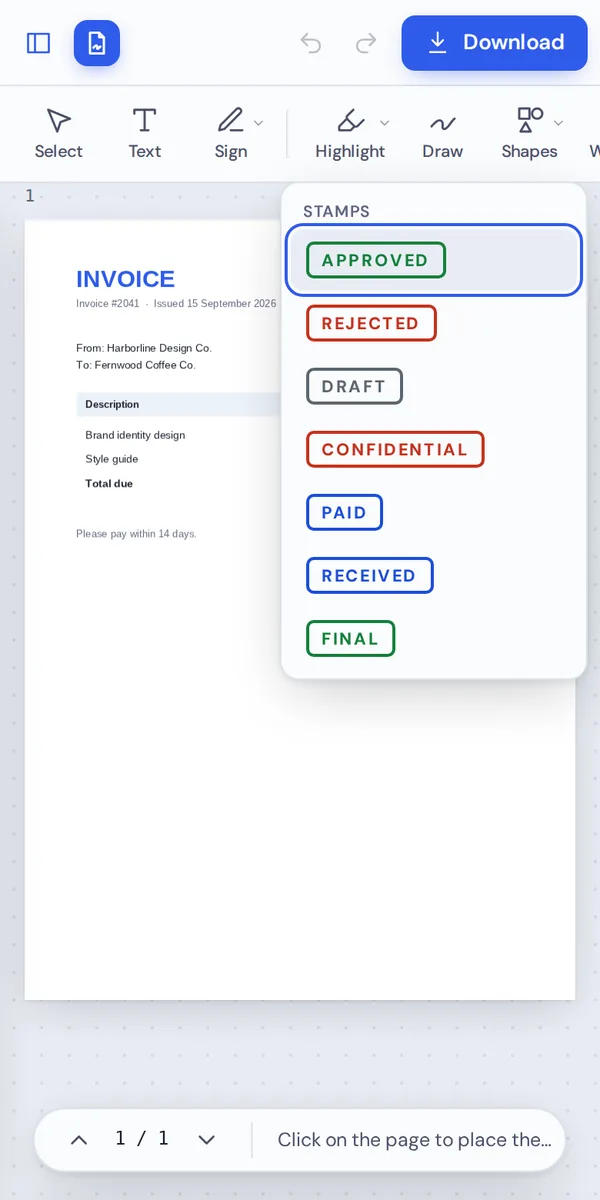
It works in any modern browser, with nothing to install. On a phone, pick a stamp from the menu and tap the page.
Approving an invoice on the go? Open it on your phone, stamp PDF pages in two taps and send it to accounts.
When People Use This Tool
A stamp tells everyone the status of a document before they read a word.
Invoices
Mark invoices Paid or Received.
Approvals
Approve quotes, designs and purchase orders.
Drafts
Mark every page of a report as Draft.
Confidential papers
Label documents that must not be shared.
Contracts
Mark the final version of an agreement.
Reviews
Send back rejected documents with a clear label.
Pro Tips for Faster Results
- Keep numbers visiblePlace the stamp in a clear area, not over amounts or dates.
- Fade it if neededLower the opacity if the stamp has to sit over text.
- Draft on every pageUse Add to every page so no page leaves the office unmarked.
- Add who approved itPut your initials next to an Approved stamp.
- Check the dateStamps use today's date from your device.
- Undo anythingCtrl+Z removes the last stamp.
Stamp PDF: Frequently Asked Questions
Answers to what people ask most before they start.
How do I stamp PDF?
Open your PDF, choose Stamp and pick Approved, Paid, Draft or another stamp, or create your own with your name and the date. Click the page to place it, then click Download.
Can I stamp PDF for free?
Yes. During our launch every tool is free, with no account and no watermark.
Can I stamp PDF online?
Yes. PDF Magic runs in your web browser, so you can stamp PDF files online on Windows, Mac, Linux or a Chromebook with nothing to install. Open your file in the tool at the top of this page to start.
How do I stamp PDF on my phone?
Open this page in your phone's browser, tap Choose PDF file and pick your document. Tap Stamp, pick a stamp and tap the page to place it. Then tap Download. There is no app to install.
Can I stamp PDF without Adobe Acrobat?
Yes. You do not need Acrobat or any other software. PDF Magic works in your browser, and the file you download opens in Acrobat, Preview, Chrome and every other PDF reader.
Is it safe to stamp PDF online?
Yes. PDF Magic does not upload your file. It is opened and changed inside your browser tab and never sent to our servers, so nobody else sees it. Close the tab and nothing is left behind.
How do I stamp PDF without losing quality?
Stamps are placed over the page without changing it, and they are made at high resolution so they print clearly.
What is the easiest way to stamp PDF?
Open the file above, pick a stamp from the menu and click the page. Your own stamps are saved in your browser for next time.
Ready to Stamp PDF Documents?
No upload and no watermark: open your document above, pick a stamp and click the page.
Open the editorPDF Magic is the easy, private way to mark a document's status. Open your file and stamp PDF pages today.