
Add Image to PDF Online Free
Add image to PDF pages: place logos, photos and pictures anywhere, right in your browser.
- No upload
- No watermark
- No sign-up
- PNG, JPG, WebP, GIF
Add image to PDF files online for free, right in your browser. Place a logo, a photo or any picture on the page, drag it into position and resize it. PNG, JPG, WebP and GIF all work, and your file is never uploaded.
How to Add Image to PDF Pages in 4 Steps
It takes a few seconds to add image to PDF pages, from choosing the picture to positioning it.
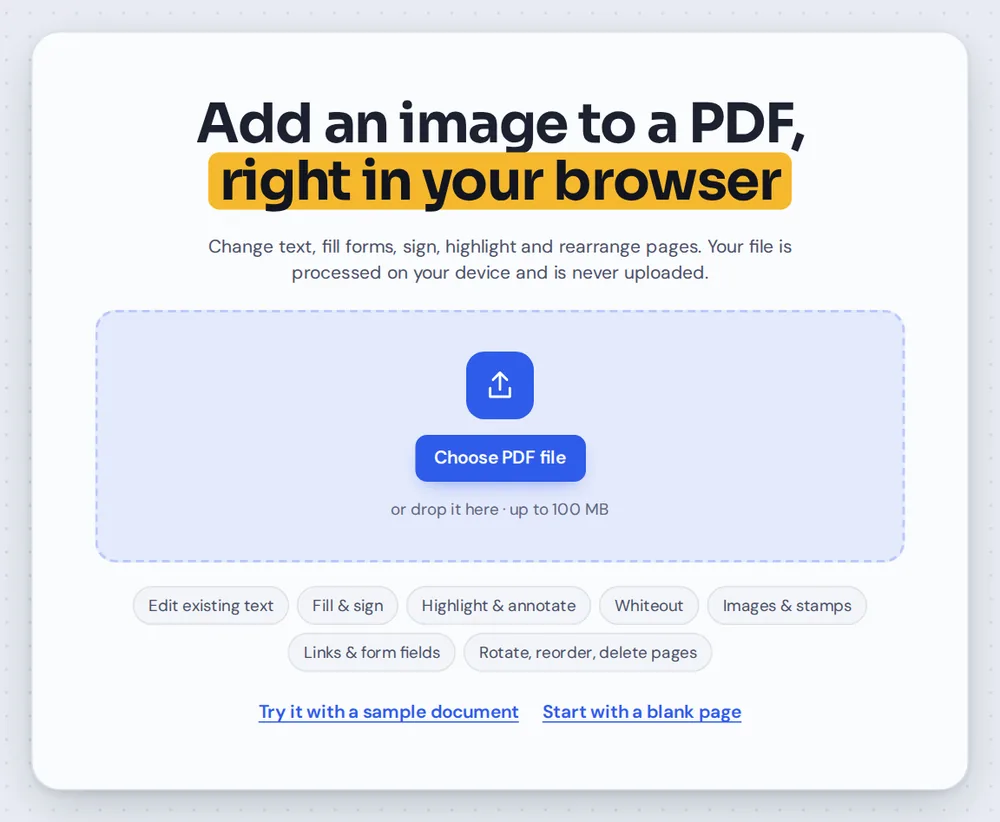
Open your PDF
Click Choose PDF file or drag your document onto the editor above.

Choose your picture
Click Image in the toolbar and pick a file. You can also drag a picture onto the editor, or copy one and press Ctrl+V.

Place and resize it
Click the page where the picture should go. Drag it into position and pull a corner handle to make it bigger or smaller.
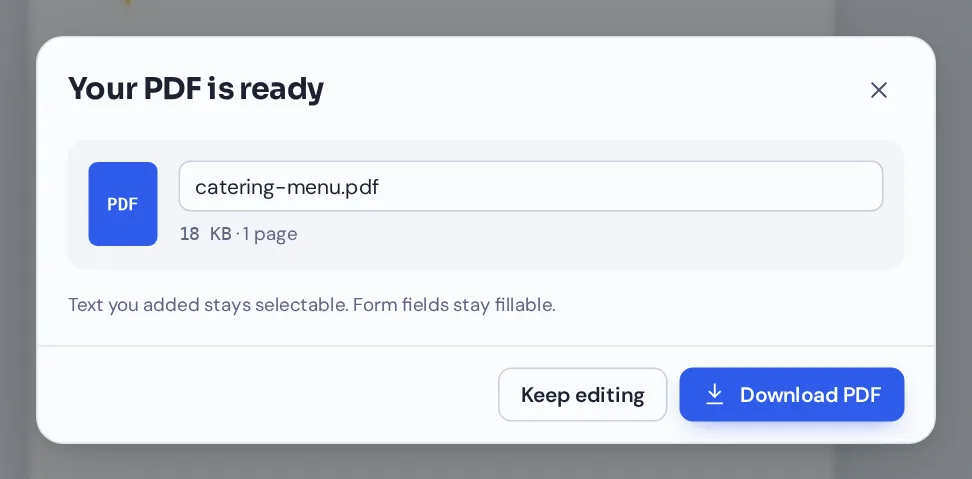
Download your file
Click Download and name your file. The picture is saved into the page at full quality.
Add Image to PDF Menus, Letters and Reports
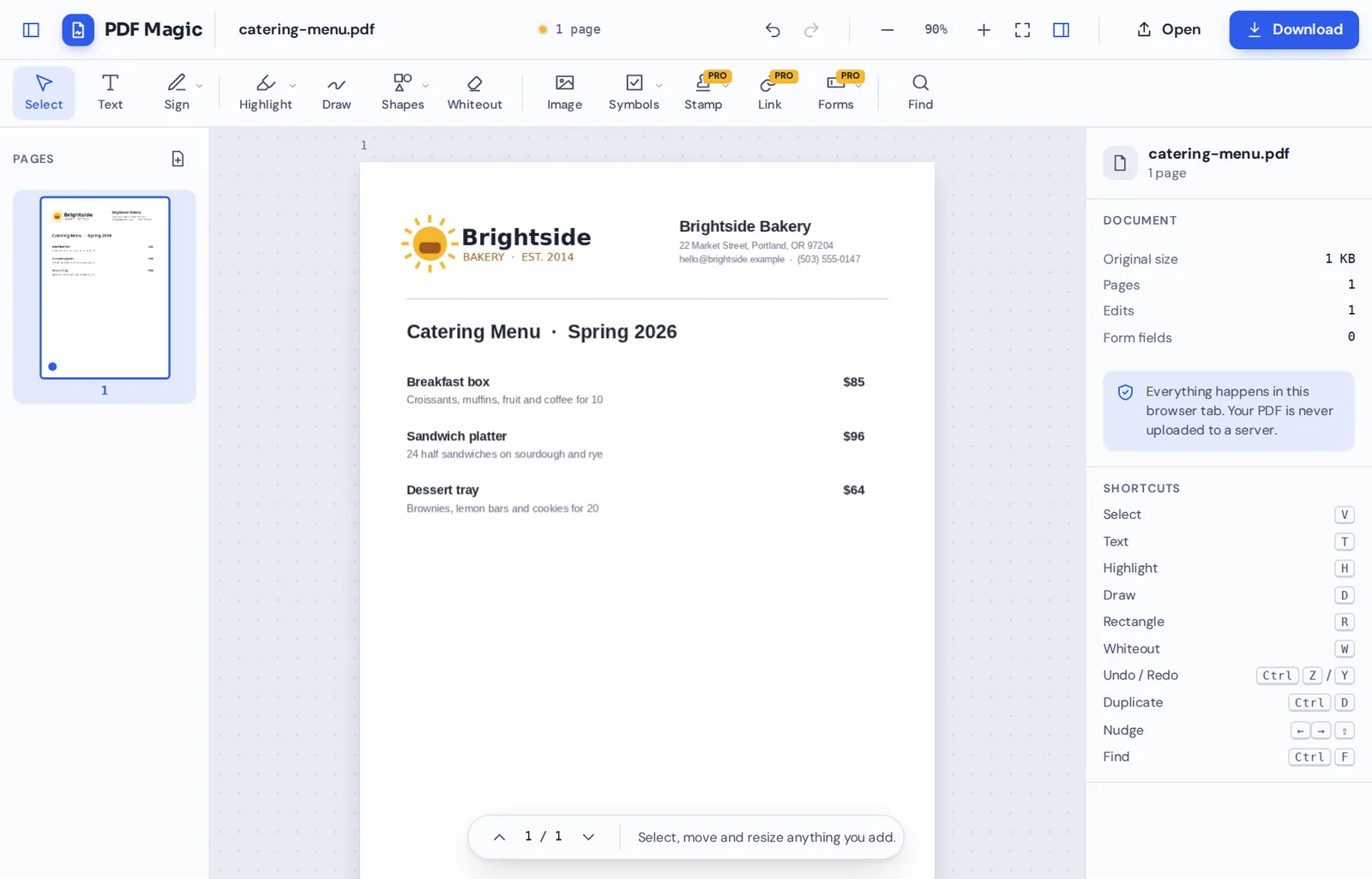
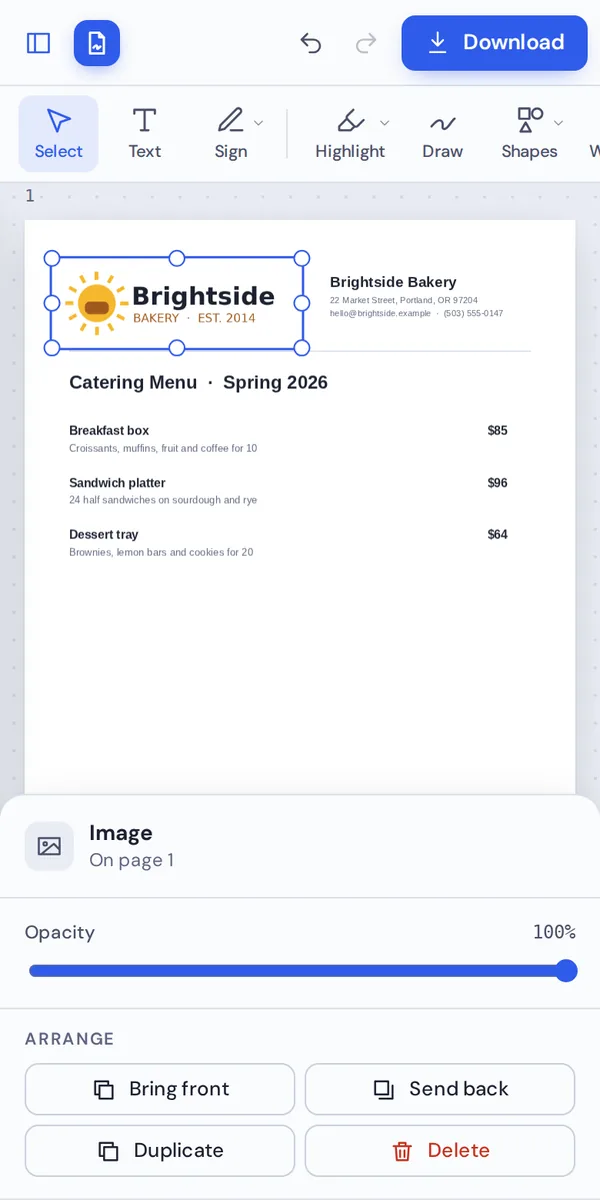
A bakery menu with its logo added to the top of the page. The transparent PNG sits cleanly on the white page.

Which Pictures Can You Use When You Add Image to PDF Files?
PDF Magic accepts the four most common picture formats: PNG, JPG, WebP and GIF. Logos saved as PNG with a transparent background keep that transparency, so only the logo itself shows on the page.
Pictures are placed on top of the page, like a sticker. The rest of the page is not changed, and the text around the picture stays selectable.
GIF animations are added as a still picture, because PDF pages do not play animations.
PNG
Best for logos, icons and screenshots. Supports transparent backgrounds.
JPG
Best for photos. Small files with rich color.
WebP and GIF
Also supported. GIFs are added as a still picture.
Everything You Can Do When You Add Image to PDF Pages
Select a picture and its settings appear in the side panel.
Three ways to add
Use whichever is quickest.
- Image button
Click Image in the toolbar and choose a file from your device.
- Drag and drop
Drag a picture from your desktop onto the open document, then click to place it.
- Paste
Copy a picture from another app or web page and press Ctrl+V.
Position
Put it exactly where it belongs.
- Move
Drag the picture, or nudge it with the arrow keys. Hold Shift to move further.
- Resize
Pull a corner handle. The picture keeps its shape.
- Layers
Bring it to the front or send it behind other items you added.
Style
Make it fit the page.
- Opacity
Fade the picture from 10% to 100%, for a soft background or a light watermark look.
- Duplicate and copy
Press Ctrl+D to duplicate it, or copy and paste it onto another page.
Download
Save the finished document.
- Full quality
The picture is saved at its original resolution.
- No watermark
Only your pictures are added to the page.
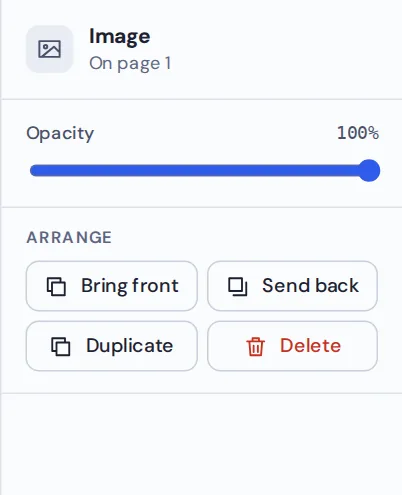
Select a picture to set its opacity, bring it to the front, send it back, duplicate it or delete it. It is all you need to add image to PDF pages that look finished.
Other Tools to Use When You Add Image to PDF Files
They open the same document in the same editor, so nothing is uploaded.
Sign PDF
Upload a photo of your signature and place it.
Stamp PDF
Add Approved, Paid and other ready-made stamps.
JPG to PDF
Turn photos into a PDF, one picture per page.
Add text to PDF
Add a caption under your picture.
Whiteout PDF
Cover an old logo before adding the new one.
PDF Editor
Every editing tool in one place.
Add Image to PDF Files Without Uploading Anything
When you add image to PDF files here, both the document and the picture stay inside your own browser tab. Neither is sent to our servers.
That makes it a safe choice for ID photos, signatures, company logos and anything you would rather keep private.
- 0files uploadedYour PDF and pictures stay on your device.
- 0watermarksOnly your pictures are added.
- 0accounts neededOpen the page and start.
Works on iPhone, Android and Computer
- Windows
- Mac
- Linux
- Chromebook
- iPhone
- iPad
- Android
It works in any modern browser, with nothing to install. On a phone, tap Image and choose a photo from your gallery or take a new one.
Need to add a photo of a receipt or an ID card to a form? Open the form on your phone and add image to PDF pages in seconds.
When People Use This Tool
People add image to PDF files because a picture often says more than a paragraph of text.
Logos and branding
Add your logo to quotes, menus and letters.
Photos in forms
Passport photos and ID pictures on applications.
Receipts
Photos of receipts for expense claims.
School work
Diagrams, charts and photos in assignments.
Property documents
Photos of rooms on inventories and checklists.
Reports
Screenshots and charts in team reports.
Pro Tips for Faster Results
- Use PNG for logosWhen you add image to PDF pages, a transparent PNG sits cleanly on any background.
- Use JPG for photosPhotos stay small and look great as JPG.
- Start big, then shrinkA larger picture scaled down looks sharper than a small one scaled up.
- Line it upNudge the picture with the arrow keys to align it with text.
- Fade backgroundsLower the opacity for a subtle background picture.
- Undo anythingCtrl+Z steps back if a picture lands in the wrong place.
Add Image to PDF: Frequently Asked Questions
Answers to what people ask most before they start.
How do I add image to PDF?
Open your PDF, click Image, choose a JPG, PNG, WebP or GIF picture and click the page to place it. Drag to move and resize it, then click Download.
Can I add image to PDF for free?
Yes. Adding images and downloading are free, with no account and no watermark.
Can I add image to PDF online?
Yes. PDF Magic runs in your web browser, so you can add images to PDF files online on Windows, Mac, Linux or a Chromebook with nothing to install. Open your file in the tool at the top of this page to start.
How do I add image to PDF on my phone?
Open this page in your phone's browser, tap Choose PDF file and pick your document. Tap Image, pick a photo from your gallery and tap the page to place it. Then tap Download. There is no app to install.
Can I add image to PDF without Adobe Acrobat?
Yes. You do not need Acrobat or any other software. PDF Magic works in your browser, and the file you download opens in Acrobat, Preview, Chrome and every other PDF reader.
Is it safe to add image to PDF online?
Yes. PDF Magic does not upload your file. It is opened and changed inside your browser tab and never sent to our servers, so nobody else sees it. Close the tab and nothing is left behind.
How do I add image to PDF without losing quality?
Pictures are added at their full resolution, and the rest of the page is left exactly as it was.
What is the easiest way to add image to PDF?
Open the file above and paste an image with Ctrl+V, or click Image and pick a file. Then drag it into place.
Ready to Add Image to PDF Pages?
No account, no upload and no watermark: open your document above and place your picture.
Open the editorPDF Magic is the easy, private way to put pictures in a document. Open your file and add image to PDF pages today.