
Add Shapes to PDF Online Free
Add shapes to PDF pages: boxes, circles, lines and arrows in any color, right in your browser.
- No upload
- No watermark
- No sign-up
- Boxes, circles, lines, arrows
Add shapes to PDF pages online for free, right in your browser. Draw rectangles, ellipses, straight lines and arrows, then choose the border, the fill, the thickness and how see-through they are. Your file is never uploaded.
How to Add Shapes to PDF Pages in 4 Steps
Each shape takes one drag.
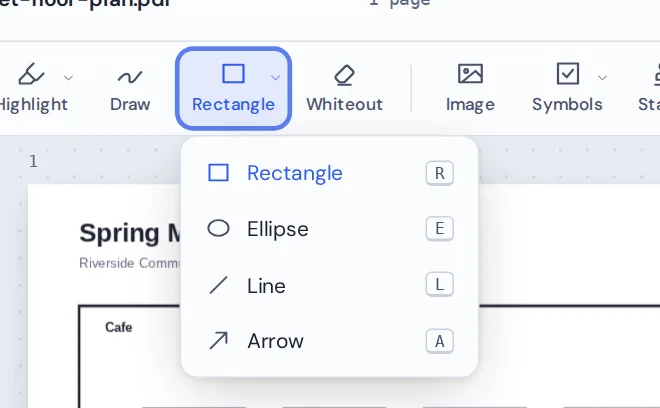
Pick a shape
Open your PDF, then choose a rectangle, an ellipse, a line or an arrow from the Shapes menu. Or press R, E, L or A.
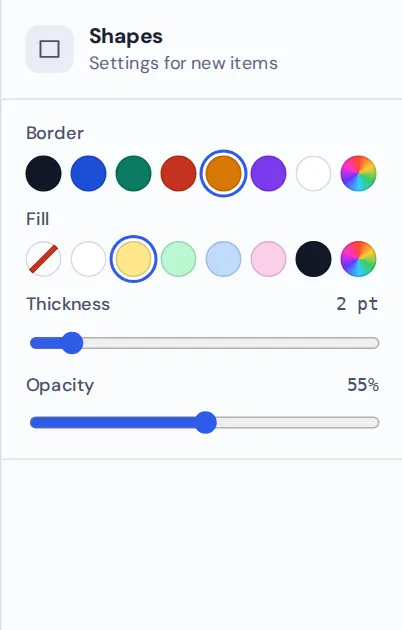
Choose the style
In the side panel, pick a border color, a fill color or no fill, a thickness and an opacity.
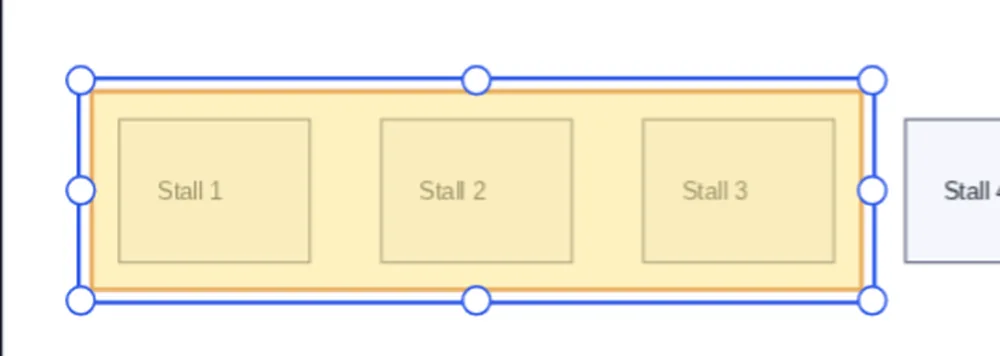
Drag on the page
Drag from one corner to the other. For lines and arrows, drag from the start point to the end point.
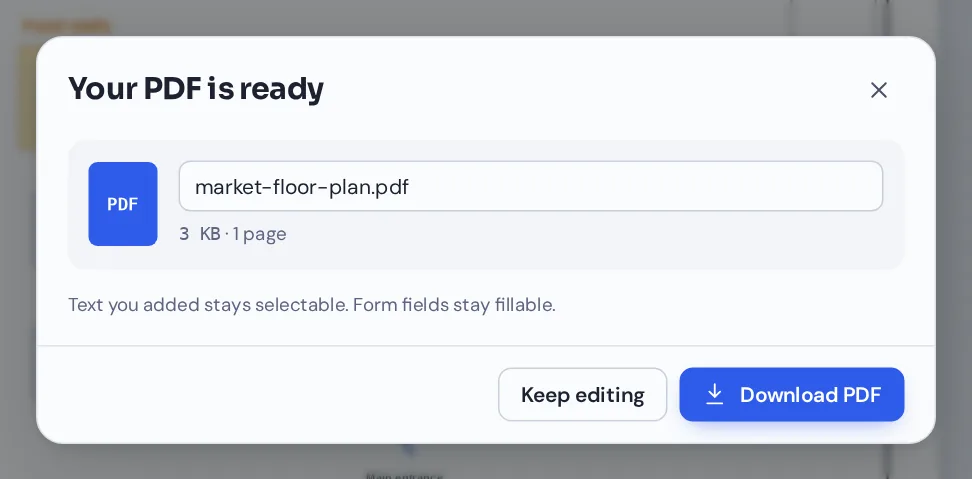
Download your file
Click Download and name your file. Shapes stay sharp at any zoom and in print.
Add Shapes to PDF Plans, Maps and Diagrams
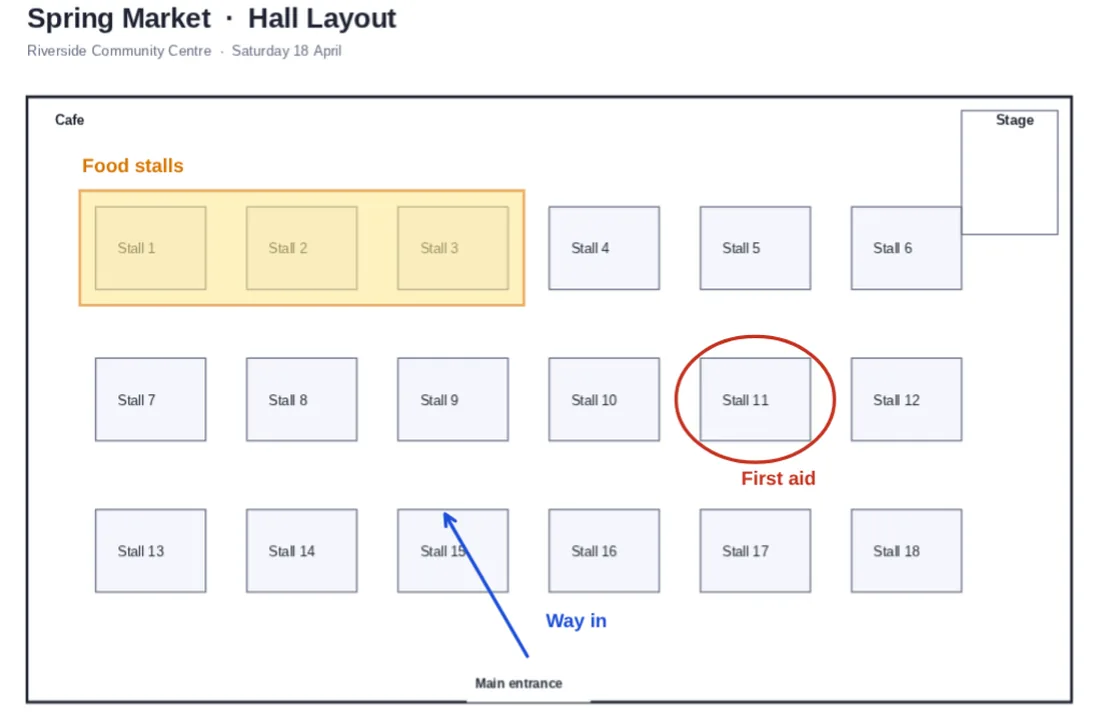
A market hall layout with the food stalls boxed in yellow, first aid circled in red and a blue arrow from the entrance.
Which Shape to Use When You Add Shapes to PDF Pages
Shapes are the tidy way to point things out. Where a freehand circle can look rushed, a shape is perfectly straight and even, which suits plans, forms and anything you will share.
When you add shapes to PDF pages with PDF Magic, they are saved as vector drawings, so they stay crisp however far you zoom in.
A shape with a light, see-through fill works like a highlighter for whole areas: rooms on a plan, sections of a form or parts of a chart.
Rectangle and ellipse
Frame an area or circle a detail. With or without a fill.
Arrow
Point from a note to the thing it is about.
Line
Divide sections, connect items or mark a route.
Everything You Can Do When You Add Shapes to PDF Files
Select any shape to change it in the side panel.
Four shapes
The ones you need most.
- Rectangle (R)
Boxes, frames and see-through areas.
- Ellipse (E)
Circles and ovals around details.
- Line (L) and arrow (A)
Straight lines and arrows in any direction.
Style
Make it clear, or keep it subtle.
- Border color
Seven colors, or any custom color.
- Fill
White, yellow, green, blue, pink, dark or no fill at all.
- Thickness
From a fine 0.5-point line to a bold 16-point one.
- Opacity
Make a shape see-through, from 10% to 100%.
Arrange
Put every shape in place.
- Move and resize
Drag a shape or pull its handles.
- Layers
Bring a shape to the front or send it back.
- Duplicate
Press Ctrl+D to copy a styled shape.
Label and save
Finish the job.
- Add labels
Type a label next to a shape with the Text tool.
- Undo
Press Ctrl+Z to step back.
- Sharp output
Shapes are saved as vector drawings.
Other Tools to Use When You Add Shapes to PDF Pages
They open the same document in the same editor, so nothing is uploaded.
Draw on PDF
Freehand notes and sketches.
Add text to PDF
Label your shapes.
Highlight PDF
Mark text in five colors.
Whiteout PDF
Cover parts of the page in white.
Add image to PDF
Place logos and pictures.
PDF Editor
Every editing tool in one place.
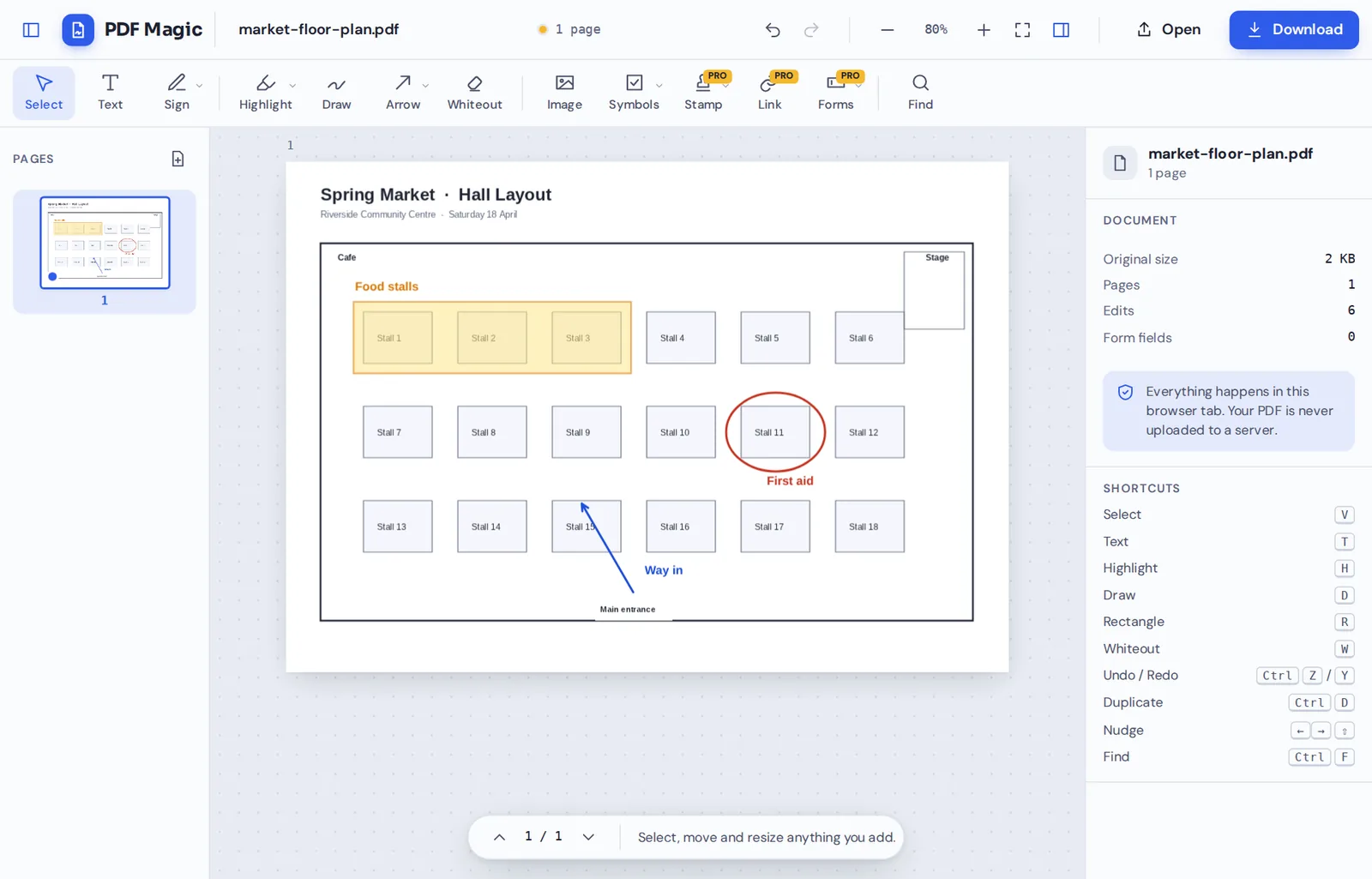
Private by Design, With No Upload
When you add shapes to PDF files here, the document is opened and marked up inside your own browser tab. It is never sent to our servers.
That makes it a safe choice for building plans, internal reports and anything you would rather keep private.
- 0files uploadedYour PDF stays on your device.
- 0watermarksYour marks look like yours.
- 0accounts neededOpen the page and start.
Works on iPhone, Android and Computer
- Windows
- Mac
- Linux
- Chromebook
- iPhone
- iPad
- Android
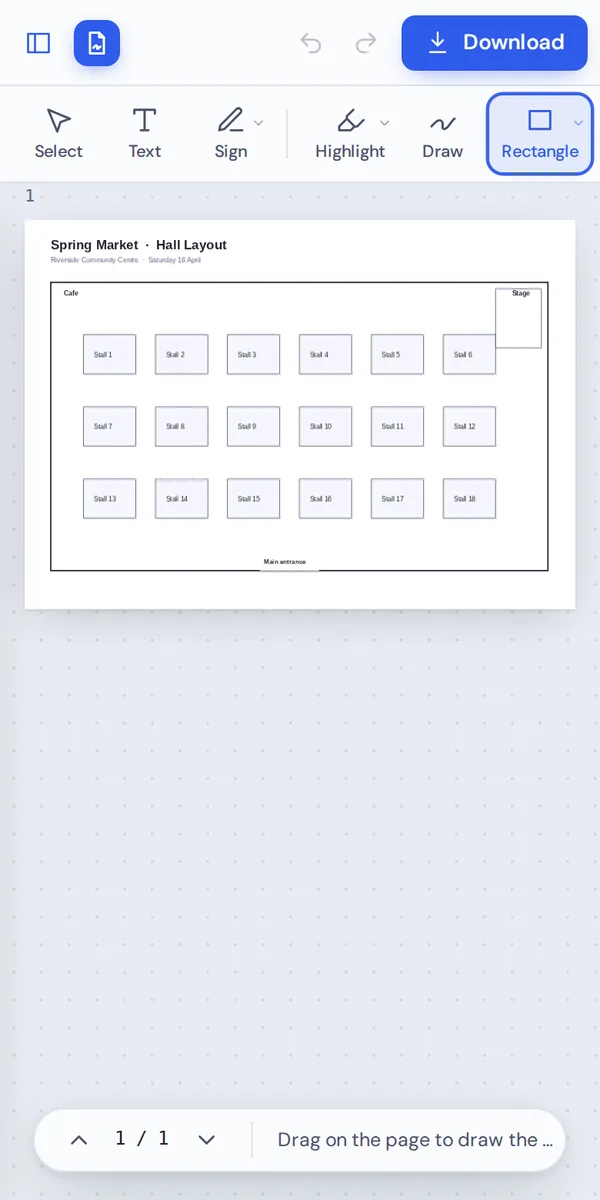
It works in any modern browser, with nothing to install. On a tablet, drag with your finger or a stylus to draw each shape.
Walking a venue with a floor plan? Add shapes to PDF pages as you go and share the marked-up plan straight away.
When People Use This Tool
Wherever you need to show where something is.
Floor plans
Mark rooms, exits and furniture.
Event layouts
Show stalls, stages and entrances.
Reports and charts
Circle the numbers that matter.
Forms
Box the sections someone must complete.
Teaching
Point to parts of diagrams and maps.
Screenshots
Frame buttons and settings in how-to guides.
Pro Tips for Faster Results
- Use see-through fillsA 50% fill marks an area without hiding it.
- Keep a color codeFor example, red for problems and blue for directions.
- Duplicate for a seriesStyle one box, then press Ctrl+D for the rest.
- Label everythingA short label next to each shape saves questions.
- Zoom in for precisionSmall shapes are easier to place when zoomed in.
- Undo anythingCtrl+Z removes the last shape.
Add Shapes to PDF: Frequently Asked Questions
Answers to what people ask most before they start.
How do I add shapes to PDF?
Open your PDF, choose a rectangle, ellipse, line or arrow from Shapes, and drag on the page. Set the border, fill and thickness, then click Download.
Can I add shapes to PDF for free?
Yes. Adding shapes and downloading are free, with no account and no watermark.
Can I add shapes to PDF online?
Yes. PDF Magic runs in your web browser, so you can add shapes to PDF files online on Windows, Mac, Linux or a Chromebook with nothing to install. Open your file in the tool at the top of this page to start.
How do I add shapes to PDF on my phone?
Open this page in your phone's browser, tap Choose PDF file and pick your document. Choose a shape and drag your finger on the page. Then tap Download. There is no app to install.
Can I add shapes to PDF without Adobe Acrobat?
Yes. You do not need Acrobat or any other software. PDF Magic works in your browser, and the file you download opens in Acrobat, Preview, Chrome and every other PDF reader.
Is it safe to add shapes to PDF online?
Yes. PDF Magic does not upload your file. It is opened and changed inside your browser tab and never sent to our servers, so nobody else sees it. Close the tab and nothing is left behind.
How do I add shapes to PDF without losing quality?
Shapes are saved as vector drawings, so they stay crisp at any zoom and in print.
What is the easiest way to add shapes to PDF?
Open the file above, press R for a box, E for a circle, L for a line or A for an arrow, and drag.
Ready to Add Shapes to PDF Pages?
No account, no upload and no watermark: open your document above and start drawing.
Open the editorPDF Magic is the easy, private way to mark up plans and diagrams. Open your file and add shapes to PDF pages today.