
Find and Replace in PDF Online
Find and replace in PDF documents: change a word, name or date on every page at once.
- No upload
- No watermark
- Every page at once
- Matches the original style
Find and replace in PDF files online, the way you would in a Word document. Search every page, see each match marked, then replace them all in one step. The new words match the size and style of the old ones, and your file is never uploaded.
How to Find and Replace in PDF Files in 4 Steps
It takes seconds to find and replace in PDF documents, even across many pages.
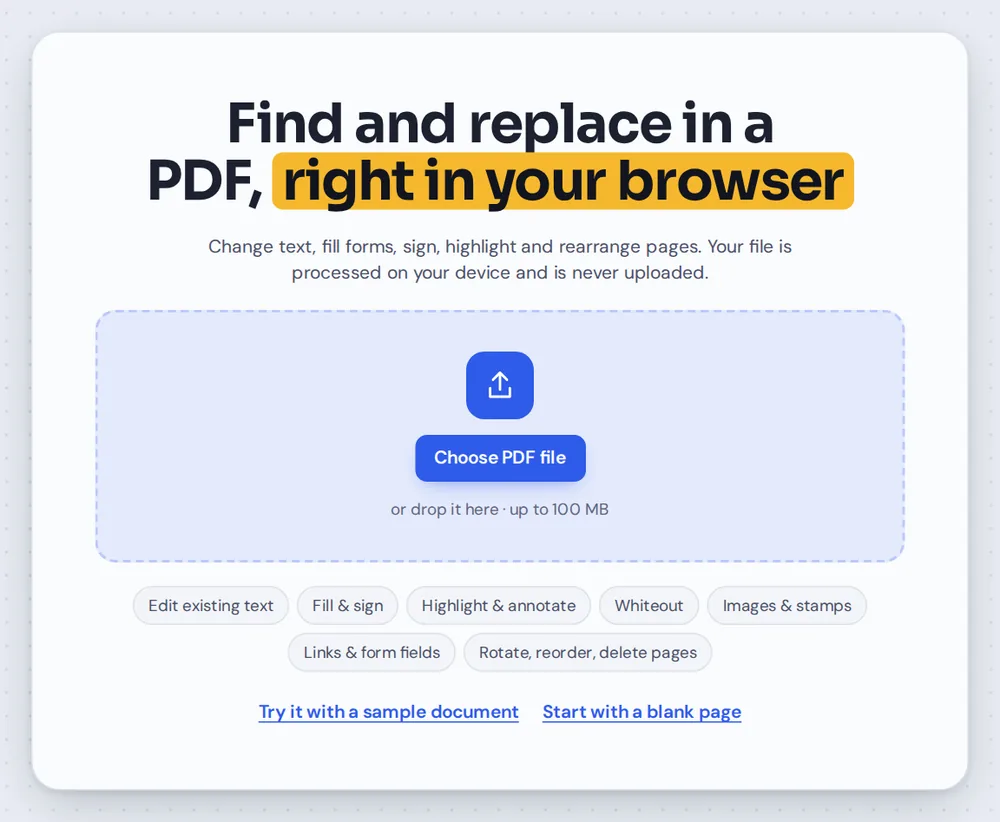
Open your PDF
Click Choose PDF file or drag your document onto the editor above. The search box opens by itself.
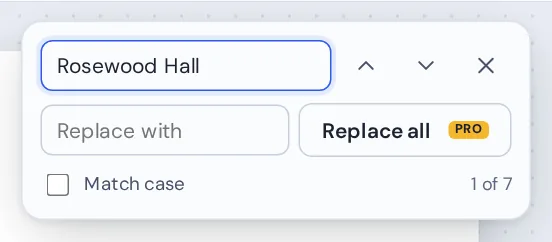
Search for a word
Type a word or phrase and press Enter. The count shows how many matches were found on all pages.
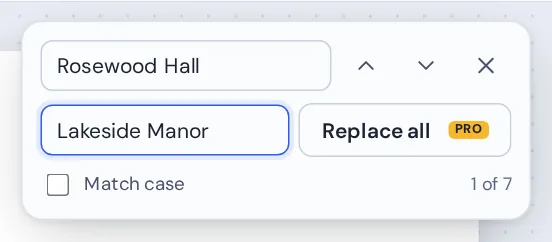
Replace them all
Type the new words in Replace with and click Replace all. Every match changes in one step.
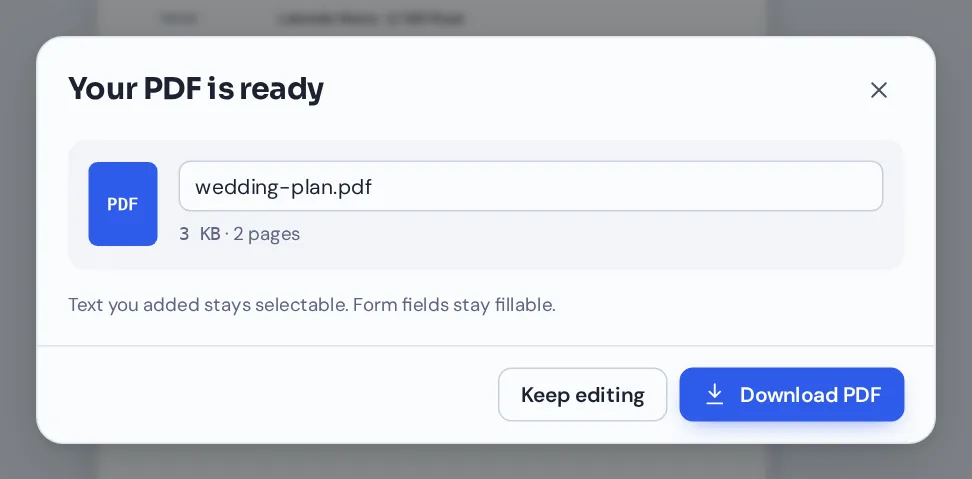
Download your file
Click Download and name your file. The new words are real, selectable text.
Find and Replace in PDF Plans When the Details Change
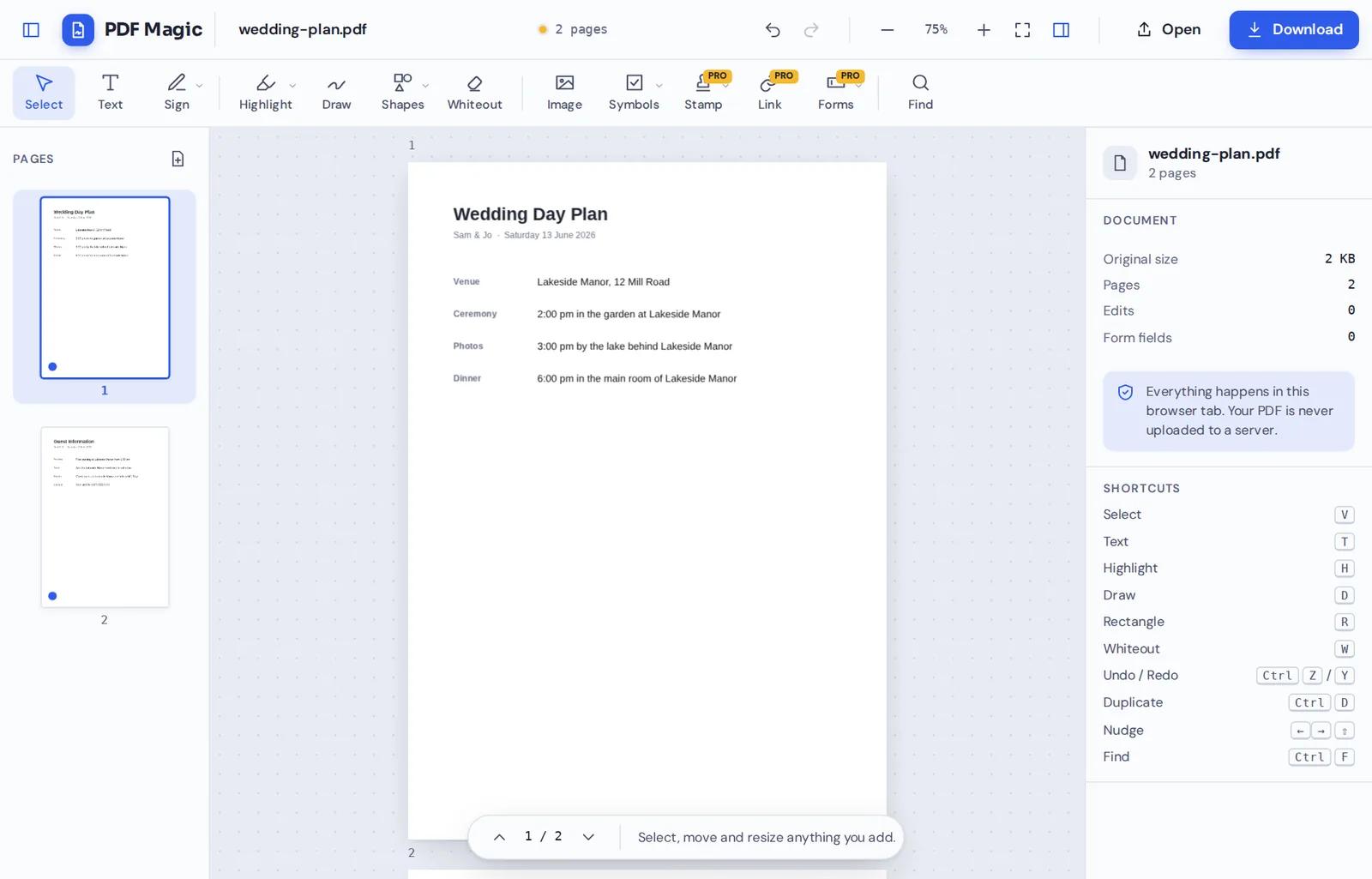
The venue changed, so "Rosewood Hall" became "Lakeside Manor" in all seven places across two pages, in one click.
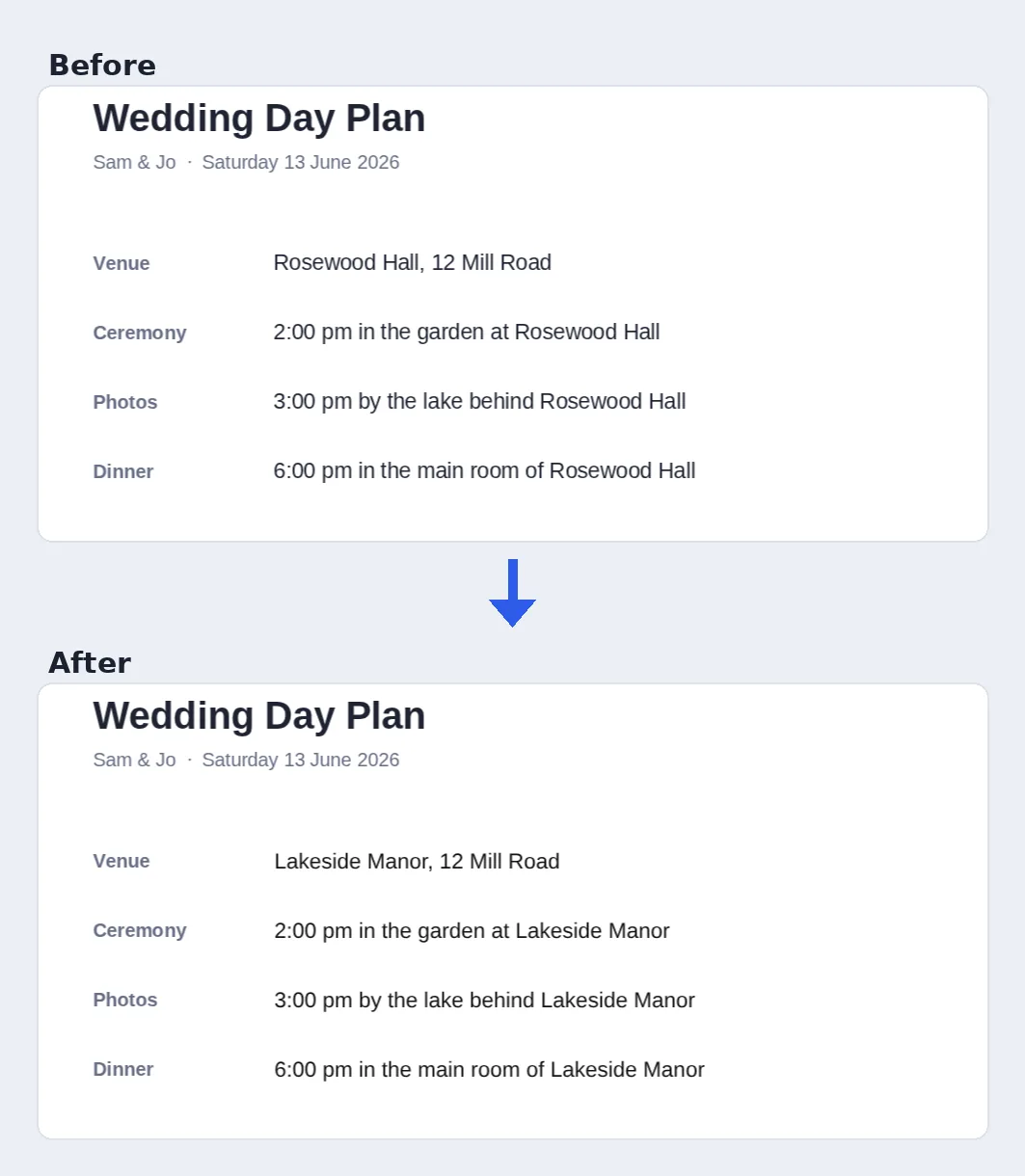
What Happens When You Find and Replace in PDF Pages
Searching is simple: PDF Magic reads the real text on every page and marks each match in yellow, with the current one in blue. Use the arrows or Enter to jump between them.
When you replace, each line that contains a match is covered with a patch that matches the page background, and the updated line is placed on top in the closest standard font, size and style.
The original words are covered, not removed, so they are still inside the file. Use this to update documents, not to hide confidential details.
Find
Search all pages at once and jump between matches. Free for everyone.
Replace all
Change every match in one step. Part of PDF Magic Pro.
Covered, not removed
The old words stay in the file under the new ones.
Everything You Can Do When You Find and Replace in PDF Files
Press Ctrl+F at any time to open the search box.
Find
See every match at a glance.
- All pages
PDF Magic searches every page, including text you added yourself.
- Marked on the page
Matches are tinted yellow, and the current one is blue.
- Jump between matches
Press Enter for the next match and Shift+Enter for the previous one.
- Match case
Tick Match case to find "May" but not "may".
Replace
Update a whole document in one step.
- Replace all
Changes every match on every page at once.
- Matching style
New words use the closest standard font and the same size, bold and italic.
- Undo
Press Ctrl+Z to undo the whole replacement.
Fine-tune
For changes that need a human touch.
- Edit a single line
Click any line with the Text tool to change just that one.
- Adjust the style
Select a replaced line to change its font, size or color.
Download
Save the updated copy.
- Selectable text
Replaced words are real text, so they can be searched again.
- No watermark
Your document looks exactly like yours, just updated.
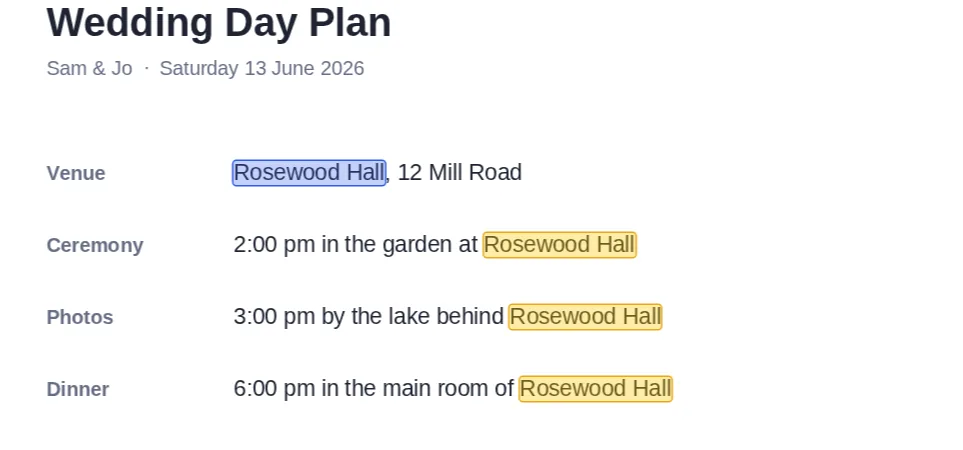
Every match is marked on the page before you change anything, so you can check what will be replaced when you find and replace in PDF documents.
Other Tools to Use When You Find and Replace in PDF Documents
They open the same document in the same editor, so nothing is uploaded.
Edit PDF text
Change a single line of text in place.
Add text to PDF
Type new words anywhere on the page.
Highlight PDF
Mark the lines you changed for a reviewer.
Whiteout PDF
Cover words and blocks with a white box.
Sign PDF
Sign the updated document.
PDF Editor
Every editing tool in one place.
Private by Design, With No Upload
When you find and replace in PDF files here, the document is searched and changed inside your own browser tab. It is never sent to our servers.
That makes it a safe choice for contracts, price lists, reports and letters.
- 0files uploadedYour PDF stays on your device.
- 0watermarksYour document looks like yours.
- 0installsIt runs in your browser.
Works on iPhone, Android and Computer
- Windows
- Mac
- Linux
- Chromebook
- iPhone
- iPad
- Android
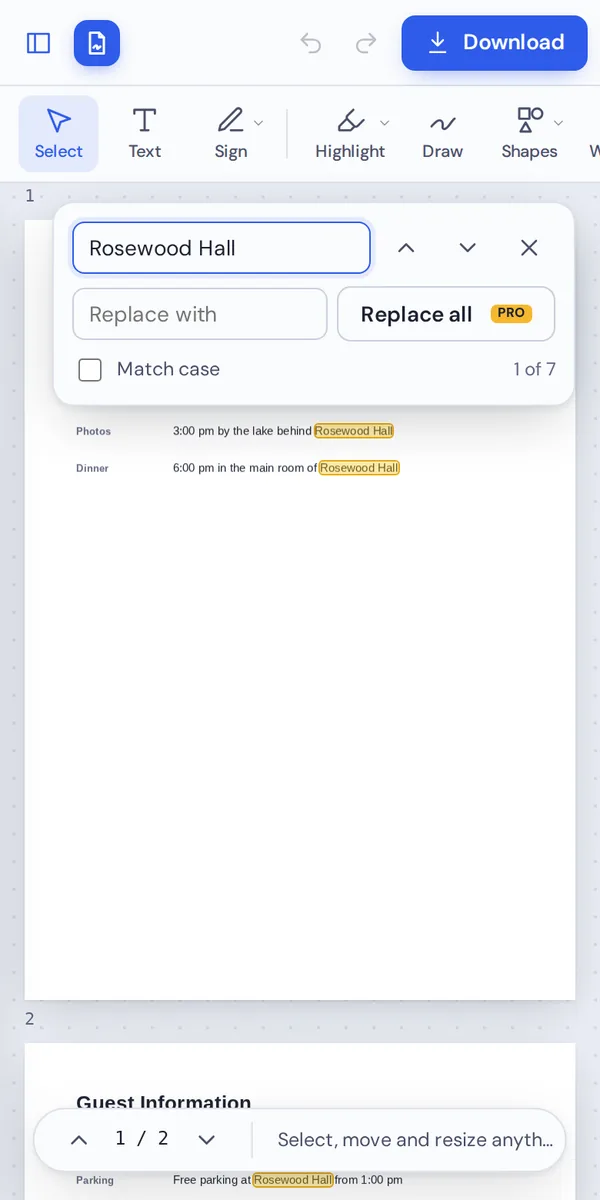
It works in any modern browser, with nothing to install. On a phone, the search box opens at the top of the page.
Need to fix a name in a long document on the go? Open it on your phone, find and replace in PDF pages and send the updated copy.
When People Use This Tool
People find and replace in PDF files whenever the same detail appears in many places.
Company names
Update a client or company name throughout a contract.
Dates and years
Change an event date or roll a document into next year.
Prices
Update a price that appears on several pages.
Addresses
Change a venue or office address everywhere.
Names
Swap a contact person's name in a plan or handbook.
Spelling
Fix a word that was misspelled throughout.
Pro Tips for Faster Results
- Check the matches firstLook through the marked matches before you find and replace in PDF pages.
- Use Match caseAvoid changing words that only look similar.
- Search for more wordsA longer phrase gives fewer surprises than a single word.
- Keep lengths similarLines do not reflow, so a much longer phrase may run into the margin.
- Scans cannot be searchedScanned pages are pictures without real text.
- Undo anythingCtrl+Z undoes the whole replacement.
Find and Replace in PDF: Frequently Asked Questions
Answers to what people ask most before they start.
How do I find and replace in PDF?
Open your PDF, click Find, type the word you want to change and the new word, then click Replace all. Every match on every page is changed. Click Download to save.
Can I find and replace in PDF for free?
Yes. During our launch every tool is free, with no account and no watermark.
Can I find and replace in PDF online?
Yes. PDF Magic runs in your web browser, so you can find and replace in PDF files online on Windows, Mac, Linux or a Chromebook with nothing to install. Open your file in the tool at the top of this page to start.
How do I find and replace in PDF on my phone?
Open this page in your phone's browser, tap Choose PDF file and pick your document. Tap Find, type the word and its replacement, and tap Replace all. Then tap Download. There is no app to install.
Can I find and replace in PDF without Adobe Acrobat?
Yes. You do not need Acrobat or any other software. PDF Magic works in your browser, and the file you download opens in Acrobat, Preview, Chrome and every other PDF reader.
Is it safe to find and replace in PDF online?
Yes. PDF Magic does not upload your file. It is opened and changed inside your browser tab and never sent to our servers, so nobody else sees it. Close the tab and nothing is left behind.
How do I find and replace in PDF without losing quality?
Only the matching words are replaced. Everything else on the page stays as it was, and the new words are real text.
What is the easiest way to find and replace in PDF?
Open the file above, press Ctrl+F, type both words and click Replace all. One click changes every page.
Ready to Find and Replace in PDF Files?
No upload and no watermark: open your document above and update it in one step.
Open the editorPDF Magic is the easy, private way to update a document. Open your file and find and replace in PDF pages today.